
Appearance
Find and track your invoices
The Invoices page shows what you've billed, what's been paid, and what you're still owed.
View and search your invoices
Select Invoices from the sidebar to see everything you've billed.
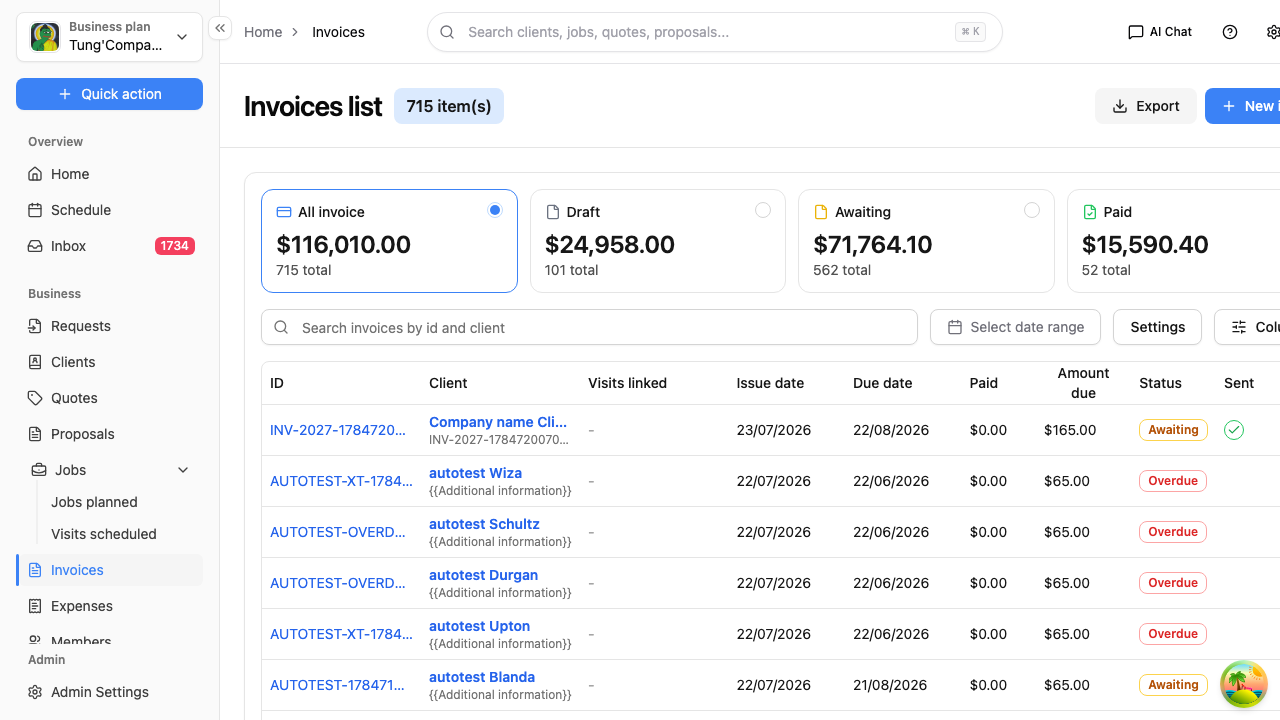
What you're owed at a glance
Four cards sit above the list, each with a count and a dollar total:
| Card | What it covers |
|---|---|
| All invoice | Everything you've raised |
| Draft | Started but not finalised |
| Awaiting | Sent, nothing paid yet |
| Paid | Paid in full |
Select a card to filter the list to just those invoices — a quick way to see everything still owing. All invoice is selected when you open the page.
Search for an invoice
Use the search box to find one by:
- Client name
- Invoice number, for example
INV-202606-265
What the columns mean
| Column | What it shows |
|---|---|
| ID | The invoice number |
| Client | Who you've billed |
| Visits linked | The visits this invoice was raised from, if any |
| Issue date | The day you raised it |
| Due date | When payment's due, worked out from your payment terms |
| Paid | How much has come in |
| Amount due | What's still owing |
| Status | Where the invoice is up to |
| Sent | A green tick once you've emailed it to the client |
Sent and Status are separate. Emailing an invoice ticks the Sent column; the status only moves when money is recorded against it.
Open an invoice
Select an invoice's row to open it — see View an invoice.
Long lists are split into pages — use the Previous and Next arrows at the bottom.
The toolbar
- New invoice — bill a client, see Create an invoice
- Export — download your invoices as a file, for your accountant or your own records
View an invoice
Select any row in the Invoices list to open it.
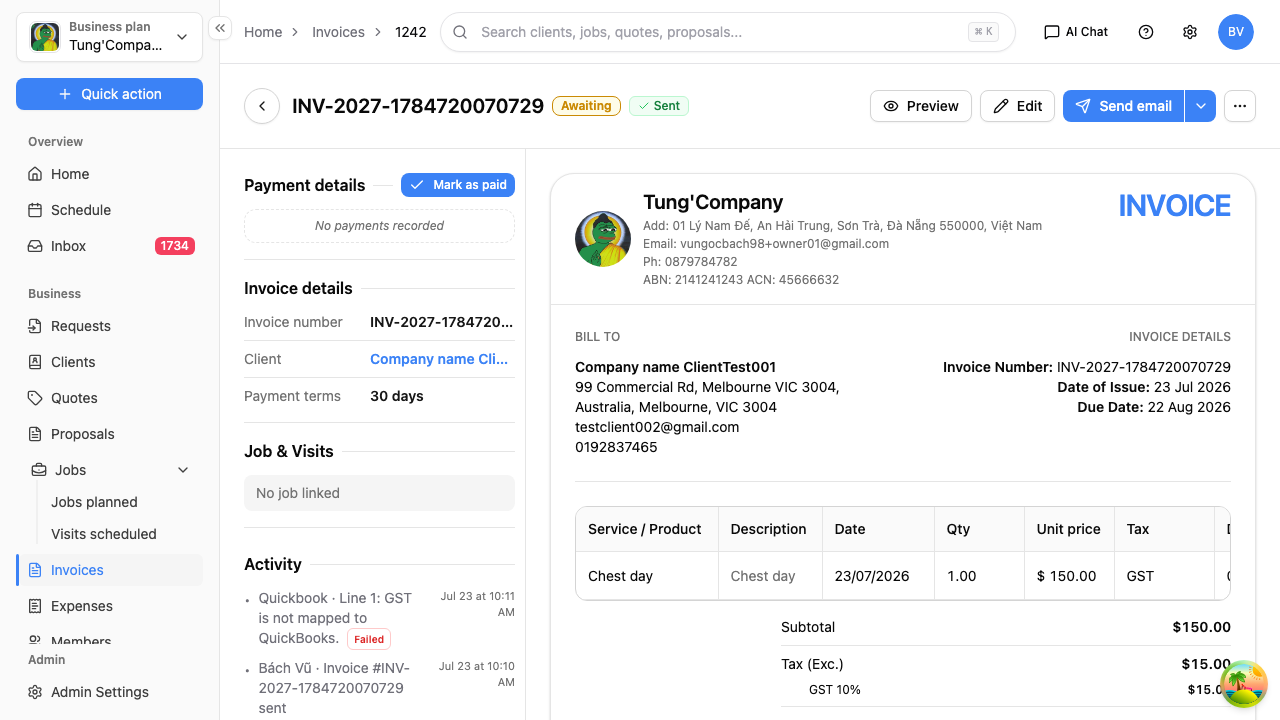
Header
The invoice number is the heading, with a Sent badge once you've emailed it out.
Alongside it:
- Send email — email it to your client, see Send an invoice
- Preview — opens your client's copy in a new tab, see What your client sees
- Edit — change the invoice
Once an invoice is paid in full, Edit disappears — a paid invoice is a record, not a draft. In its place you get:
- Copy invoice — start a new invoice from this one, handy for a repeat client
- Download PDF — save it as a PDF for your records
Payment details
The panel down the left starts with Payment details and its Mark as paid button. Until you record something it just reads "No payments recorded".
Once there are payments, each one shows the amount, how it was paid, the date and any note, plus two small buttons for changing or removing it. See Record a payment.
Invoice details
Underneath: the invoice number, the client (select their name to open their profile) and your payment terms.
Job & Visits
The job and visits this invoice was raised from, if you created it from a job. It reads "No job linked" for an invoice you raised by hand.
Activity
A running history of what's happened to this invoice — when it was sent, and anything your accounting integration has done with it. Handy for answering "did that actually go out?"
The invoice itself
The main part of the page is the finished invoice — your business details, who it's billed to, every line you're charging for, the totals, your notes and terms, and your payment instructions with your bank details.
There's a link to the client near the "Bill To" section if you need to check something on their record.