
Appearance
Approve, decline, or turn a quote into a job
What to do with a quote once your client has made up their mind.
Update a quote's status
Most of the time your client answers the quote themselves and the status looks after itself. But when they tell you over the phone or on site, you can update it yourself.
You'll find these actions in two places:
- On the Quotes list, select the ⋯ button at the end of a quote's row.
- On a quote, select More actions.
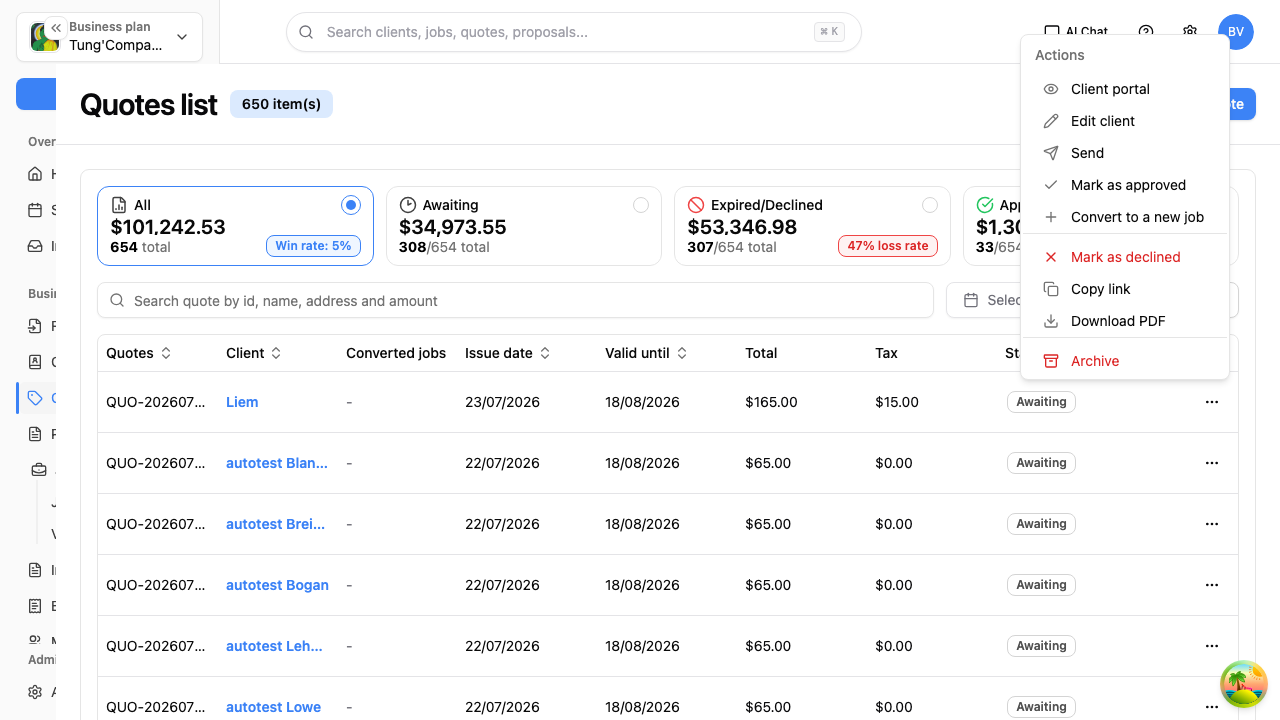
What's in the menu depends on where the quote is up to — an archived quote, for example, has fewer options than one still waiting on an answer.
Mark a quote as approved
Select Mark as approved when the client's said yes but hasn't clicked the button themselves. The status changes to Approved, and you can then turn it into a job.
Set it by mistake? On an approved quote, Unmark as approved puts it back to Awaiting so your totals stay accurate.
Mark a quote as declined
Select Mark as declined when the client's said no. The status changes to Declined and the quote drops out of your Awaiting total.
Changed your mind? On a declined quote, Unmark as declined returns it to Awaiting.
Copy the client's link
Copy link copies your client's own view of the quote to the clipboard. Paste it into a text or your own email if you'd rather not send it through HiTradies — see What your client sees.
Download a PDF
Download PDF saves the quote as a PDF, ready to attach or print.
Archive a quote
HiTradies doesn't let you delete a quote — you archive it instead, so your numbers stay honest and there's still a record of what you priced.
- Select Archive.
- Select the confirm button in the window that appears.
The quote's status changes to Archived and it stops cluttering up your active list. Archiving is the tidy-up for quotes that went nowhere, not a way to hide a mistake — if you've quoted the wrong amount, Edit the quote instead.
Need an archived quote back? Open it (switch the status filter to see archived quotes) and select Activate — it returns to your active list as Awaiting.
Turn a quote into a job
Once a client's accepted your quote, you don't need to type the pricing out again — HiTradies can start the job for you with everything carried across.
- Go to the Quotes list.
- Find the quote and select the ⋯ button at the end of its row.
- Select Convert to a new job.
You're taken to the New job plan screen with the client and the whole Services & Products list already filled in from the quote — every service, description, quantity, unit price and tax.
What you still need to fill in
The job needs a few things a quote doesn't have:
- Job title
- Service address — this fills in from the client's saved address as soon as they're selected
- Start and end dates, and start and end times
- The team member doing the work
Then select Approve to book it in. There's more detail on each of these in Create a job.
Handy to know
- Convert from the ⋯ menu on the quotes list, or on the quote itself.
- Once the job's created, open it and you'll see a From quote link in the job details, taking you back to where it started.
- Converting changes the quote's status to Converted. It stays in your list as a record of what you priced, but a converted quote can't be converted again or moved back — the only thing left to do with it is to archive it.