
Appearance
Record a payment
Mark an invoice paid, take a part payment, or fix one you've entered wrong.
When a client pays you directly — bank transfer, cash on the day, card on site — record it against the invoice so your books stay straight.
(If they pay through the link on their own copy of the invoice, it's recorded for you. See What your client sees.)
Mark an invoice as paid
- Open the invoice from the Invoices list.
- Select Mark as paid.
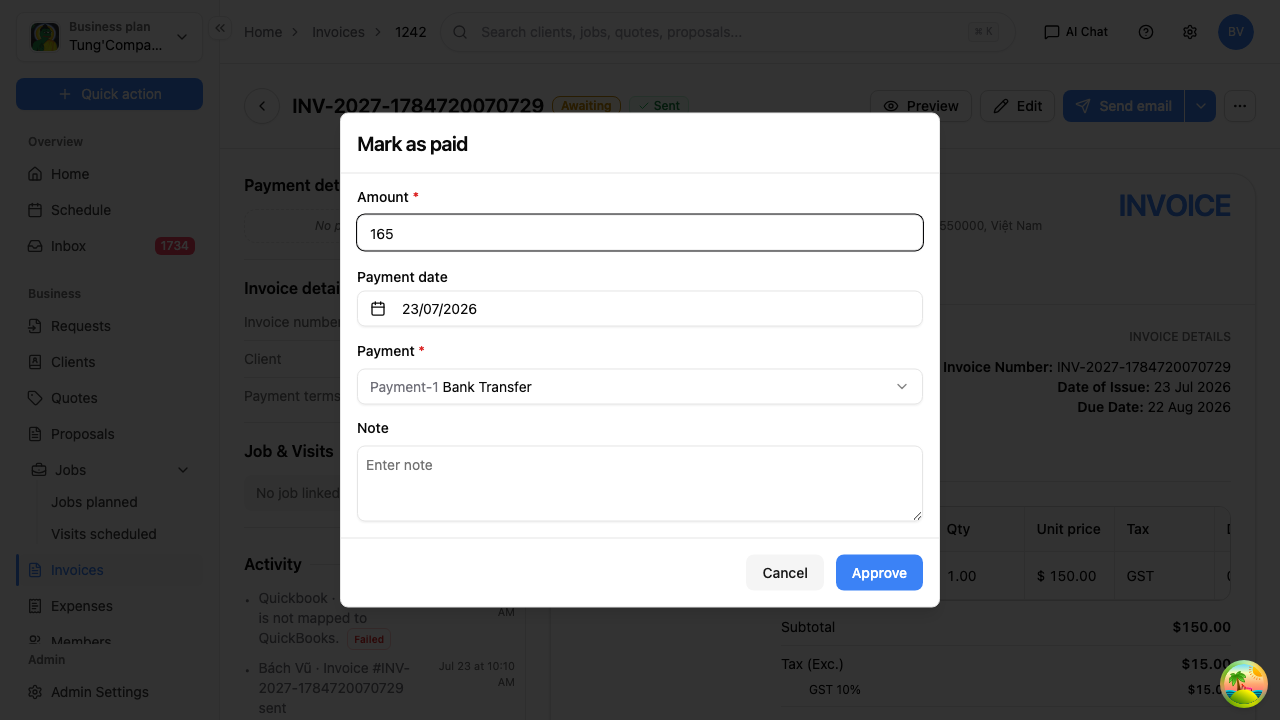
The window opens with most of it filled in already:
- Amount — the full balance owing
- Payment date — today
- Payment — how they paid, Bank Transfer by default
- Note — anything worth remembering, like a receipt number
- Select Add payment.
The invoice's status, badges and progress bar update straight away.
Recording a part payment
Same steps — just type a smaller amount over the pre-filled one.
The invoice becomes Partially paid rather than Paid, and the balance keeps showing in Amount due and in your Awaiting total. Record the rest the same way when it comes in.
This is how you handle a deposit up front, or a client paying a big job off in instalments.
Fixing a payment
Both buttons are on the payment's row in Payment details.
- The pencil opens the full invoice for editing, where you can change the payment in the Payments section.
- The bin removes the payment. You'll be asked to confirm first, because it can't be undone.
Removing a payment puts the balance back into Amount due and moves the invoice's status back accordingly.