Appearance
Signing in
This covers creating your HiTradies account, logging in, and resetting your password if you ever forget it.
Create your HiTradies account
Setting up your account only takes two quick steps.
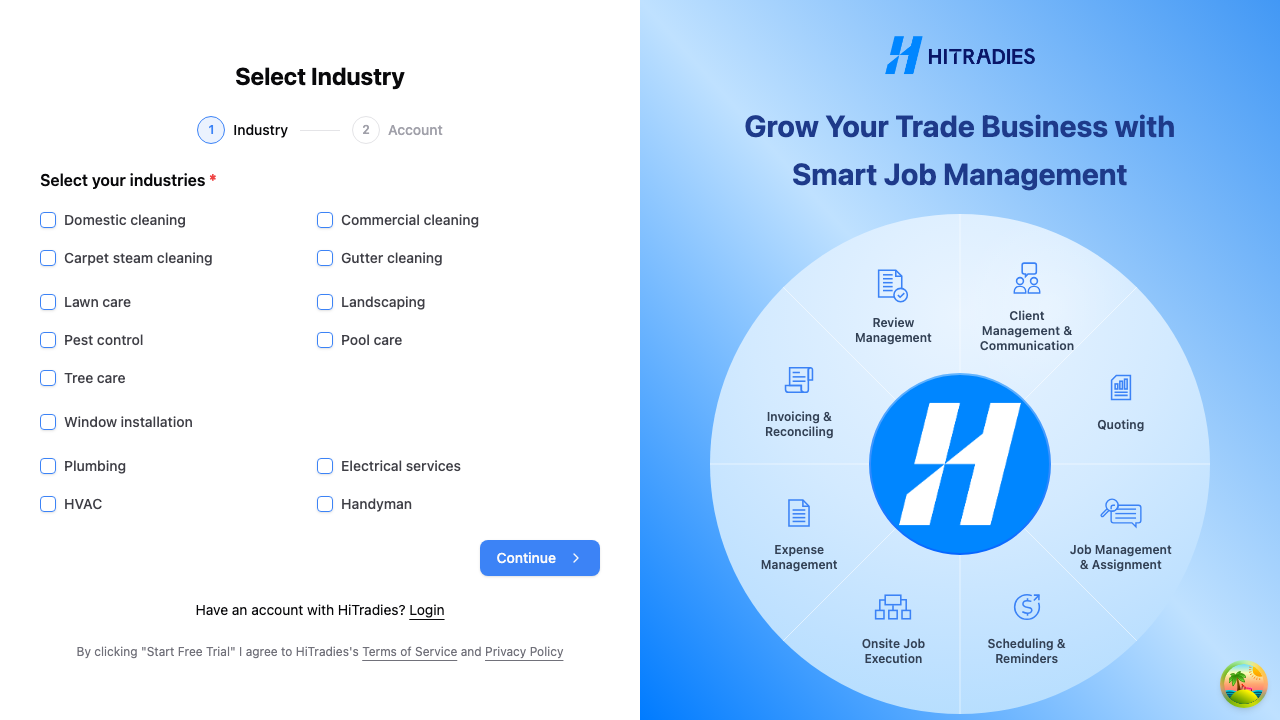
Step 1: Tell us your industry
- On the sign-up page, tick the industry (or industries) that best describe your business.
- Select Continue.
You'll need to tick at least one industry before you can continue.
Step 2: Set up your login
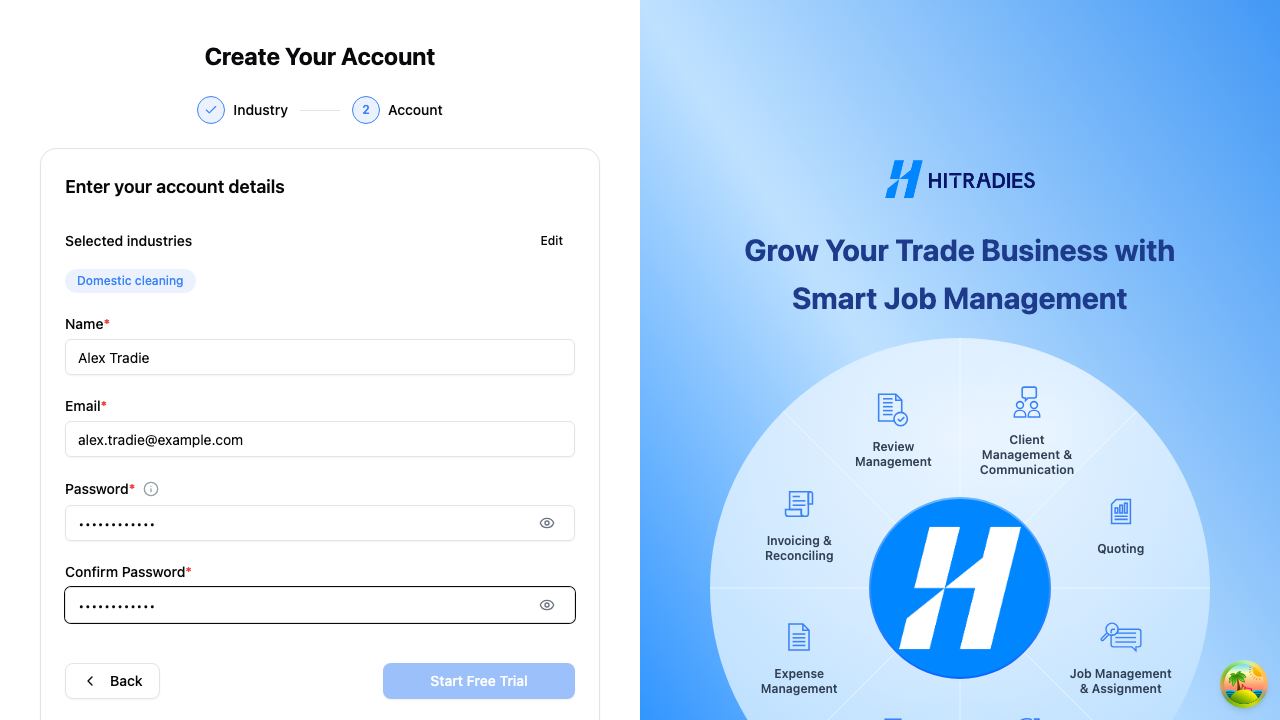
- Fill in your details:
- Name
- Email address
- Password
- Confirm password
- Select Start Free Trial.
Your chosen industries are shown at the top of this screen — select Edit if you need to change them before signing up.
You might see a short security check while the page loads — that's normal and happens automatically, no action needed from you.
Changed your mind about your industry? Select Back to return to step 1.
What happens next
You're logged in straight away and taken to your new HiTradies dashboard. We'll ask a few quick questions about your business (business name, phone number, website) so we can finish setting up your account.
Log in to HiTradies
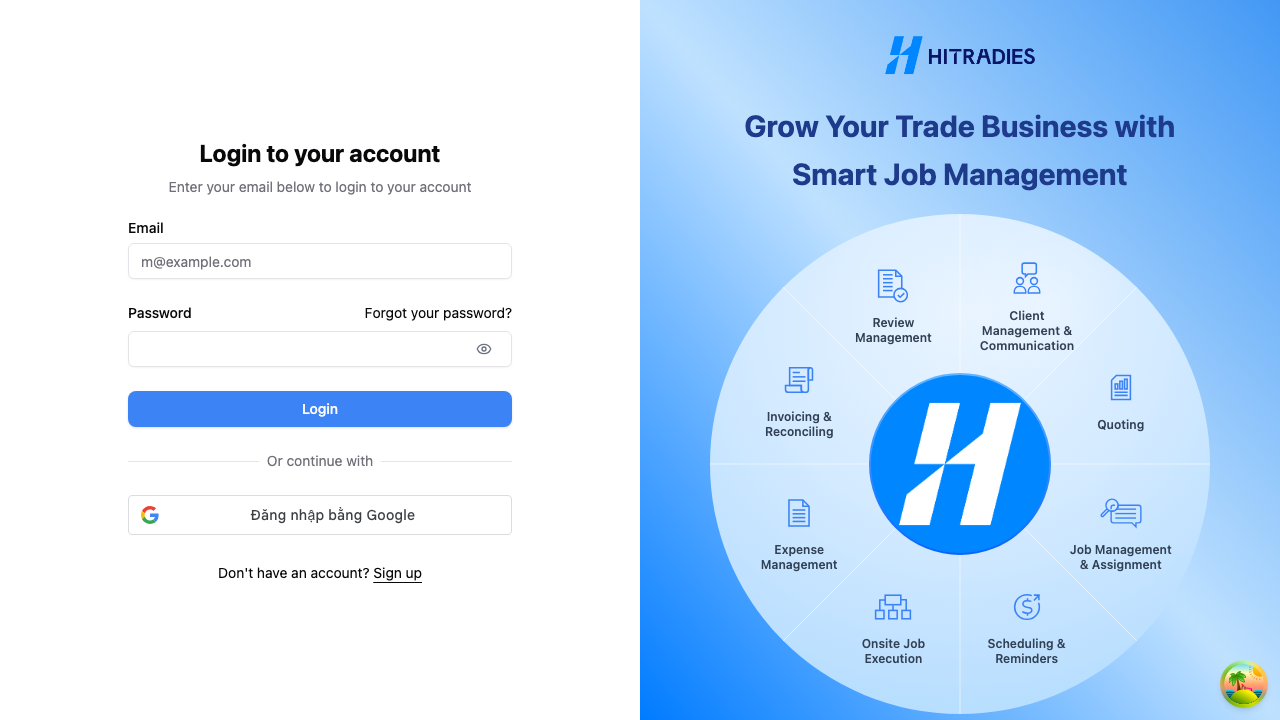
- Go to the HiTradies login page.
- Enter your email address and password.
- Select Login.
If your details don't match what we have on file, you'll see a message letting you know your email or password is incorrect. Double-check for typos and give it another go.
Other options on the login page
- Forgotten your password? Select Forgot your password? to reset it — see Reset your password.
- New to HiTradies? Select Sign up to create an account — see Create your HiTradies account.
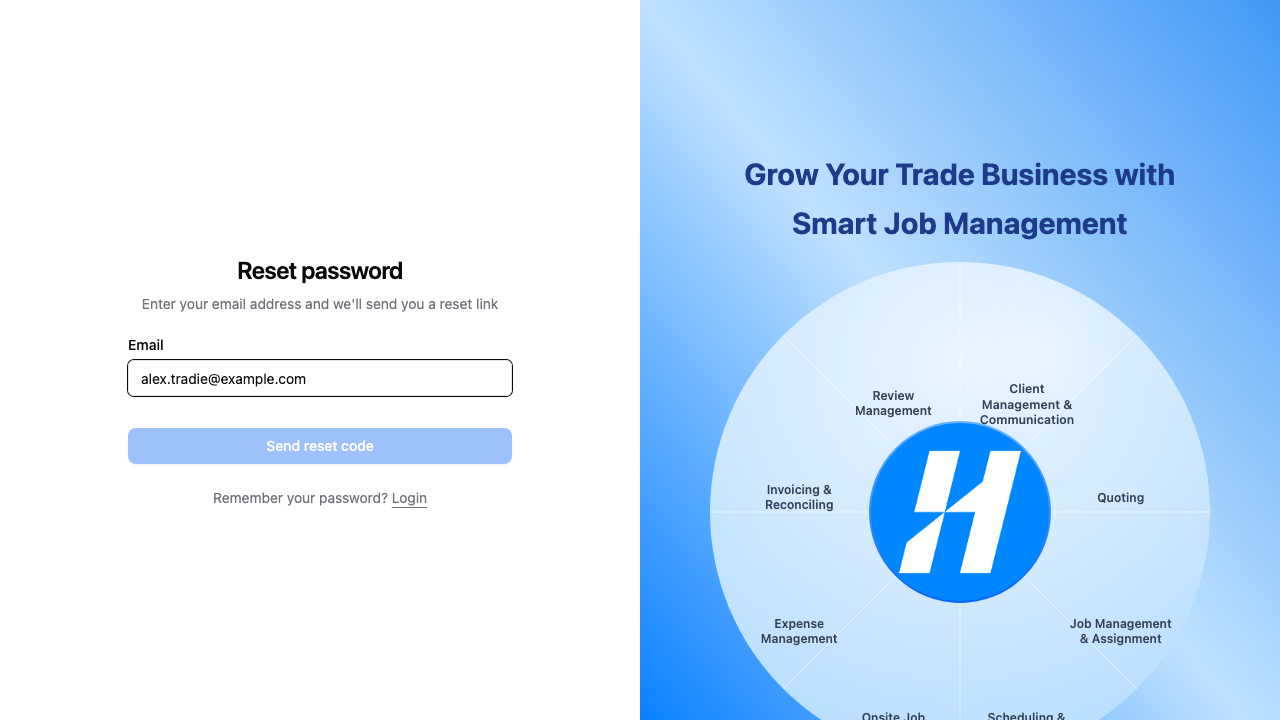
Reset your password
- On the login page, select Forgot your password?
- Enter the email address linked to your HiTradies account.
- Select Send reset code.
You'll see a confirmation that we've sent a password reset link to your email. Open the email and follow the link to choose a new password.
Sent it to the wrong address? Select Try another email to enter a different one.