
Appearance
Reminders
HiTradies can send reminders automatically on your behalf — the defaults you set once for your whole company, and a customised version you can set for one client.
Company-wide reminders
Select Reminders in the Settings list. This is where you set up the automatic reminders HiTradies sends on your behalf — nudging a client about a quote that's about to expire, reminding them of an upcoming job, or chasing an unpaid invoice.
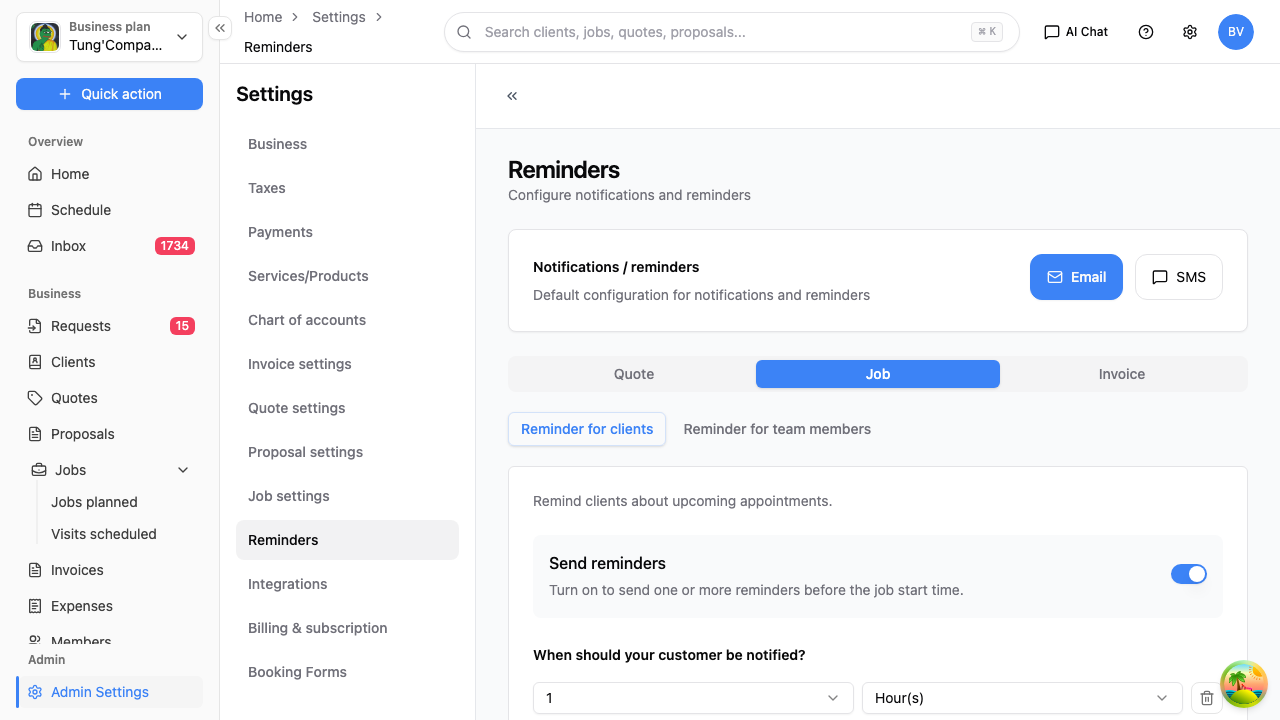
The tabs
Reminders are set per document type, plus who receives them:
- Quote — remind a client about a quote awaiting their answer.
- Job — remind a client (and your team) about an upcoming job.
- Invoice — remind a client about an invoice due.
- Reminder for clients and Reminder for team members — fine-tune who gets what.
Turning a reminder on
Each tab has an on/off switch at the top. Switch it on and the rest of the settings for that reminder appear:
- When it's sent — how long before (or after) the event, as one or more intervals. Select New another interval to add another (say, a reminder a week before and a day before).
- The email — the subject and message the client receives.
Writing the reminder
The message works like the other document templates: type your wording, and drop in merge fields — buttons like {JobNo}, {CustomerName} and {CompanyName} — that HiTradies fills in with the real details when the reminder goes out. There are also ready-made templates (Friendly, Professional, and so on) you can start from.
Saving
As elsewhere in Settings, the Save button stays greyed out until you've changed something, then becomes active. Save each tab after you set it up.
Reminders for one client
HiTradies can automatically remind a client before their job starts, so you don't have to call or text them yourself.
The default
Every new client starts with the same default:
- Channel: Email
- Timing: 1 hour before the job starts, and 1 day before the job starts
This is on by default for every client and, right now, can't be switched off — even if you flip the switch and save, reminders will keep going out.
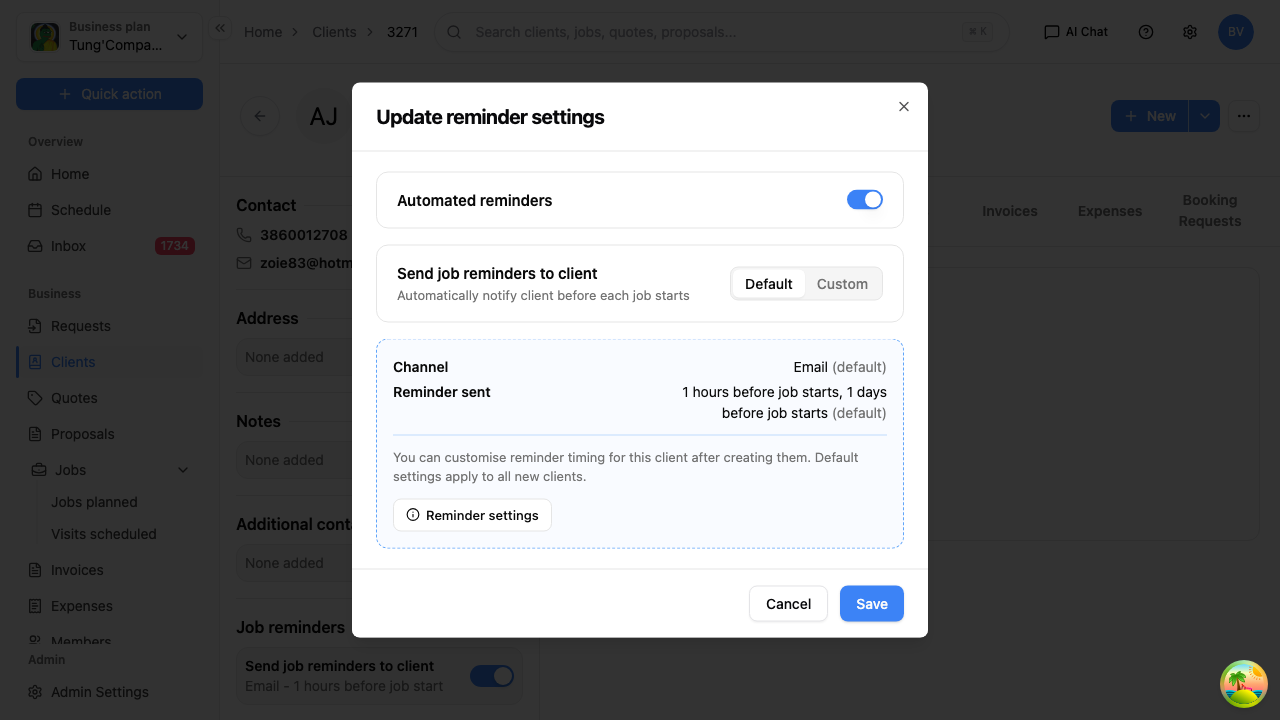
Customising it for one client
- Open the client's profile (select their name from the Clients list).
- On the Overview tab, select Edit next to Job reminders.
- Select Custom.
- Choose a Default channel — Email or SMS.
- Set when the client should be notified, e.g. "1 Hour(s) before" or "1 Day(s) before". Select + New another interval to add more, or the bin icon to remove one.
- Select Save.
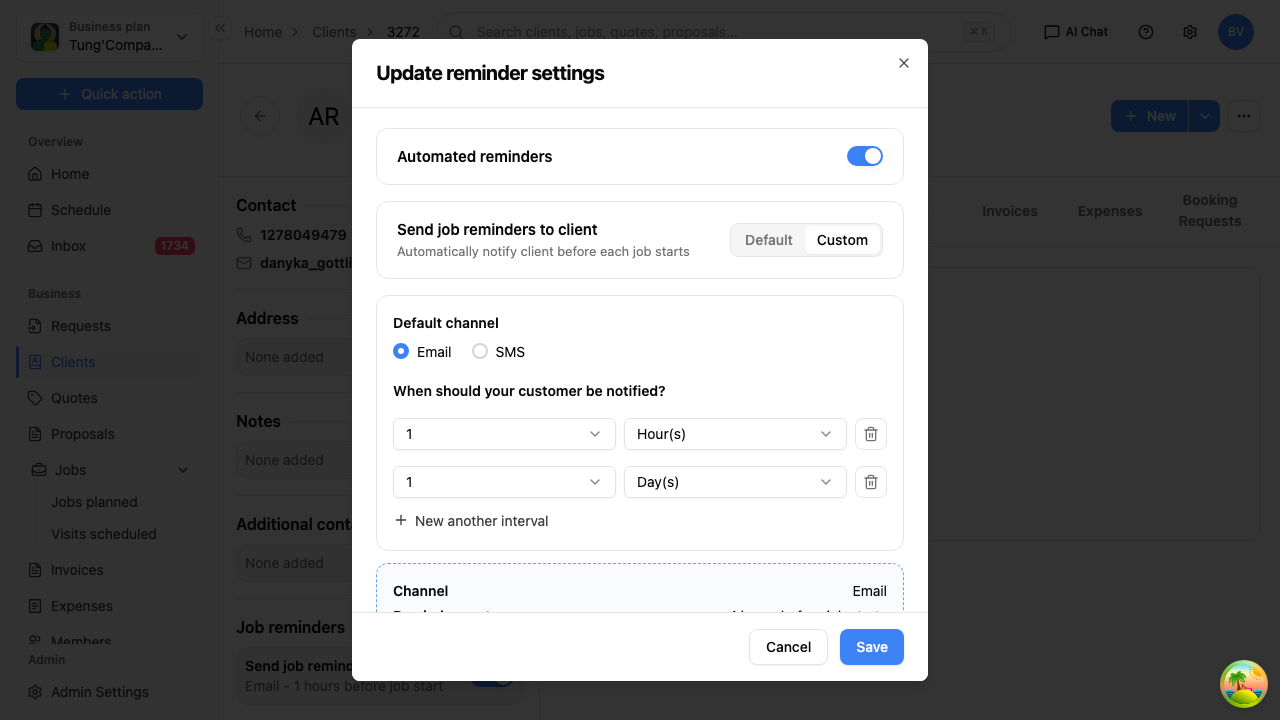
Want to change the default that applies to every new client, rather than just this one? Select Reminder settings within this dialog — see Company-wide reminders.