
Appearance
Create a quote
Price up a job and get it ready to send.
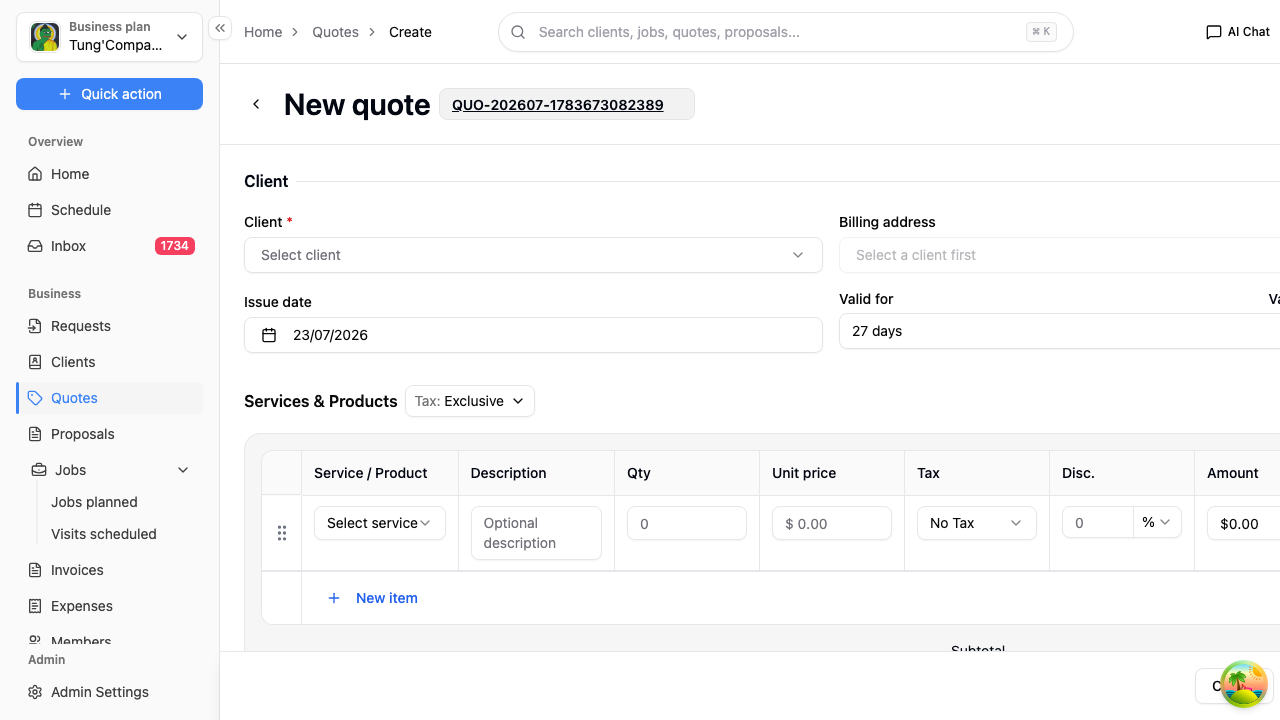
- From the Quotes page, select New quote.
- HiTradies gives the quote its own number straight away — you'll see it next to the heading. You don't need to fill it in.
- Work through each section below.
- Select Approve & email to save the quote and go on to send it to your client, or Cancel to leave without saving.
There's no separate "save as draft" — Approve & email is how you save a quote. Once it's saved you can send it straight away or come back to it later.
Client
Select the Client box and pick who the quote is for. Start typing in the search box to narrow the list down.
Add the client first if they're not in your list yet — see Add a new client. You can also start a quote from a client's profile with + New, which fills this in for you.
Billing address stays greyed out until you've chosen a client, then fills in from their saved address.
You can change the client later, too, as long as the quote is still editable:
- Open the quote and select Edit.
- In the Client section, select the client box and choose a different client — start typing to search your list.
- Check the Billing address — it refills from the new client's saved address.
- Your priced lines stay put, so just give them a quick review.
- Select Update to save the change.
(A job, by contrast, always keeps the client it was created for — so if a job ends up on the wrong client it has to be recreated.)
Schedule
- Issue date — the day you're raising the quote. Defaults to today.
- Valid for — how long the price holds, in days. HiTradies works out the Valid until date for you and shows it underneath.
Once that date passes the quote's status changes to Expired on its own.
Services & Products
This is the pricing itself. Each line is one thing you're charging for.
- Select Select service and choose from your saved services and products — the price fills in automatically.
- Adjust the Description, Qty and Unit price if this job's a bit different.
- Set Tax and any Disc. (discount) for the line. A discount can be a percentage or a dollar amount.
- Select New item to add another line.
Use the drag handle at the left of a line to reorder it, or the remove button at the right to delete it.
At the top of the section there's a Tax: Exclusive/Inclusive toggle — this decides whether your unit prices already include tax or have it added on top. Set it before you start entering prices.
Underneath the lines you'll see the Subtotal, Tax and Total, plus a Deposit box if you want to ask for money up front. Like a discount, the deposit can be a percentage or a dollar amount.
Notes
- Client message — what your client reads on the quote. It's already filled in from your saved quote template, so you only need to change it if this job needs something specific.
- Internal note — only your team sees this. Never shared with the client.