
Appearance
Manage requests and turn them into quotes
Every booking request lands in one list. From there you can price it up or turn it down.
Manage booking requests
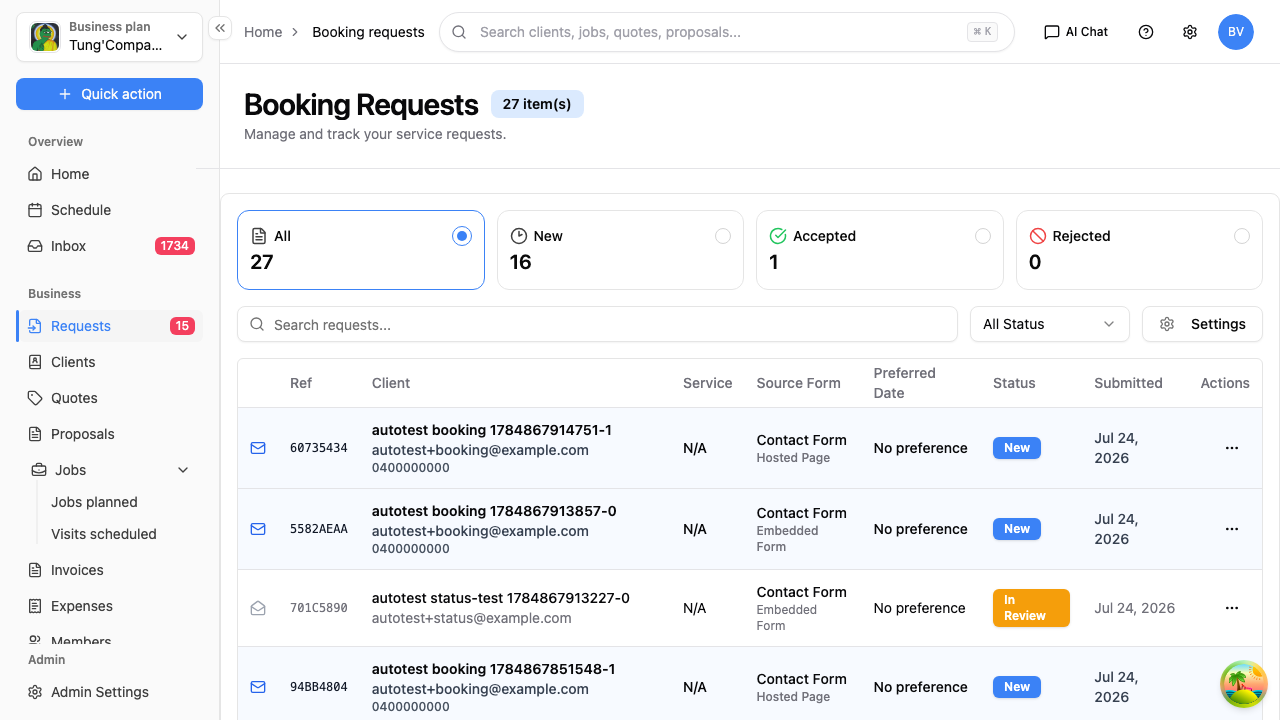
Select Requests in the sidebar to see everything customers have submitted through your booking forms.
New requests show as unread: the row is highlighted with a mail icon, and Requests in the sidebar shows an unread count. Opening a request marks it read, and the count drops.
What you're looking at
Four summary figures across the top show where your requests stand: All, New, Accepted and Rejected.
Each request in the table shows:
| Column | What it shows |
|---|---|
| Ref | A short reference for the request (the first part of its ID) |
| Client | Who submitted it: name and email |
| Service | The service they asked for |
| Source Form | Which form it came through, and how: your hosted page, an embedded form on your site, a client's profile, or another source |
| Preferred Date | When they'd like the work, if they said |
| Status | Where the request is up to (see below) |
| Submitted | When it came in |
Request statuses
| Status | What it means |
|---|---|
| New | Just arrived, not looked at yet |
| In Review | You're looking into it |
| Accepted | You've taken it on |
| Scheduled | Booked in |
| Rejected | You've turned it down |
| Cancelled | Pulled out of your active list without turning it into work |
| Quote Created | You've turned it into a quote |
Find a request
- Search the list with the search box.
- Filter by status with the status dropdown (All Status, New, In Review and so on). Use it to focus on, say, just the new ones.
Act on a request
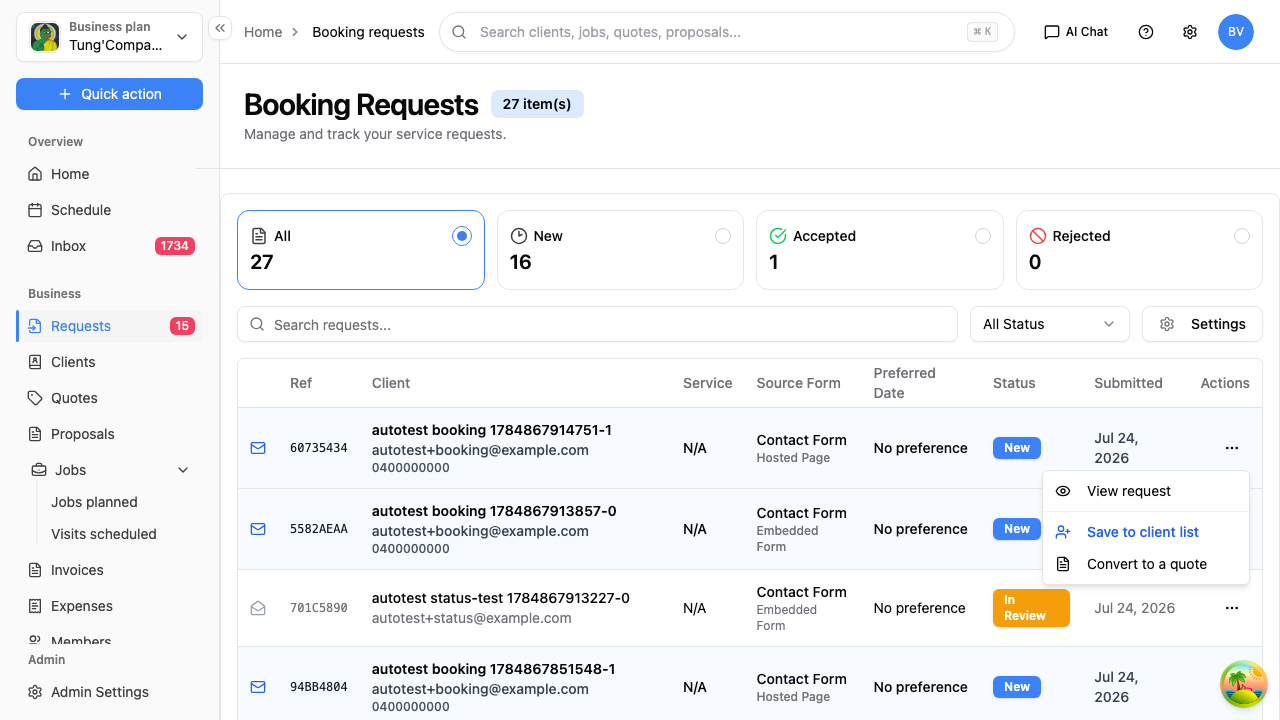
Select the Actions button at the end of a request's row:
- View request — see the full details.
- Save to client list — add the person to your clients.
- Convert to a quote — start a quote from the request. See Turn a request into a quote.
These two options change once a request is linked up:
- Save to client list becomes View details, a link to the client, once the request has a client.
- Convert to a quote becomes View quote once a quote exists. The row also shows Quote Created, with a link straight to that quote.
Note — A returning customer is recognised automatically. If a request comes in under an email that matches an existing client, HiTradies links it to that client for you instead of creating a duplicate.
What's on a request
Open a request with Actions → View request, or select its row. You'll see everything the customer sent, and this is where you act on it:
- Service details — the service they asked for (if any), their preferred date and time, address, notes, and the answer to your custom question if the form had one.
- Marketing attribution — where the lead came from: campaign tags (UTM source, medium and campaign), the page they submitted from, and the site that referred them. It only appears when that information was captured. It's handy for seeing which ads or channels bring in work.
- Update status — set the request's status here: New, In Review, Accepted, Scheduled, Quote Created, Rejected or Cancelled.
Turn a request into a quote
When a booking request is worth pursuing, you can start a quote from it without retyping the customer's details.
- Select Requests in the sidebar.
- Find the request and select its Actions button.
- Select Convert to a quote.
- Check the quote. HiTradies opens a new quote pre-filled from the request. The customer's details and the service they asked about carry across.
- Add your pricing, then save and send it. From here it's a normal quote. See Create a quote.
Note — If the request isn't linked to a client yet, converting creates that client and links them to the request, so the quote always opens with a real client attached. Those client details are minimal, and you can tidy them up later.
The quote itself is only a draft until you save it. Nothing is stored, and the request keeps its current status, until you save the quote on that screen.
What happens to the request
Once you've made a quote from it, the request's status becomes Quote Created, and its row links to the quote. You can always get back to it.
Add the customer to your clients
If you want the person in your client list before, or instead of, quoting:
- Select Actions on the request.
- Select Save to client list.
That creates a client from their details, ready to quote, book or invoice like any other. You don't have to do this before converting. Convert to a quote creates the client for you if the request isn't already linked to one.
Turn a request down
Not every request is a job for you. There's no harm leaving one as it is. If you'd rather clear it:
- Open the request.
- Set its status to Rejected (or Cancelled).
It drops out of your active list. The record stays, just off your active view.