
Appearance
A client's profile
Select any client's name from the Clients list to open their profile — it's the one place that brings together their details, jobs, quotes, and invoices.
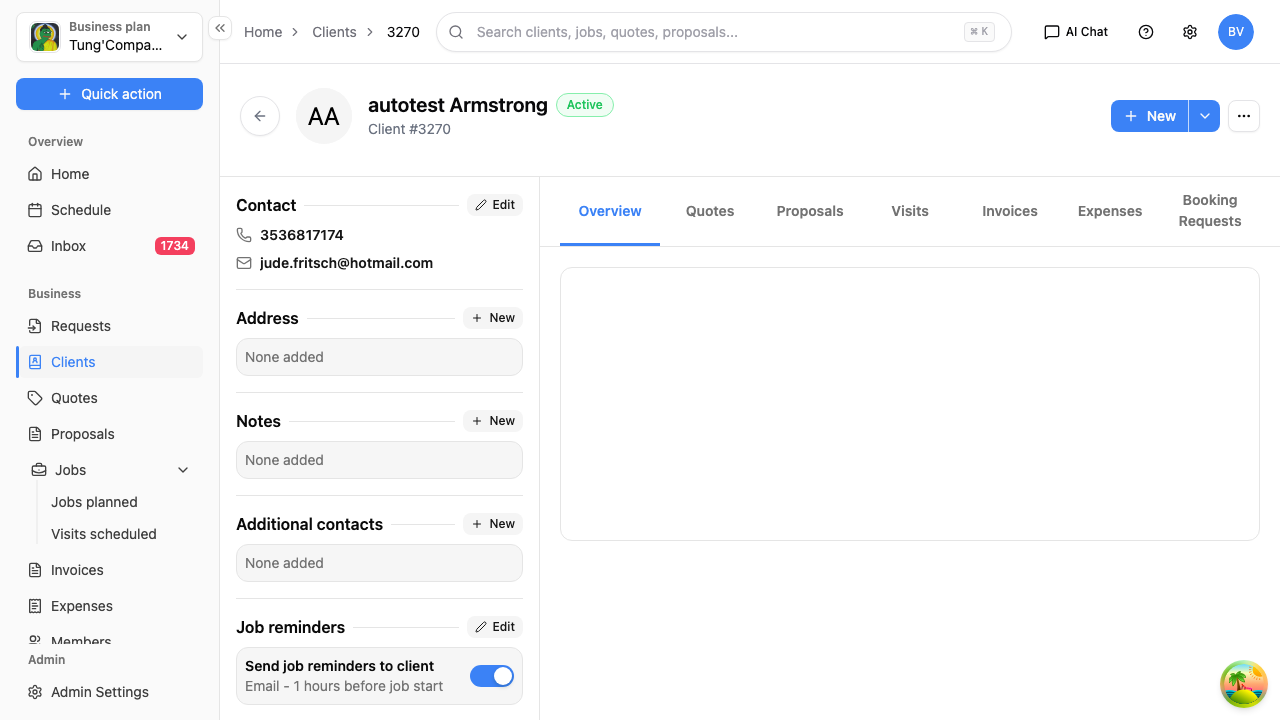
Header
- Their name, status (Active or Inactive), and client number
- Three quick totals: how many Quotes and Jobs they have, and any Overdue amount across their invoices
- + New — quickly start a new quote or job for this client, see below
- ⋯ menu — Edit or Inactivate this client, see Edit a client and Inactivate a client
Quickly create a quote or job
No need to look the client up again when you're ready to quote or book work for them:
- Select + New, top right of their profile.
- Choose New quote or New job.
You're taken straight to that module's create screen with this client already selected, so you can just fill in the rest of the details.
Overview tab
Open by default, this is where you manage the client's own details:
- Contact — their phone and email. Select Edit to update.
- Address — their service address. Select Edit to add or change it.
- Notes — internal notes about this client, only visible to your team. Select New to add one.
- Additional contacts — anyone else linked to this client, like a partner or office manager. Select New to add another.
- Job reminders — how this client is notified before each job. See Set up job reminders for a client.
Further down you'll also find Client feedback and Public review.
Other tabs
Switch tabs along the top to see this client's history. Each tab only shows records that belong to this one client:
| Tab | What it shows |
|---|---|
| Quotes | ID, issue date, valid date, total, tax, and status |
| Jobs | Address, scheduled date, instructions, invoiced status, and job status |
| Invoices | ID, issue date, due date, amount paid, amount due, and status |
| Booking Requests | Any booking requests this client has made |
This is a quick way to check a client's history before you pick up the phone to them — no need to dig through the Quotes, Jobs, or Invoices sections separately.