
Appearance
Find and track your jobs
The Jobs page is where you see everything you've booked and how each one is tracking.
View and search your jobs
Select Jobs in the sidebar, then Jobs planned, to see everything you've booked in.
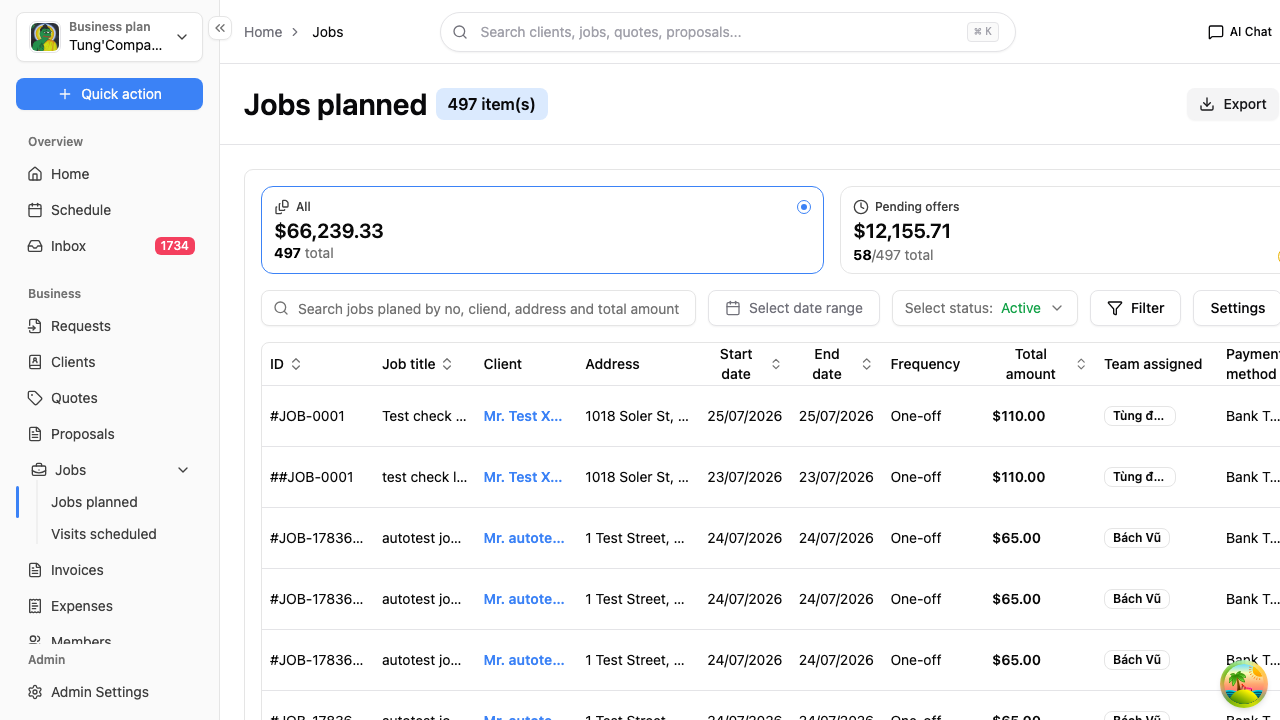
Search for a job
Use the search box above the list to find a job by:
- Job number
- Client name
- Address
- Total amount
Open a job
Select anywhere on a job's row to open it — see View a job.
Long lists are split into pages. Use the Previous and Next arrows at the bottom to move through them.
The toolbar
- New job plan — book in a new job, see Create a job
Looking for a particular day's work?
The jobs list is the place to find a booking. To see the individual visits — what's on this week, what's overdue, what's been done — switch to Visits scheduled instead. See Manage your scheduled visits.
View a job
Select any row in the Jobs planned list to open that job.
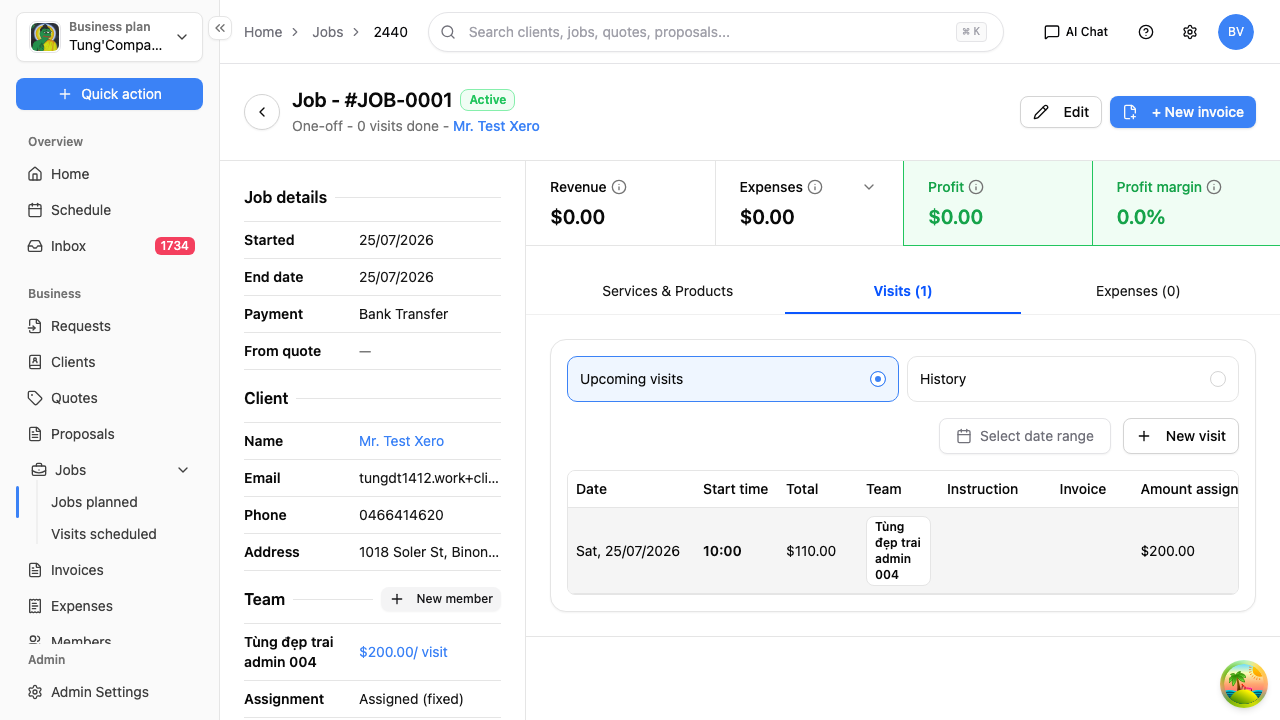
Header
The job number is the heading, with a status badge and a summary line underneath telling you the job type, how many visits are done, and the client's name.
Two buttons sit alongside:
- Edit — change the job's details
- + New invoice — bill for completed visits, see Invoice a job
Job details
- Started and End date
- Payment method
- From quote — a link back to the quote this job came from, or a dash if you started it from scratch
Client
Their name, email, phone and the address you're working at, so you've got everything to hand without leaving the job.
Team
Who's assigned, what they're being paid per visit, and the Assignment status — either Assigned, or Pending Offer if you offered the work and they haven't accepted yet.
How the job's tracking
Four figures show you whether the job's actually worth doing:
| Figure | What it means |
|---|---|
| Revenue | What the job brings in |
| Expenses | What it's costing you, including team wages |
| Profit | Revenue less expenses |
| Profit margin | Profit as a percentage of revenue |
Wages are added for you — when you mark a visit complete, the assigned team member's pay for that visit is recorded against the job automatically.
Services & Products
The pricing you set when you booked the job in. Read-only here — use Edit at the top if you need to change it.
Visits
The Visits tab lists every occasion someone's due on site for this job, split into Upcoming visits and History. You'll see the date, start time, total, who's on it, any instructions, whether it's been invoiced, and its status.
Select New visit to add an extra trip — see Add an extra visit.
To mark a visit complete, cancel it, or invoice it, go to Visits scheduled — see Manage your scheduled visits. This tab is for seeing what's on, not for acting on it.