
Appearance
Team members
Your team members are the people who work with you — the ones you assign jobs to, whose visits you schedule, and whose pay is tracked against each job. Keeping your team accurate and up to date in one place is what keeps scheduling, job costing and access all working the way they should, whether you're bringing someone new on, chasing up an invitation, or handing the business over altogether.
Who's on your team
Everyone you work with has a role that sets what they can see and change, and your subscription plan sets how many people you can have active at once.
Roles
Everyone on your team has a role, and the role decides what they can see and change.
| Role | What they can do |
|---|---|
| Owner | Everything. Invite people, change roles, edit details and pay, remove people, and hand ownership over to someone else. There's one owner. |
| Administrator | Run the day to day. See the whole team, edit people's details and pay, and adjust what a team member can get to. Can't change someone's role or transfer ownership. |
| Accountant | See the team and their details — built for the money side of things rather than managing people. |
| Team member | Get on with the work assigned to them. No access to other people's details. |
Some things are owner-only on purpose: inviting people, changing someone's role, and transferring ownership. If you can't see one of those options, that's why.
How many people you can have
Your subscription plan sets how many active team members you can have. Once you've used them all, inviting someone is replaced by a prompt to upgrade — see Invite a team member.
View and search your team
Select Members from the sidebar. You'll see how many people you have, listed in a table.
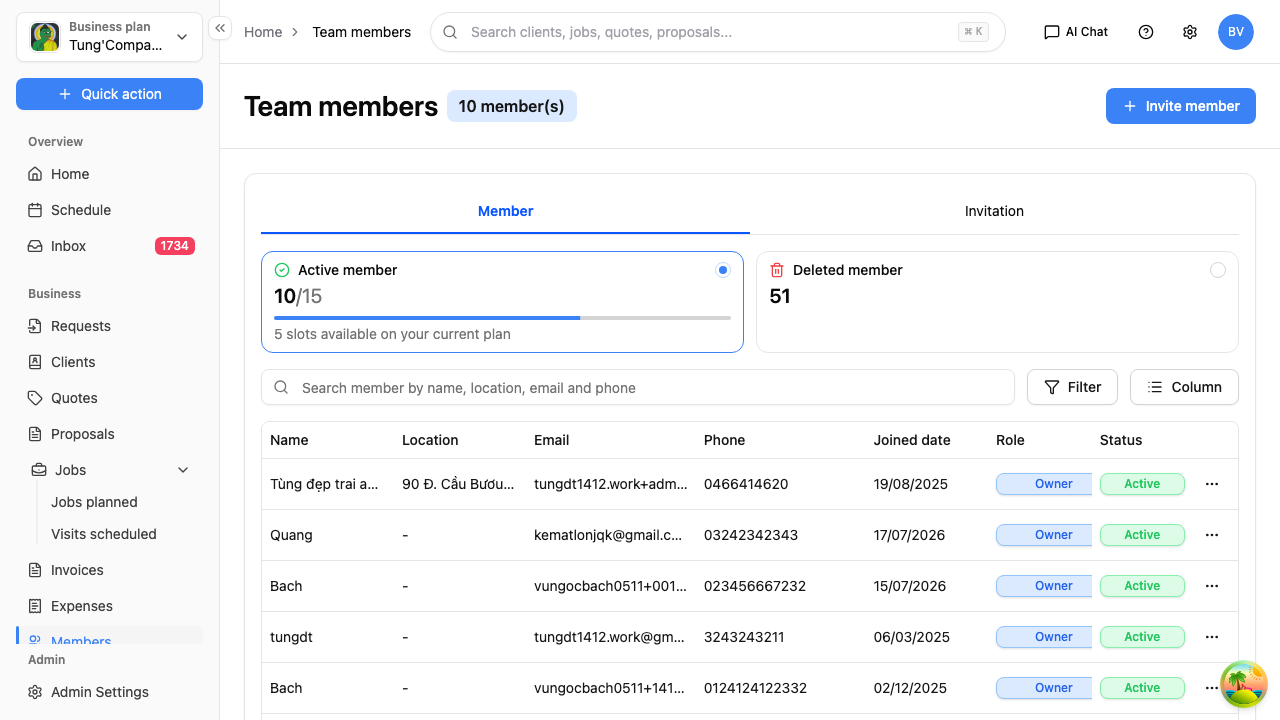
Two buttons above the list switch what you're looking at:
- Member — the people on your team (this is what you see first)
- Invitation — people you've invited who haven't joined yet, see Track invitations
Your seats at a glance
Two cards sit above the list:
- Active member — how many of your plan's seats are in use, with a bar showing how many are left
- Deleted member — people who've been removed
Search for someone
Type into the search box — name, location, email or phone — and press Enter. The list doesn't update as you type, so nothing happens until you press it.
Filter the list
Select Filter to narrow things down by:
- Status — All, Active, Inactive, Pending or Deleted
- Role — All, Administrator, Owner, Accountant or Team Member
Select Approve to apply the filter.
Use Column to choose which columns you see.
What the columns show
Name, location, email, phone, the date they joined, their role and their status. Your own row is marked you.
Open someone's profile
Select their row to see their full details — see View a team member's profile.
To act on someone without opening their profile, select the ⋯ button at the end of their row: View details, Edit, Change role, Transfer ownership and Delete. See Change a role or remove someone.
Invite a team member
You don't create an account for someone else — you invite them, and they set their own password when they accept.
Inviting people is owner-only. If you're not the owner you won't see the invite button.
- Select Members from the sidebar.
- Select Invite member.
- Enter their email address and choose the role you want them to have — see the role table.
- Select Send invitation.
- A Confirm & send dialog opens showing what you entered — check it, then select Confirm & send to send the invitation.
They get an email with a link. Once they accept and sign up, they appear in your Member list. Until then you'll find them under Invitation — see Track invitations.
When your plan is full
Your subscription sets how many active team members you can have. The Active member card above the list shows where you're up to — for example "1/3", with the number of seats still free underneath.
Once every seat is used, the Invite member button is replaced by a message telling you you've reached your limit, and an Upgrade Plan link.
To take someone else on you'll need to either:
- Upgrade your plan using that link, or
- Remove someone who's left, which frees their seat — see Change a role or remove someone
If they don't get the invitation
- Check the email address on the Invitation list for a typo.
- Ask them to look in their junk or spam folder.
- Invitations expire — the Expires on date is on the invitation list. If it's passed, invite them again.
Track invitations
Once you've invited someone, they sit on the invitation list until they join.
- Select Members from the sidebar.
- Select Invitation above the list.
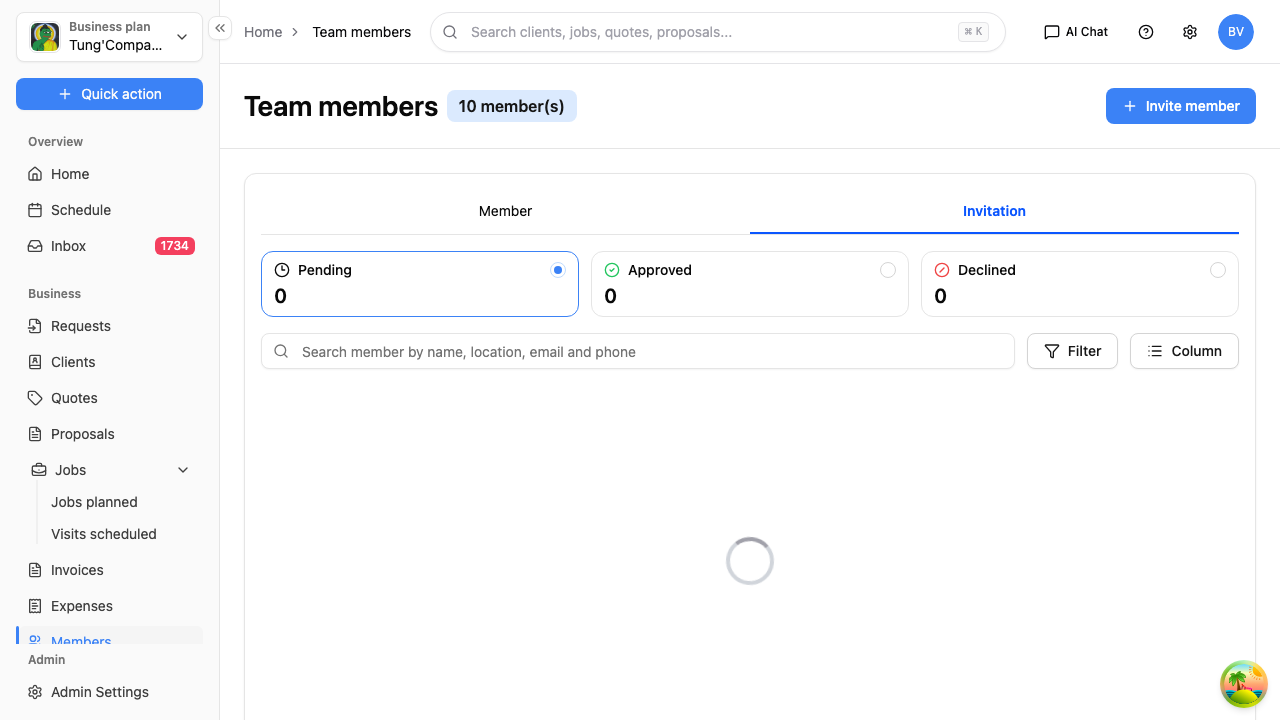
Where your invitations are up to
Three cards sit above the list:
| Card | What it means |
|---|---|
| Approved | They've accepted and joined your team |
| Pending | The invitation's out, no answer yet |
| Declined | They've turned it down |
What the list shows
| Column | What it shows |
|---|---|
| Who you invited | |
| Invited on | When you sent it |
| Expires on | The last day they can accept |
| Role | The role they'll have when they join |
| Status | Approved, Pending or Declined |
Select the ⋯ button at the end of a row and choose View details to see the full invitation.
Chasing an invitation up
There's no reminder button. If someone hasn't accepted:
- Check the Expires on date. If it's passed, the link no longer works — invite them again.
- Check the email address in the list for a typo.
- Ask them to check their junk or spam folder.
Once they accept, they move off this list and onto your Member list.
View a team member's profile
Select anyone's row in the Member list to open their profile.
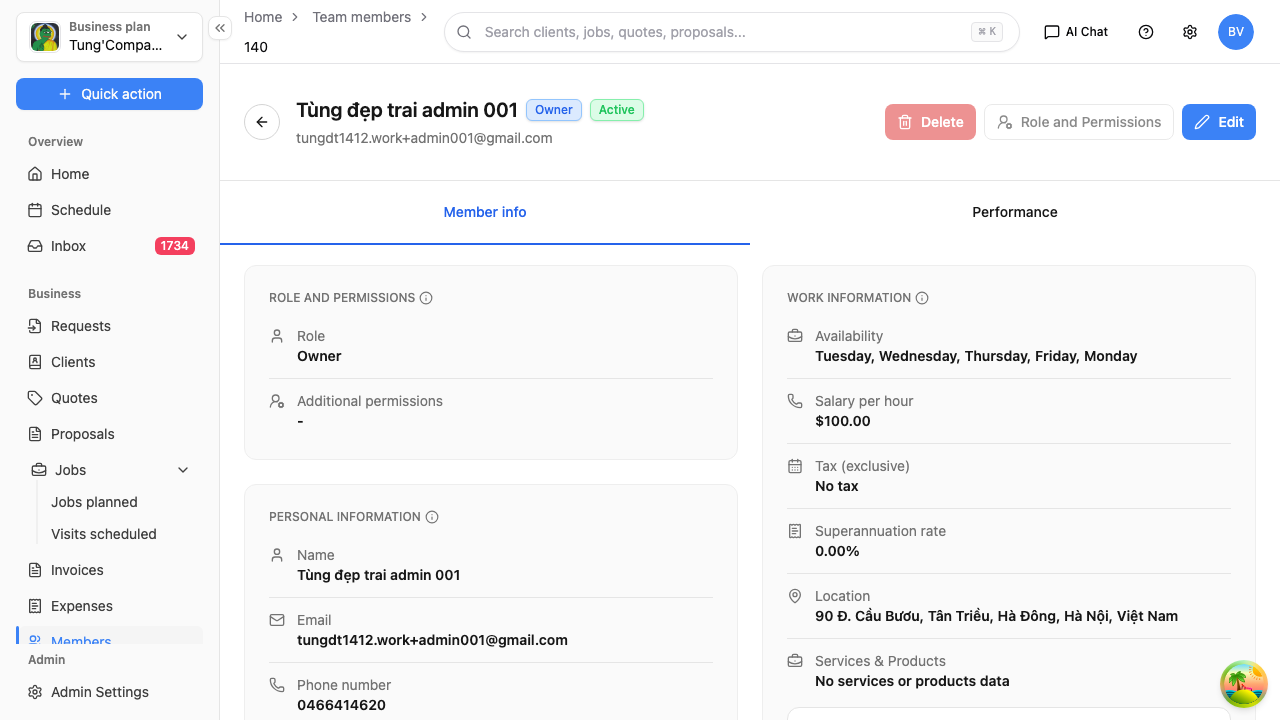
Header
Their name, role, status and email, with three buttons:
- Edit — update their details
- Change role — change what they can do
- Delete — remove them from your team
See Change a role or remove someone for the last two.
Member info
Open by default, this is everything about the person:
| Section | What's in it |
|---|---|
| Role and permissions | Their role, plus the individual things they can and can't get to |
| Personal information | Name, contact details and the rest of their record |
| Work information | Availability, salary per hour, tax, superannuation and location |
| Services & Products | The work they're set up to do |
| Salary preview | What their pay works out to |
Work information is what makes the job costing work — the hourly rate here is what gets recorded against a job when you mark one of their visits complete, and it's what drives the profit figure on the job. Worth keeping up to date.
Role and permissions goes further than the role on its own. As well as setting someone as a team member or an accountant, you can turn individual permissions on and off for a team member, so someone can get to the parts of HiTradies they need and nothing else.
Performance
The Performance tab shows how this person's work is tracking.
Changing their details
Select Edit in the header to update anything on the profile — contact details, availability, pay, or the services they're set up for.
Change a role or remove someone
You'll find all of these in two places:
- On the Member list, select the ⋯ button at the end of someone's row.
- On someone's profile, use the buttons in the header.
Change someone's role
Select Change role and pick their new one. See the role table for what each one can do.
Changing a role is owner-only. If you're an administrator you won't be able to promote someone — ask the owner.
You can, as an administrator, still adjust the individual permissions of a team member on their profile, under Role and permissions. That's the usual way to give someone access to a bit more without changing their role outright.
Remove someone from your team
Select Delete.
They lose access to HiTradies and drop off your active list, and their seat frees up so you can invite someone else.
Their work isn't wiped — the jobs and visits they were on stay as they are, so your history and job costing still add up. You'll find them under the Deleted member card above the list, and by filtering the list by Deleted status.
Removing someone is owner-only.
Transfer ownership
Handing the business over, or moving the account to a partner? Transfer ownership makes someone else the owner.
Because this hands over full control of the account, HiTradies asks you to confirm it's really you — you'll need to enter your password and then a one-time code before it goes through.
Only the current owner can transfer ownership, and there's only ever one owner, so once it's done the person you transferred to has the owner's access and you don't. Be sure before you start.