
Appearance
Document settings
Four sections in the Settings list control your business documents:
- Invoice settings
- Quote settings
- Proposal settings
- Job settings
They all work the same way, so this page covers them together. Each one sets how that document is numbered and the default wording it goes out with.
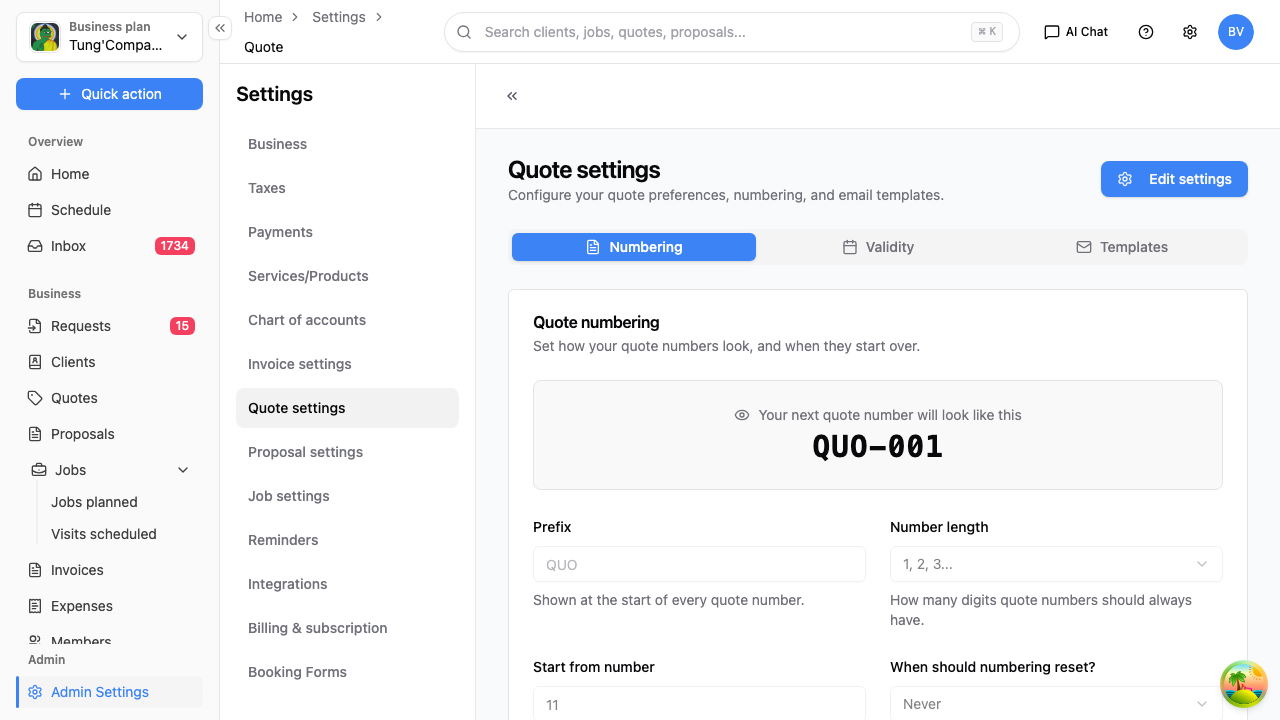
The tabs
Each page has a few tabs. They vary slightly, but you'll find:
- Numbering — how the document's reference number is built.
- Terms / Validity — payment terms on invoices, or how long a quote or proposal stays valid.
- Templates / Email — the default message that goes out with the document.
- Job settings also has a Feedback tab, for the feedback request sent after a visit.
Editing
The fields start read-only. Select Edit settings (just Edit on the Job settings page) to unlock them, make your changes, then Save. Cancel discards them.
Numbering
On the Numbering tab you can set:
- A prefix — the letters in front of the number (e.g.
INV,QUO). - A number format — pick a ready-made pattern, or build your own from the presets.
- The start from number — where the count begins.
HiTradies then numbers each new document for you, counting up from there. You generally set this once when you start and leave it.
There's a Reset numbering button if you ever need to start the count again — for example at the beginning of a financial year.
Default wording
On the Templates / Email tab you set the default subject and message that go out with the document. Because it's a default, you can still tweak the wording on any individual quote or invoice when you send it — see Send a quote and Send an invoice.
You'll see merge fields you can drop into the wording — things like {QuoteNo}, {Client} and {CompanyName} — which HiTradies swaps for the real details when the document goes out.