
Appearance
Find and track your quotes
The Quotes page is where you see what you've priced, what's still out, and what's come back.
View and search your quotes
Select Quotes from the sidebar to see every quote you've raised, newest first, with a count of how many there are above the table.
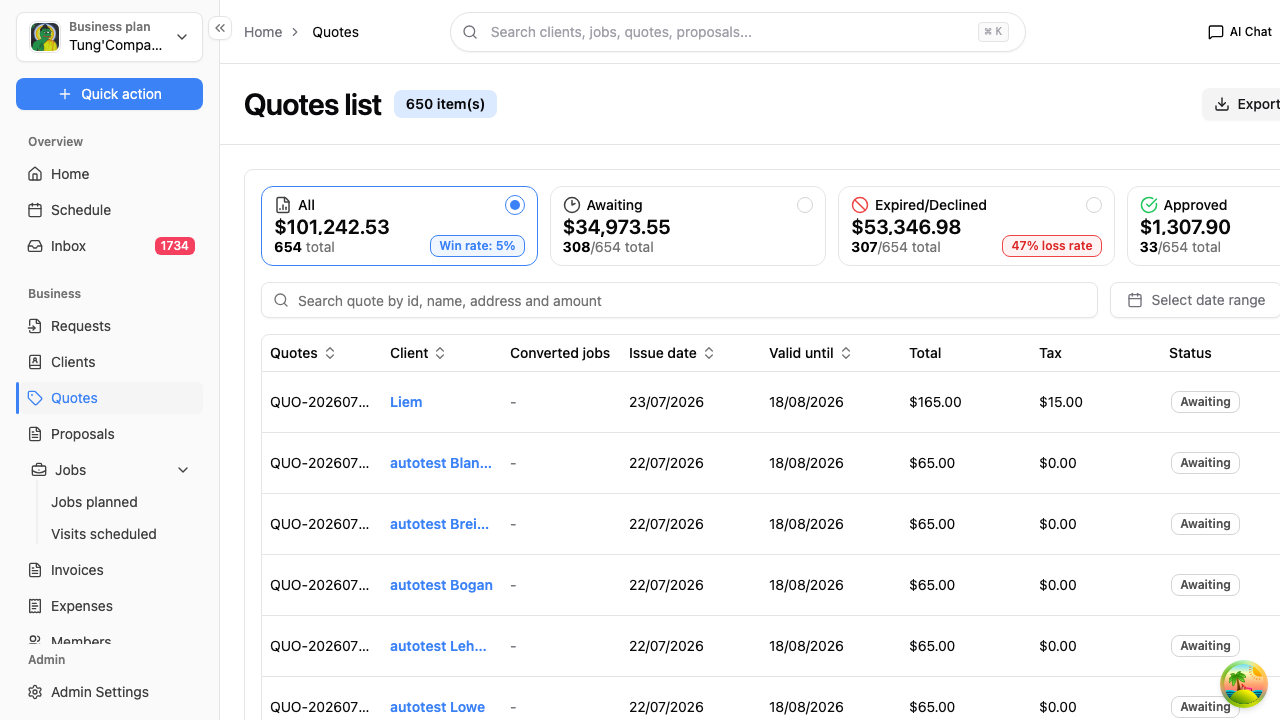
How your quoting is tracking
Four summary cards sit above the list, each showing a dollar total plus a count:
| Card | What it covers |
|---|---|
| All | Every quote you've raised |
| Awaiting | Sent or waiting on the client, no answer yet |
| Expired/Declined | Ran out of time, or the client said no |
| Approved | The client said yes |
The All card also shows your win rate — the share of your quotes that turn into accepted work — and Expired/Declined shows the matching loss rate. Worth a glance each week.
Search for a quote
Use the search box above the list to find a quote by:
- Quote number
- Client name
- Address
- Amount
Narrow the list down
- Select date range — limit the list to quotes issued between two dates.
- Column — choose which columns you want to see. Handy if you'd rather not scroll sideways on a laptop.
Long lists are split into pages. Use Rows per page and the Previous and Next arrows at the bottom to move through them.
What the columns mean
| Column | What it shows |
|---|---|
| Quotes | The quote number, for example QUO-202606-131 |
| Client | Who the quote is for |
| Converted jobs | Any jobs created from this quote |
| Issue date | The day you raised it |
| Valid until | The day the price stops holding |
| Total | The quoted amount |
| Tax | Tax included in that total |
| Status | Where the quote is up to, see below |
| Sent | A green tick once you've emailed it to the client |
Sent and Status are two different things. Emailing a quote ticks the Sent column but doesn't change its status — the status only moves when the quote is approved, declined, expires, or you archive it.
Quote statuses
| Status | What it means |
|---|---|
| Awaiting | With the client, no answer yet |
| Request changes | The client used Contact sender to ask a question or request a change — it's back with you, see What your client sees |
| Approved | The client accepted it |
| Converted | You've turned it into a job — see Turn a quote into a job |
| Declined | The client said no |
| Expired | The valid-until date has passed |
| Archived | You've filed it away — see Update a quote's status |
Open a quote
Select anywhere on a quote's row to open it — see View a quote.
Export your quotes
Select Export above the list to download your quotes as a file, for your accountant or your own records.
View a quote
Select any row in the Quotes list to open that quote.
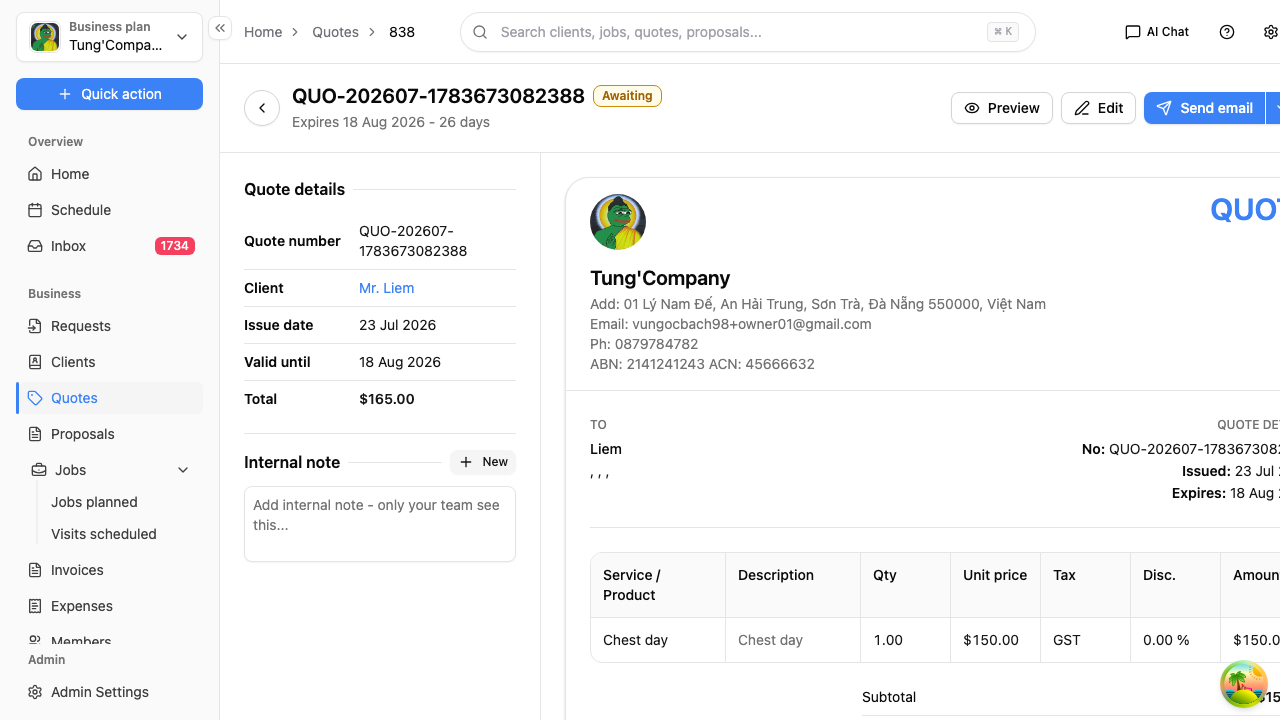
Header
The quote number is the heading, with a status badge next to it and a line telling you when it expires and how many days that leaves.
Alongside it:
- Preview — see the quote exactly as your client sees it, see What your client sees
- Edit — change the quote
- Send email — email it to your client, see Send a quote to your client
- More actions — mark it approved or declined, copy the client's link, download a PDF, or archive it, see Update a quote's status
Quote details
The panel down the side is the quick summary:
- Quote number
- Booking — the booking request this came from, if it started as one
- Client — select their name to jump to their profile
- Issue date and Valid until
- Total
Internal note
Notes only your team can see. Select New to add one, or edit an existing note. Nothing here is shared with the client.
The quote itself
The main part of the page is the finished quote — your business details, the client's details, every line you've priced, the totals and your client message. It's exactly what your client sees when they open their copy, so it's worth a read before you send it.