
Appearance
Integrations
Select Integrations in the Settings list. This is where you link HiTradies to the other tools you use, so your invoices and schedule flow through automatically instead of being entered twice.
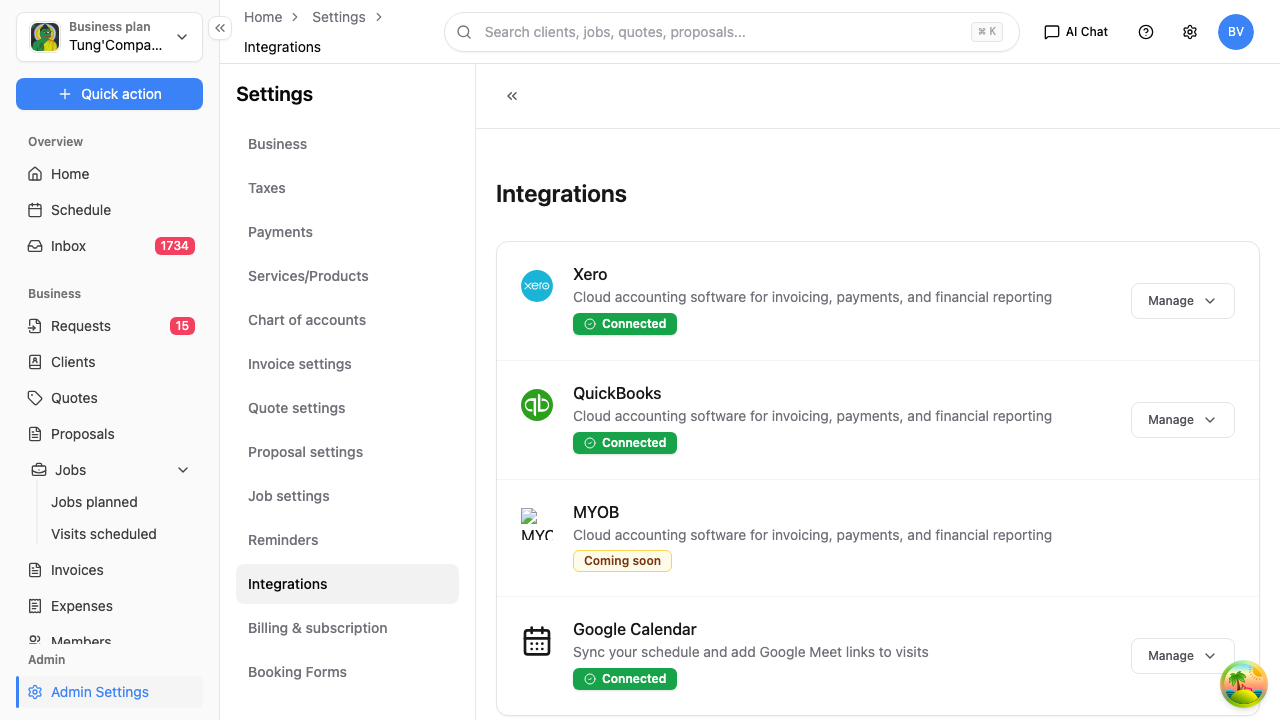
What you can connect
| Tool | What it's for |
|---|---|
| Xero | Cloud accounting — invoicing, payments and financial reporting |
| QuickBooks | Cloud accounting — invoicing, payments and financial reporting |
| Google Calendar | Sync your schedule and add Google Meet links to visits |
| MYOB | Coming soon |
Connecting a tool
Each tool shows a Connect button (or Manage, once it's linked). Select it and follow the prompts.
Connecting happens on the other tool's own site — you'll be sent to Xero, QuickBooks or Google to sign in and approve the connection, then brought back to HiTradies. You'll need an account with that tool already.
Managing or disconnecting
Once a tool is linked it shows as Connected, with a Manage button. Select Manage to change the connection or disconnect it.
Before you connect accounting software
Connecting Xero or QuickBooks lines your invoices and categories up with your accounting file, so it's worth having your chart of accounts sorted first. If you're not sure how you want things mapped, check with your bookkeeper or accountant before you link them.