
Appearance
Set up a recurring job
Recurring jobs save you from booking the same work over and over.
Regular maintenance, a fortnightly service, a monthly clean — book it once and HiTradies schedules every visit for you.
Start the same way as any other job: from Jobs planned, select New job plan, and fill in the Client & payment section as described in Create a job.
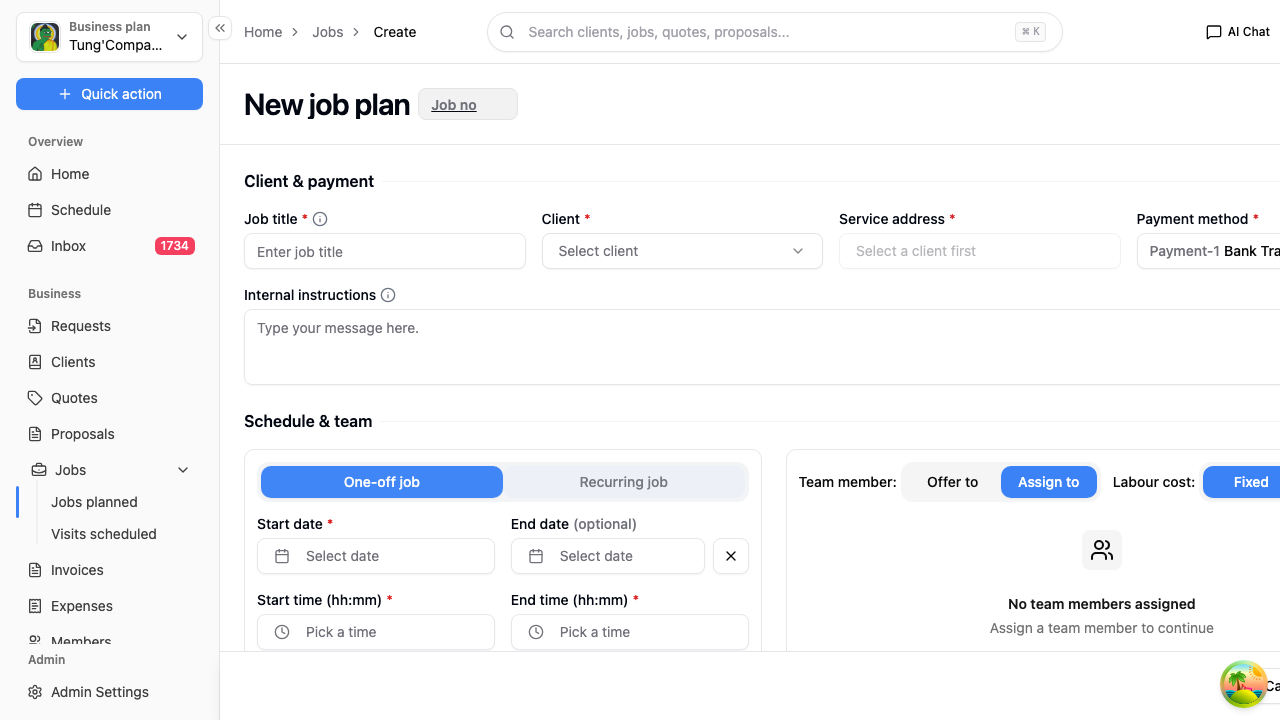
Then in Schedule & team, select the Recurring job tab.
How often it repeats
A repeat setting appears at the top of the section:
Every [number] [Days / Weeks / Months]
Fill in the number — it starts blank, and the job won't save without it. For a fortnightly service, that's every 2 Weeks.
Which days
Under Repeat on, tick the days of the week the work happens. Make sure these line up with your start date — if you're starting on a Tuesday, tick Tuesday.
Start and end dates
- Start date — the first visit.
- End date — when the arrangement finishes. Unlike a one-off job, this is optional for recurring work. Leave it empty for an ongoing arrangement with no agreed finish.
Leave the end date off and HiTradies schedules roughly the next two months of visits, topping them up as time goes on, so your visits list doesn't stretch out forever.
The start date can be up to 30 days in the past, for an arrangement that's already under way — anything earlier won't save. HiTradies adds the visits that fall between your start date and today as well, and they show as Overdue until you mark them complete.
Note — Moving the start date later doesn't remove visits that are already in the past. If you don't want them, cancel them yourself — see Cancelling a visit.
Times and team
Set the Start time and End time, and assign your team, exactly as you would for a one-off job. These apply to every visit in the series.
Pricing
Fill in Services & Products as normal — this is what each visit is worth.
Once it's booked
Select Approve. Open the job and you'll see every scheduled visit under its Visits tab, and they'll all appear in Visits scheduled as they come up.
Need to fit in an extra trip that isn't part of the pattern? See Add an extra visit.