
Appearance
Send an invoice
Get the invoice to your client so they can pay it.
You land on this screen automatically after raising a new invoice. You can also get to it any time by opening an invoice and selecting Send email.
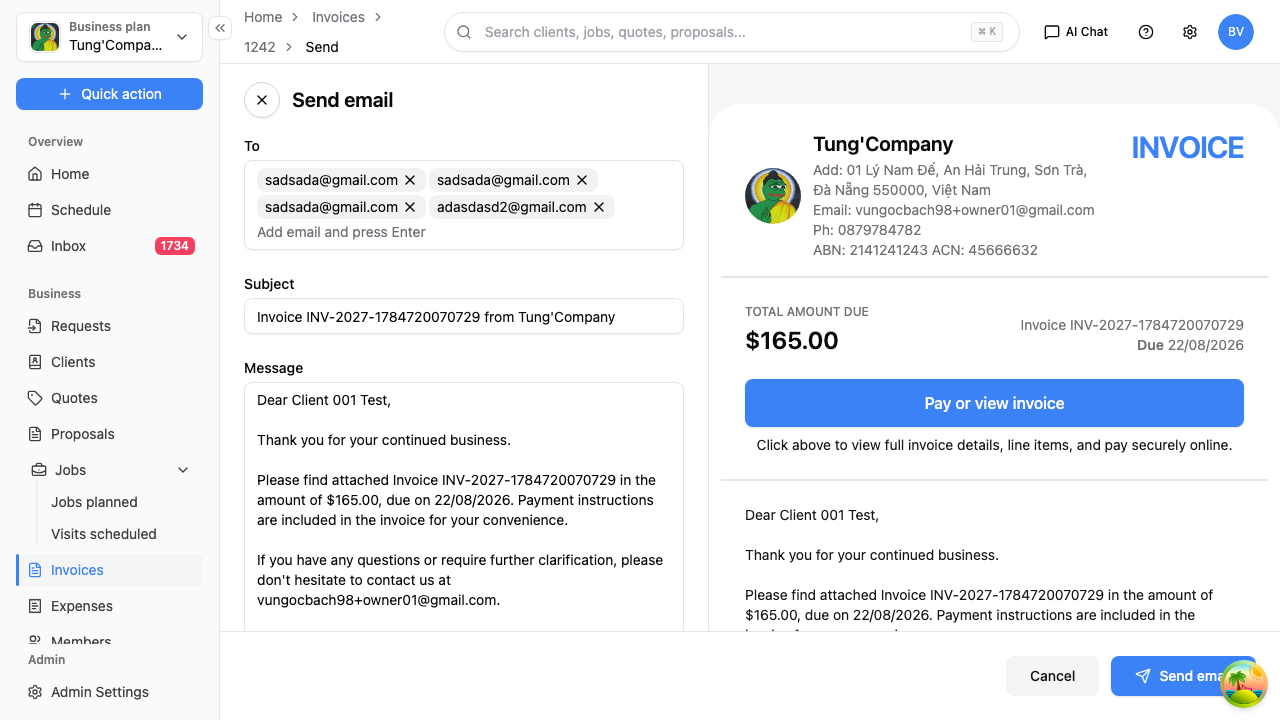
- In the To box, type your client's email address and press Enter. The address turns into a tag once it's added.
- This box doesn't fill in from the client's record, so you'll need to type or paste the address in.
- Add more than one address the same way if a few people need a copy — an office manager or a bookkeeper, say.
- Check the Subject and Message. Both are already filled in from your saved invoice template.
- The panel on the right shows exactly what your client will receive, including the link they use to pay.
- Select Send.
What sending does and doesn't change
Sending an invoice ticks the Sent column on your invoices list, so you can see which bills have actually gone out.
It does not change the invoice's status. That only moves when money is recorded against it — either by your client paying online, or by you recording the payment.
Checking it went
Go back to the Invoices list and look for the green tick in the Sent column against that invoice.
Sending it another way
Prefer to send it through your own email? Open the invoice, select Preview to open your client's copy, and share that link — it's the same page they'd get by email. See What your client sees.