
Appearance
Send a quote
Get the quote in front of your client, by email or by link.
You land on this screen automatically after saving a new quote. You can also get to it any time by opening a quote and selecting Send email.
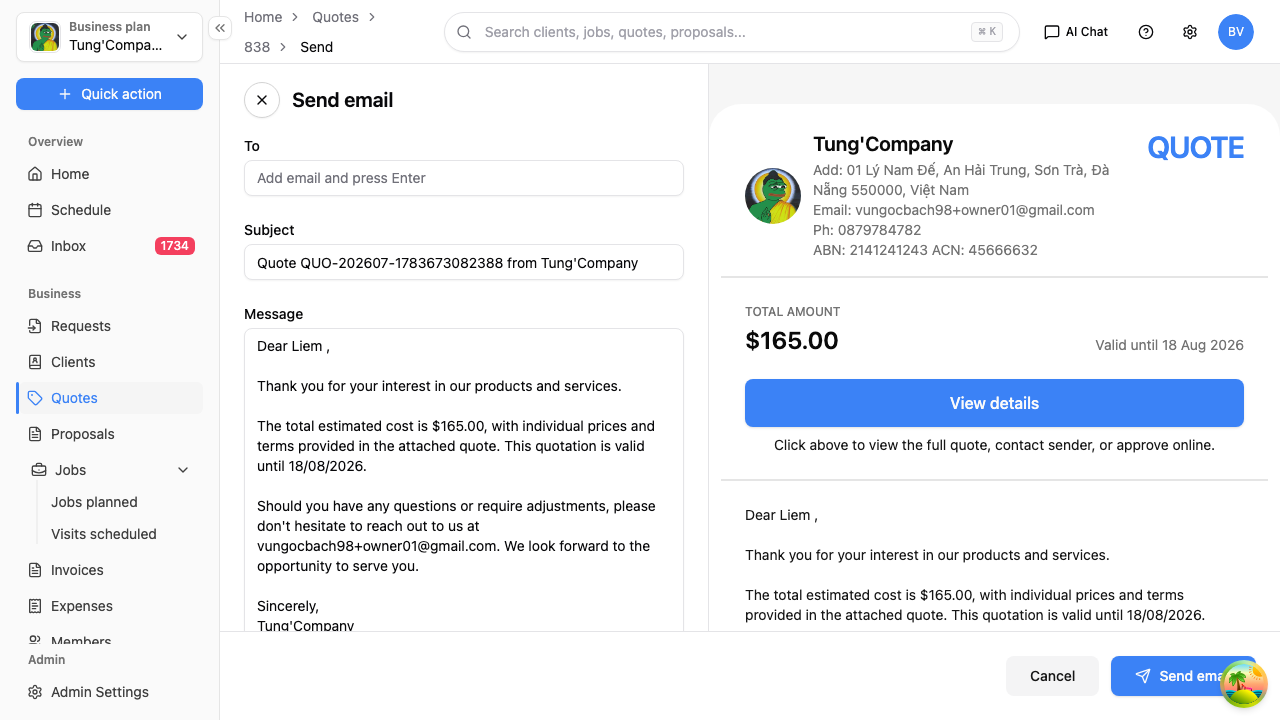
- In the To box, type your client's email address and press Enter. The address turns into a tag once it's added.
- This box doesn't fill in from the client's record, so you'll need to type or paste the address in.
- Add more than one address the same way if a few people need a copy.
- Check the Subject and Message. Both are already filled in from your saved quote template — change them if this one needs a personal touch.
- The panel on the right shows exactly what your client will receive.
- Select Send email.
You'll see a confirmation that the email went out, and you're taken back to the quote.
What sending does and doesn't change
Sending a quote ticks the Sent column on your quotes list, so you can see at a glance which quotes have actually gone out.
It does not change the quote's status — that stays Awaiting until your client answers, the quote expires, or you update it yourself.
Sending it another way
If you'd rather send the quote through your own email, text it, or paste it into a message, use More actions > Copy link on the quote and send that link instead. It opens the same page your client would get by email — see What your client sees.