
Appearance
What your client sees
The invoice page from your client's side, including how they pay.
When you email an invoice, your client gets a link to their own copy. They don't need a HiTradies account or a password — the link just opens.
To see the same page yourself, open the invoice and select Preview. It opens in a new tab.
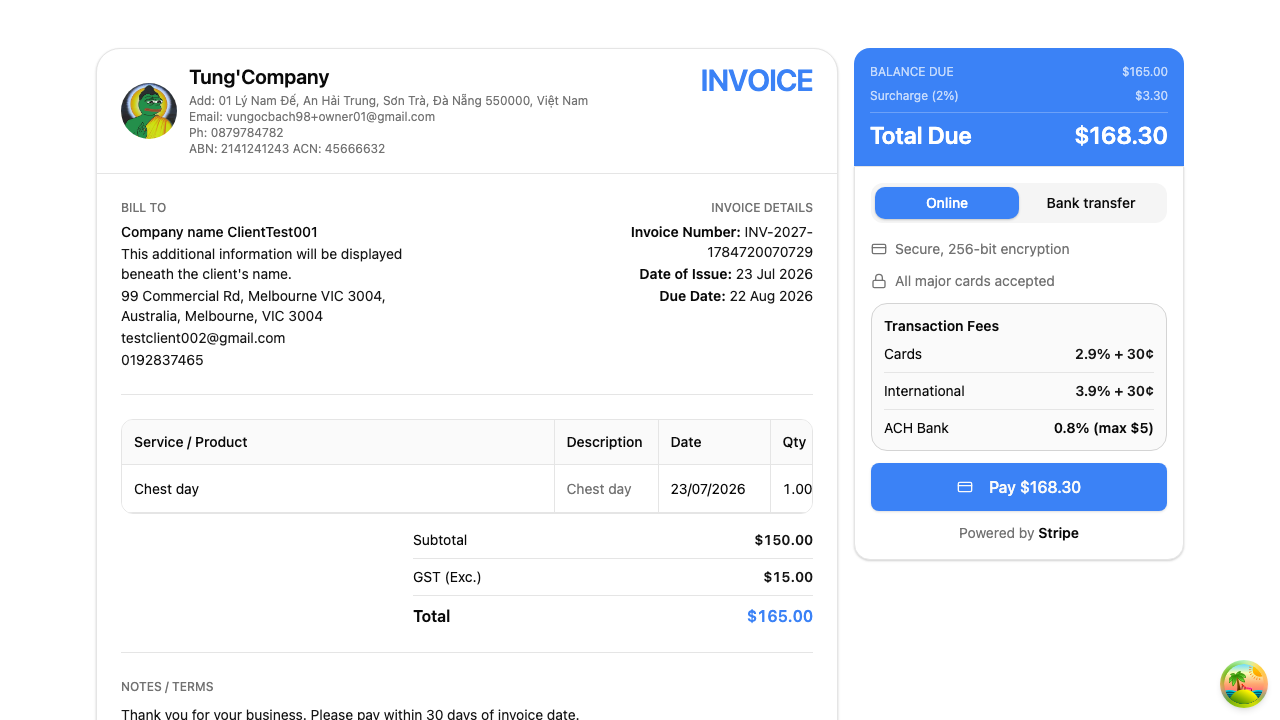
What's on the page
On the left, the full invoice — your business details, who it's billed to, every line you're charging for, the totals, your notes and your payment instructions.
On the right, a payment panel showing:
- Balance due
- Any card surcharge
- Total due
- A choice between paying Online or by Bank Transfer
- A Pay button
Paying online
Card payments are handled by Stripe, so your client's card details never touch HiTradies. Any transaction fee is shown before they pay, so there are no surprises.
Once the payment goes through it's recorded against the invoice for you — the status, the amount paid and the balance all update on your side without you doing a thing.
Paying by bank transfer
Choosing Bank Transfer shows your bank details from your payment instructions.
A bank transfer doesn't reach HiTradies on its own, so when the money lands you'll need to record the payment against the invoice yourself.
Handy to know
Unlike a quote, there's no Download PDF button on your client's copy. You can send them a PDF yourself once the invoice is paid — see View an invoice.