
Appearance
Create a job
Book work in for a client, with the team and times to match.
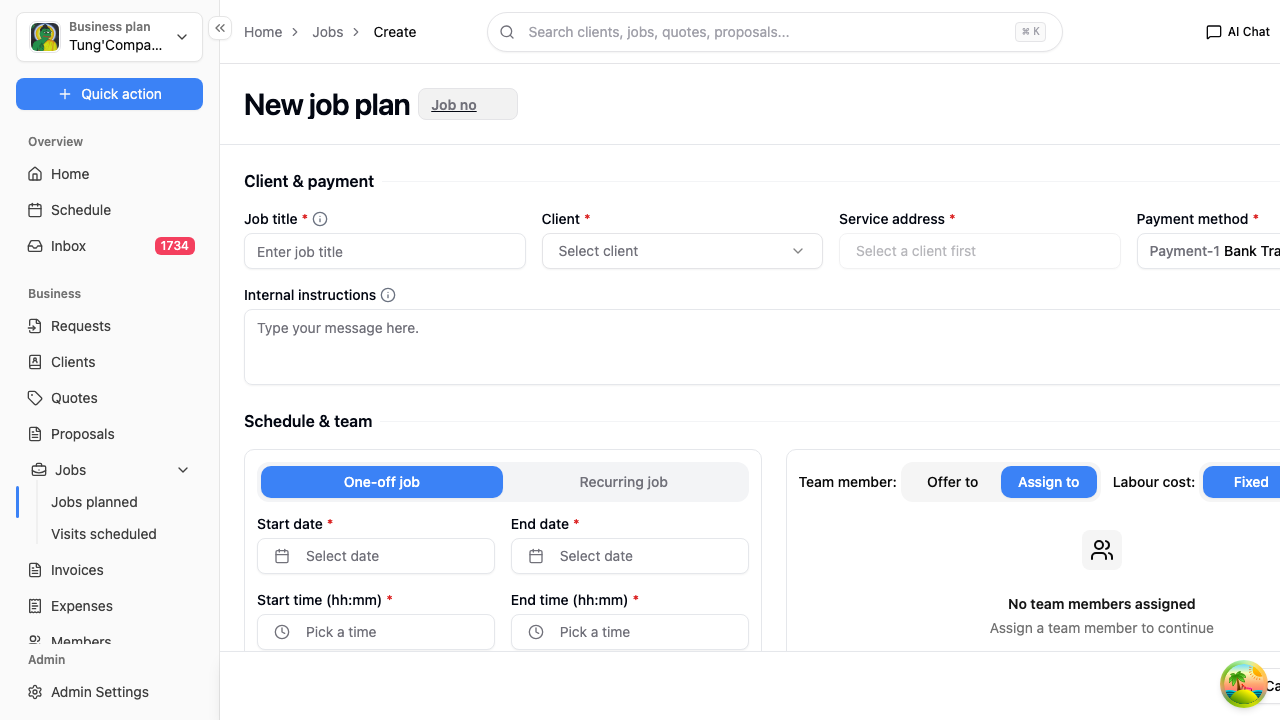
- From Jobs planned, select New job plan.
- Work through each section below.
- Select Approve at the bottom to book the job in, or Cancel to leave without saving.
If the work started as a quote, don't start from scratch — see Turn a quote into a job, which carries the client and all your pricing across.
1. Client & payment
Job title — a short description you'll recognise in the list, like "Kitchen rewire".
Client — select the box and pick who the work is for. Start typing in the search box to narrow the list down. If they're not there yet, add them first — see Add a new client.
Service address — where you're actually working. This fills in automatically from the client's saved address the moment you pick them.
If the client has no address saved, this stays empty and you'll see "Please select a service address" — the job can't be submitted until there's one. Add it on their profile, then come back.
Payment method — already set to your usual one, so you can normally leave it.
Internal instructions — notes for whoever's on the tools. Gate code, where to park, which side of the house. Optional, but your future self will thank you.
2. Schedule & team
Leave the One-off job tab selected. (For work that repeats, see Set up a recurring job.)
Dates
- Start date — select it from the calendar. You can pick a date up to 30 days in the past, for work you've already done. Anything earlier than that won't save, so older days are greyed out.
- End date — this fills in to the same day automatically, so a single-day job needs nothing more. Only change it if the job runs across several days.
Times
- Start time and End time — each opens a small picker with an hour and a minute dropdown. Choose the hour and the minutes set themselves to
:00, so most of the time the hour is all you need.
Make sure your end time is later than your start time. HiTradies won't stop you setting them the wrong way round on this screen, but the job won't save.
Team
- Offer to / Assign to — Assign to puts the job straight onto that person's plate. Offer to sends it out for them to accept first, and the job sits as "Pending Offer" until they do.
- Labour cost: Fixed / Time-based — whether you're paying a set amount for the job or by the hour.
- Select team members — choose who's doing the work.
A job needs at least one team member before you can submit it.
3. Services & Products
The same pricing table as a quote — one line per thing you're charging for.
- Select Select service and choose from your saved services and products. The price fills in automatically.
- Adjust the Description, Qty and Unit price as needed.
- Set Tax and any Disc. (discount) for the line.
- Select New item to add another line.
The Subtotal, Tax and Total update as you go, and there's a Deposit box if you're taking money up front.
Once it's booked
HiTradies creates the visit from your dates and it shows up in Visits scheduled. Open the job any time to see how it's tracking — see View a job.
Dated the job in the past? Its visit still shows on the Schedule, on the day you picked. From the next day it shows as Overdue until you mark it complete — see Marking a visit as completed.