
Appearance
Invoice a job
Turn finished work into an invoice without typing it all out again.
When the work's done, you don't need to build an invoice from scratch — HiTradies can create one from the visits you've completed, with the client, address and pricing already filled in.
There are two ways in, depending on whether you're billing one visit or several.
Before you start
A visit can only be invoiced once it's been marked as completed. If you can't find the visit you're expecting, that's almost always why — see Manage your scheduled visits.
Bill several visits at once
Best for a recurring job where you're invoicing a month's work together.
- Open the job from Jobs planned.
- Select + New invoice at the top.
- Tick the visits you're billing for, or tick All.
- Submit.
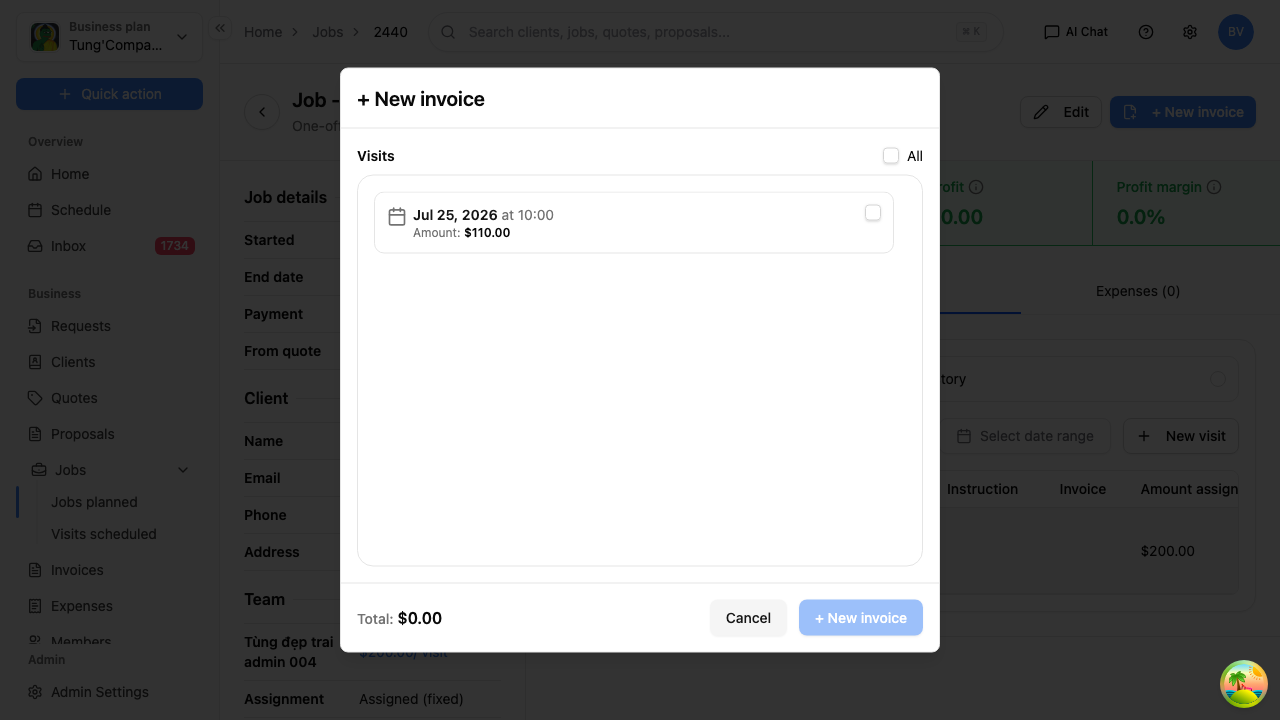
Only visits that are completed and not already invoiced show up here. If the window says there are no visits to choose from, mark the work complete first and try again.
Bill a single visit
Best when you invoice as you go.
- Go to Visits scheduled.
- Select the ⋯ button at the end of the visit's row.
- Select Generate invoice.
Finishing the invoice off
Either way you land on the New invoice screen with the work already filled in:
- The client and billing address
- One line for each service on the visit, with the service date set to the day the work was done
Check it over, add anything else you're charging for, then select Approve & email to raise it. From there you can email it to the client — see Send an invoice.
There's more detail on each field in Create an invoice.