
Appearance
Your business profile
Every quote and invoice you send carries your own business's details, the right tax rate, and instructions for how a client pays you — and Settings is where all of that gets set up. This article walks through getting those essentials right: your business profile, the tax rates you charge, and your payment details.
Getting your settings right
Select Settings from the sidebar (or the cog icon in the top bar) to open it. Everything is grouped into sections down the left of the page.
What you can do
| Page | What it's for |
|---|---|
| Your business details | Your name, logo, contact details, hours and public page |
| Taxes | The tax rates you charge |
| Payment details | Your bank accounts and payment methods |
| Services and products | The catalogue you build quotes and jobs from |
| Chart of accounts | The categories your income and costs are filed under |
| Document settings | How your quotes, invoices, proposals and jobs are numbered and worded |
| Reminders | Automatic reminders sent to your clients and team |
| Integrations | Xero, QuickBooks and Google Calendar |
| Billing and subscription | Your HiTradies plan |
You'll also set up your booking forms here, under Booking Forms — but because that's part of taking bookings from customers, it's covered in the Booking section.
Who can change settings
Settings affect your whole business, so they're generally limited to the owner and administrators. If a section is missing or read-only for you, your role doesn't include it — see Team members.
Worth doing first
If you're just starting out, work top to bottom:
- Fill in your business details — it appears on every quote and invoice.
- Set your tax rates and payment details.
- Build your services and products so quoting is quick later.
- Check your document settings so your numbers and wording look the way you want from the first quote.
Your business details
Select Business at the top of the Settings list. This is the information your clients see — on your quotes and invoices, and on your public HiTradies profile.
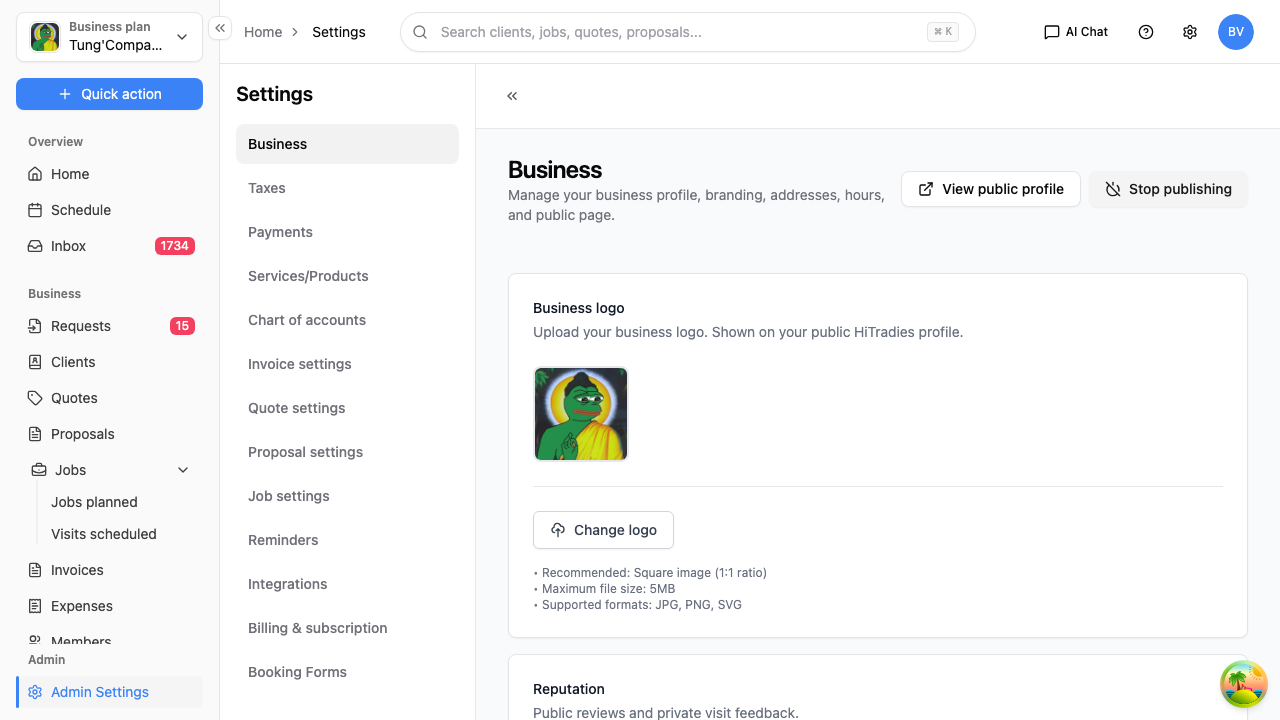
Change anything on this page and a Save settings button becomes active at the bottom — it stays greyed out (labelled "No changes") until you've actually changed something.
Business logo
Select Change logo to upload your logo. It shows on your public profile and your documents. Use a square image (1:1), up to 5MB, as a JPG, PNG or SVG.
Reputation
A quick read on your public standing:
- Public rating — your star rating and review count, shown on your marketing profile. Select View public reviews to see them.
- Visit feedback — private feedback from clients after a visit, not shown publicly. Select View visit feedback to read it.
Business details
Select the Business details section to expand it and edit your name, description, phone, email, website, address and ABN/ACN. This is what clients see on your documents, so it's worth getting right.
Attachments
Upload documents like permits, insurance certificates or policies. Select Add attachment, and manage what's there in the table (file name, type and size).
Business hours
Select Business hours to set your default availability. These hours feed your online booking, your team's schedule, and your request forms.
Services / Products
A shortcut to your catalogue — the same list you manage under Services and products. Select Add to add one without leaving this page.
Your public profile
HiTradies gives your business a public page that clients can find. Select View public profile to see it as a customer would.
There's a Stop publishing button here too, which takes that public page offline. Only use it if you specifically don't want to be listed — while it's published, clients can find you and leave reviews.
Taxes
Select Taxes in the Settings list to manage the tax rates you put on your quotes, jobs and invoices — for most Australian tradies that's GST at 10%.
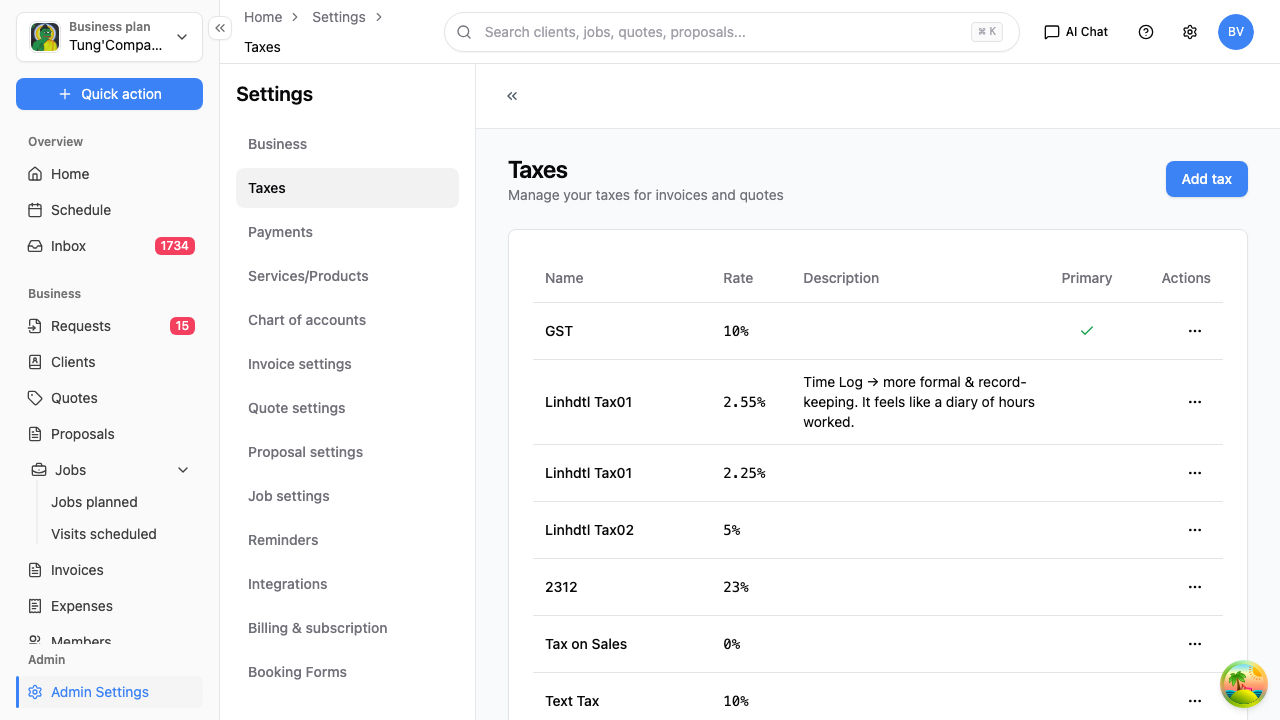
The table lists each rate with its name, rate, description and whether it's your primary (default) tax.
Add a tax rate
- Select Add tax.
- Give it a name (e.g. GST), a rate (e.g. 10), and an optional description.
- Save.
Your primary tax is the one applied by default to new line items, so most businesses only need the one.
Edit or remove a rate
Use the actions at the end of a rate's row to change or delete it.
Changing a rate here doesn't rewrite quotes or invoices you've already sent — it applies to new ones from here on.
Payment details
Select Payments in the Settings list. This is where you tell HiTradies how your clients pay you — the details that show up on your invoices as payment instructions.
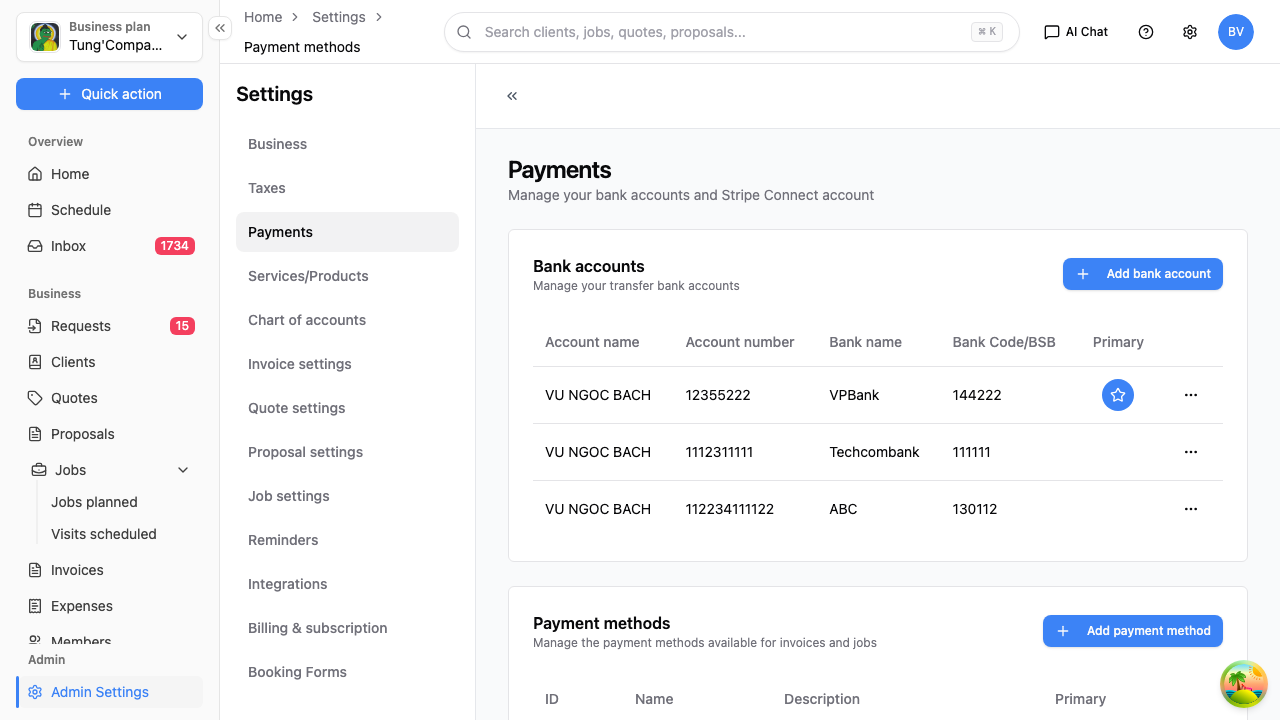
There are two lists on this page.
Bank accounts
The accounts your clients transfer money into. These print on your invoices so a client can pay you by bank transfer.
- Select Add bank account.
- Enter the account name, account number, bank name and BSB (shown as "Bank Code/BSB").
- Save.
Tick one as primary to make it the default set of details on your invoices.
Payment methods
The ways you accept payment — for example Bank Transfer, Cash or Card. These are the options you choose from when you record a payment on an invoice.
- Select Add payment method.
- Give it a name and optional description.
- Save.
Again, one can be set as primary to be the default.
Taking card payments online (Stripe)
Further down the page there's a Stripe connect section. Connecting Stripe lets your clients pay their invoices online by card, straight from the invoice you send them.
Stripe handles the card details and the payment securely — HiTradies never sees the card. Setting up and managing your Stripe account happens on Stripe's own site; follow the prompts from the Stripe connect section to link it.