
Appearance
Send an invoice
Get the invoice to your client so they can pay it.
Tip — Selecting Approve and email doesn't send the invoice by itself. The invoice has been sent only when you see the green tick in the Sent column.
The send screen opens automatically when you create a new invoice and select Approve and email. To open it at any other time, open the invoice and select Send email.
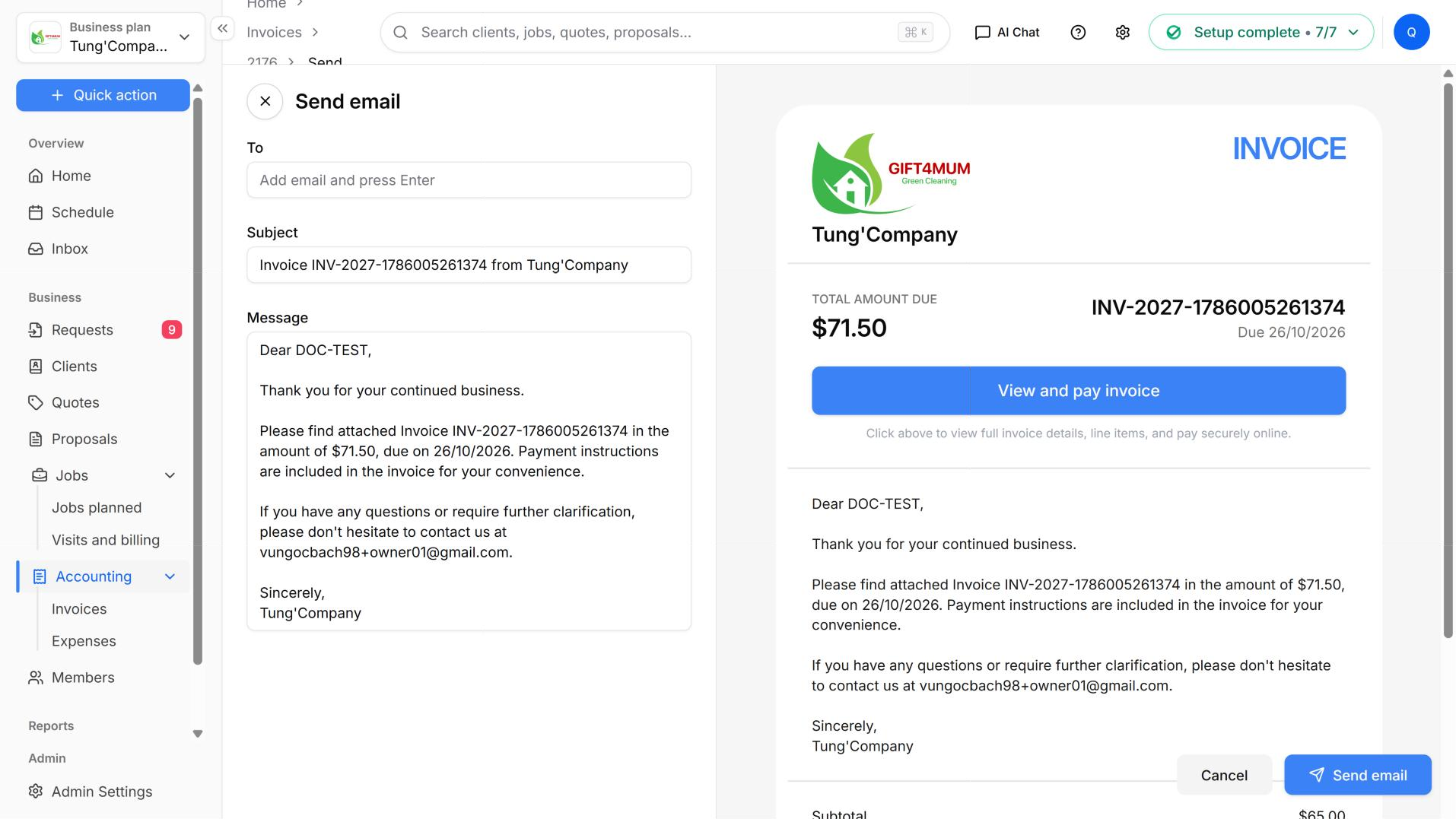
Send by email
- Check who it's going to. The To box already includes the client's email address, if the client is set to receive invoices. It also includes any other contacts on the client who are set to receive emails.
- To add someone else, such as an office manager or a bookkeeper, type their email address and press Enter. The address becomes a tag.
- To remove an address, select its ×.
- Check the Subject and Message. Both are filled in from your saved invoice template.
- Check the preview. The panel on the right shows exactly what your client will get, including the link they use to pay.
- Select Send email.
- Check it was sent. Go back to the Invoices list and look for the green tick in the Sent column.
Send by SMS
Some clients are easier to reach by text message.
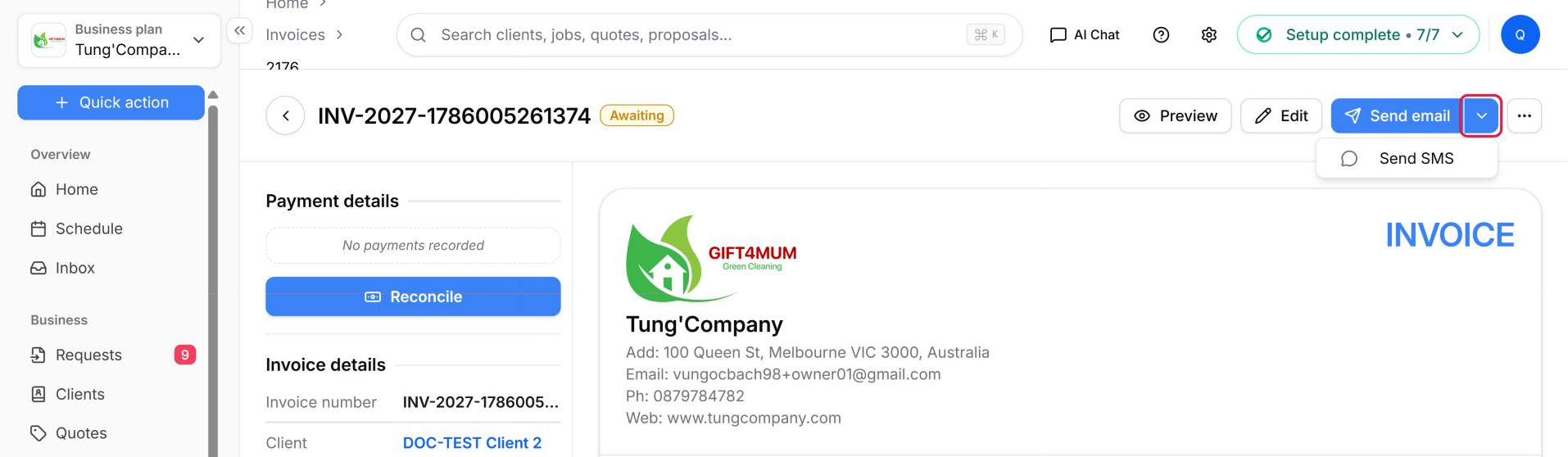
Open the invoice, select the small arrow next to Send email, then select Send SMS. Or, on the Invoices list, select ⋯ → Send → SMS.
Enter the client's mobile number in To - Phone number. The country is set to Australia by default.
Check the message. It's filled in from your SMS template. A preview shows how it will look on a phone.
Select send. You'll see "SMS sent successfully".
Send it another way
To send the invoice from your own email instead:
- Open the invoice.
- Select Preview to open your client's copy.
- Copy the link and share it. It's the same page your client gets by email. See What your client sees.
Good to know
- Sending an invoice adds a green tick to the Sent column on your Invoices list, so you can see which invoices have been sent.
- Sending does not change the invoice's status. The status only changes when a payment is recorded — when your client pays online, or when you record a payment.
- The one exception is approving: Approve and email changes the invoice from Draft to Awaiting straight away, before anything is sent.
- You set your SMS template in Invoice settings → Sending. That's also where you choose whether emails include the invoice PDF or send you a copy.