
Appearance
Create an invoice
Create a bill for work you've done.
You can create an invoice from:
- Visits and billing — recommended when you're creating lots of invoices for work done over a period of time. You can also use the Bulk invoice generator to create a batch of invoices at once. See Create invoices from Visits and billing.
- + New invoice button on the Invoices list. You can also start a new invoice from Quick action → New Invoice in the sidebar, from + New on a client's page, or from the ⋯ menu of an active client on the Clients list. See Create an invoice from scratch.
- Schedule — recommended when you want to invoice one visit as soon as it's done. See Create an invoice from the Schedule.
- Jobs planned — create an invoice from a job. See Create an invoice from Jobs planned.
Create invoices from Visits and billing (recommended)
Recommended when you're creating lots of invoices for work done over a period of time. You can invoice one visit at a time (steps below), or create a batch of invoices at once with the Bulk invoice generator (see Invoice many visits at once below).
Find the visit. Go to Jobs → Visits and billing and select the Completed card. Or, open the job and go to its Visits tab.
Open the visit's ⋯ menu at the right end of its row.
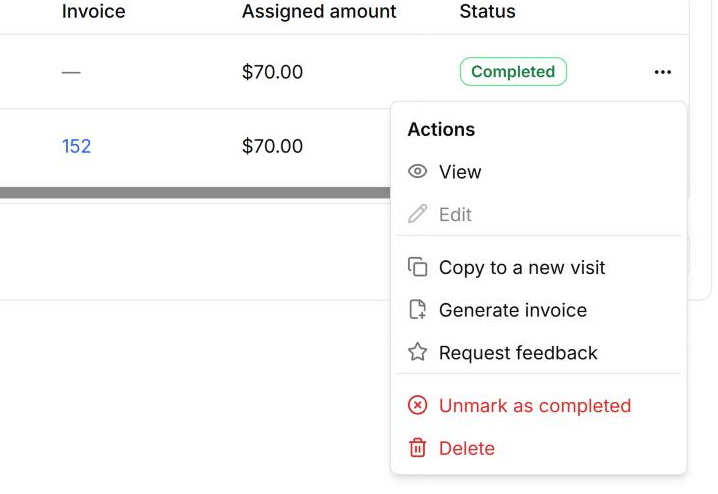
Select Generate invoice. A new invoice for that visit opens straight away. These details are already filled in:
- The client, billing address and service address
- The job and visit, under Jobs & Visits
- One line for each of the visit's services, dated with the visit date
- The invoice number, today's date as the issue date, and a due date based on your invoice settings
Check the invoice. HiTradies saves it as a draft while you work on it. Add anything else you need (see Create an invoice from scratch), then select Approve and email.
Note — Generate invoice only appears in the ⋯ menu for visits that haven't been invoiced yet.
Invoice many visits at once (Bulk invoice generator)
Use this to bill lots of completed visits at once. Visits from the same job go on one invoice. Visits from different jobs get separate invoices, even if they're for the same client.
Go to Jobs → Visits and billing.
Select the Completed card at the top.
Select Bulk invoice generator. The number on the button tells you how many completed visits haven't been invoiced yet.
Choose the visits.
- Tick each visit you want to bill, or select Select all available to tick every visit you can invoice.
- You can't select visits that are already invoiced.
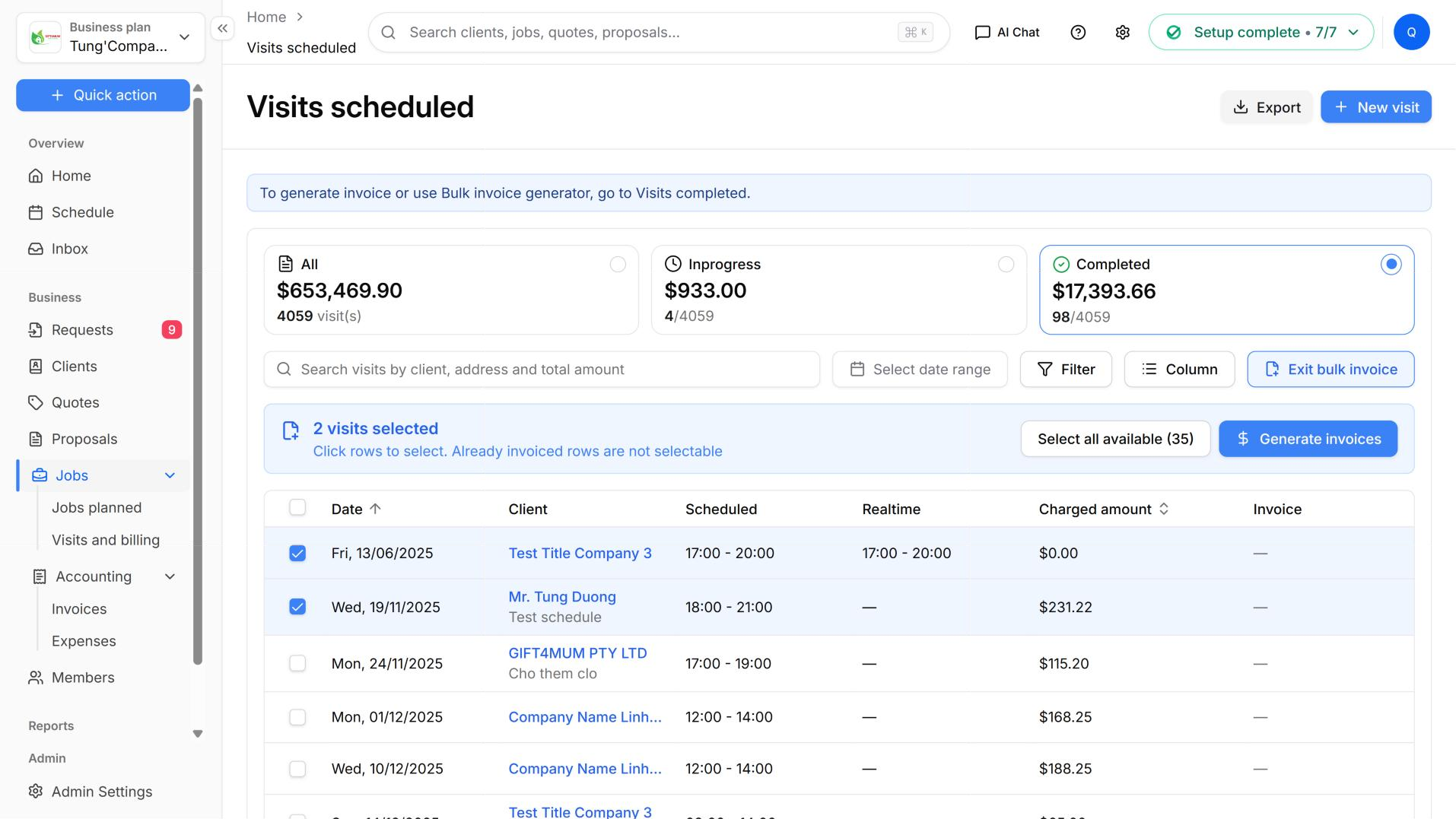
Select Generate invoices. A review window opens. It shows:
- One draft invoice for each job, with the client, number of visits and amount
- The totals at the bottom: the number of invoices, the number of visits, and the overall amount
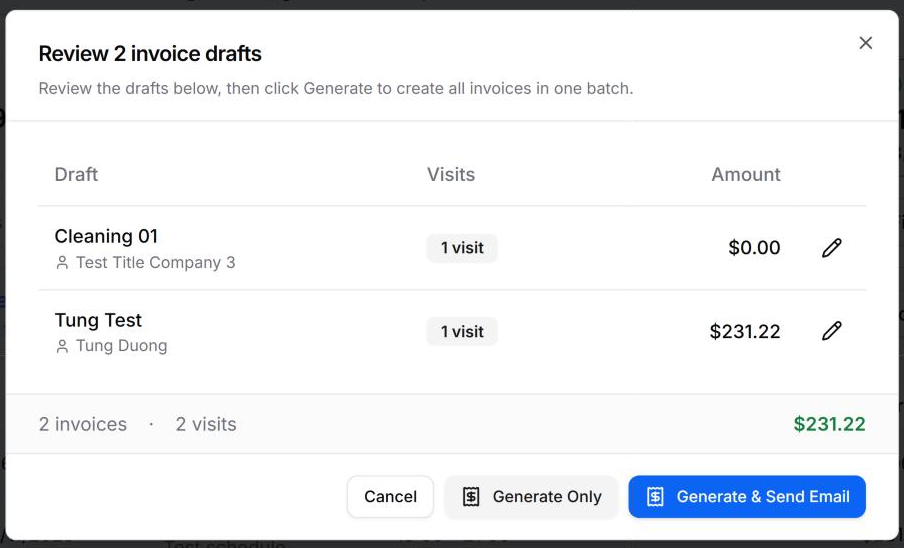
Check the drafts. To change a draft, select the pencil icon on its row. Any visits that couldn't be included, for example because they're already invoiced, are listed at the top as skipped.
Create the invoices. Choose one of these:
- Generate Only — creates the invoices but doesn't send them. You can check each one and send it later.
- Generate & Send Email — creates the invoices and emails each one to its client.
Wait while the invoices are created. You'll then see how many were created. Select Done.
Create an invoice from scratch (+ New invoice)
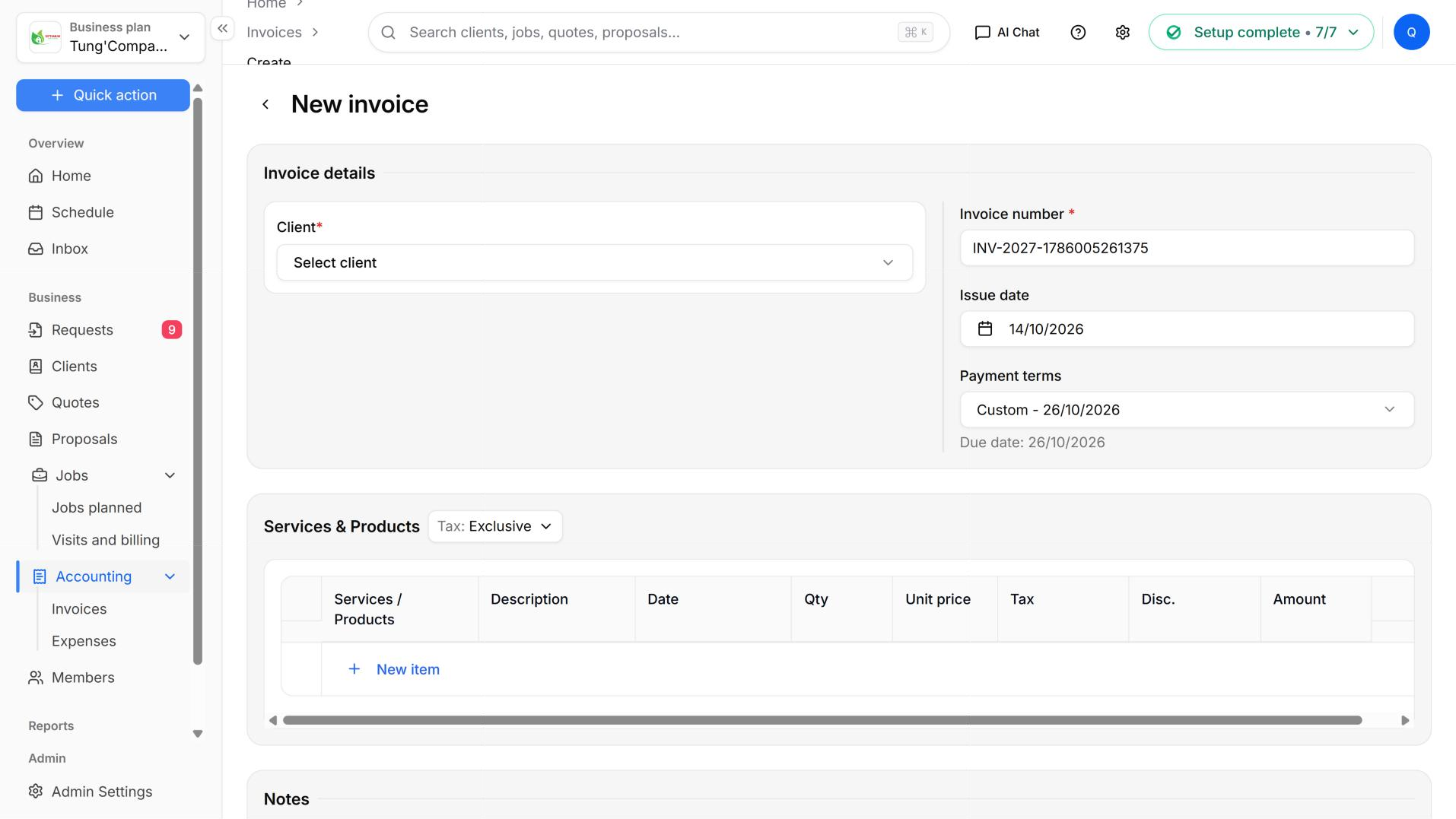
Open a new invoice. On the Invoices list, select + New invoice. Or, in the sidebar, select Quick action → New Invoice.
Note — You can also start from the client you want to bill. On their page, select + New → New invoice. Or, on the Clients list, open the client's ⋯ menu and select New invoice. The client is filled in for you, so you can skip step 2.
- Choose the client. Select the Client box and choose who the invoice is for. Start typing a name to shorten the list.
- The Billing address fills in from the address saved in the client's profile.
- If the client has no saved address, the Billing address stays empty and you can't add one here. Add the address to the client's profile first (see View a client's profile).
- (Optional) Use a different service address. Do this if you did the work at one address but the bill goes somewhere else, such as to a landlord or a managing agent. Tick Service address is different from billing address, then choose the service address from the list.
- (Optional) Link a job and visits. After you choose a client, a Jobs & Visits box appears.
- Select Add new Job & Visits.
- Choose one of the client's jobs, then the visits you're billing for.
- Select Approve. The services from those visits are added to the invoice as lines.
- Check the invoice number and dates.
- Invoice number — filled in for you. Change it if you use your own numbering.
- Issue date — today, unless you change it.
- Payment terms — how long the client has to pay (the default is set in Invoice settings). HiTradies calculates the Due date and shows it below.
- Add what you're charging for. Add one line for each service or product.
- Select Select service and choose from your saved services and products. The price fills in for you.
- Set the Date to the day the work was done (the service date). Dating each line helps when one invoice covers several visits.
- Change the Qty and Unit price if needed, and set the Tax and any Disc. (discount).
- Every line needs a service and a Qty. The Qty is empty after you choose a service, so fill it in. If a line has no service, it shows "Please select a service", and you can't approve the invoice until you fix it.
- Select New item to add another line. The Subtotal, Tax and Total update as you go.
- (Optional) Record a payment you've already received. This could be a deposit, or cash on the day. Select + Add under Payments. It's usually easier to do this later — see Record a payment.
- Check the notes.
- Client message — the message your client sees on the invoice. It's filled in from your saved template.
- Internal note — only your team sees this.
- Approve the invoice. Select Approve and email. To leave without approving, select Cancel. To find out what happens after you approve, see What happens next below.
Create an invoice from the Schedule (recommended right after a visit)
Use this to invoice a visit as soon as it's done, without leaving your calendar.
Open the Schedule. In the sidebar, select Schedule.
Select the visit on the calendar. A pop-up opens with the visit's date and time, Total, Invoice, address and client.
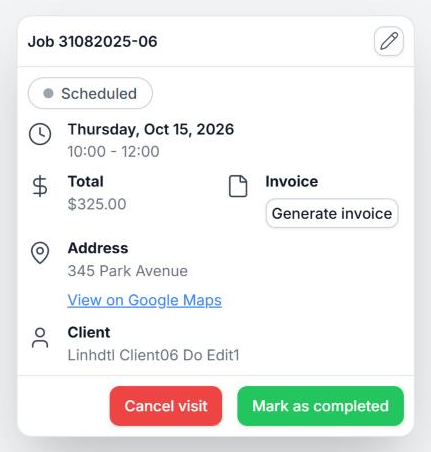
Select Generate invoice under Invoice. A new invoice opens. These details are already filled in:
- The client, billing address and service address
- The job and visit, under Jobs & Visits
- One line for each of the visit's services, dated with the visit date
- The invoice number, today's date as the issue date, and a due date based on your invoice settings
Check the invoice. HiTradies saves it as a draft straight away. Add anything else you need (see Create an invoice from scratch), then select Approve and email.
Note — Once a visit has an invoice — even a draft — the pop-up shows the invoice number (for example #INV-2027-…) instead of Generate invoice. Select the number to open the invoice.
Note — Generate invoice also shows on visits that are still Scheduled, so check the work is done before you invoice.
Create an invoice from Jobs planned
Open the job. Go to Jobs → Jobs planned and select the job.
Select Generate invoice in the top-right corner of the job page.
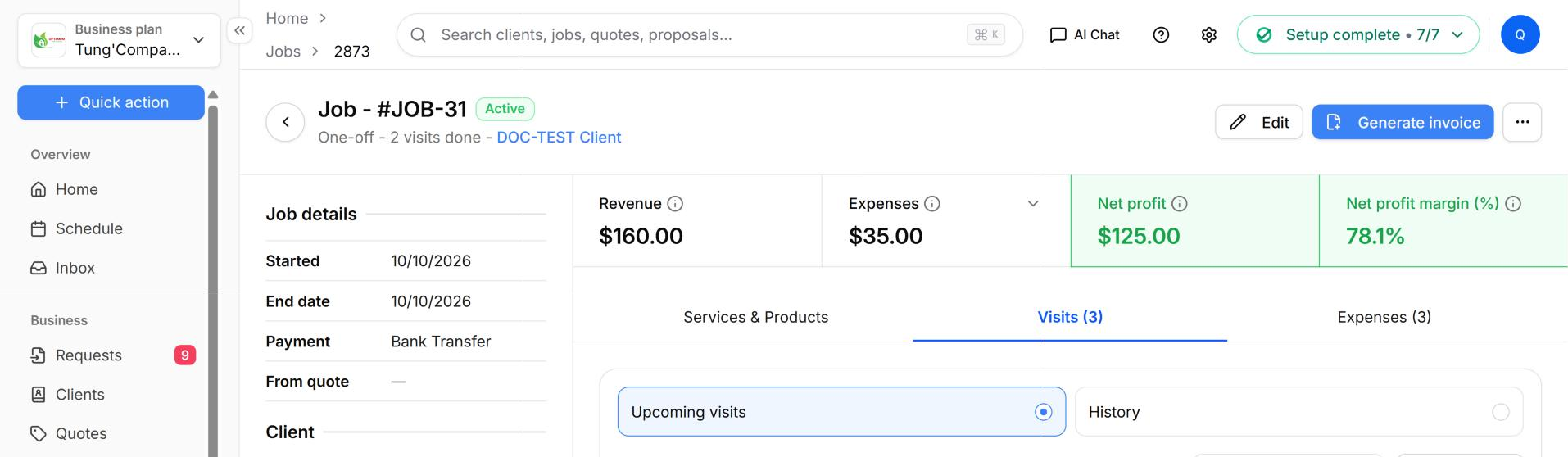
Choose the visits to bill. The Generate invoice window lists every visit on the job, with its date, time and amount.
- Tick each visit you want to bill, or tick All.
- The Total at the bottom changes as you tick.
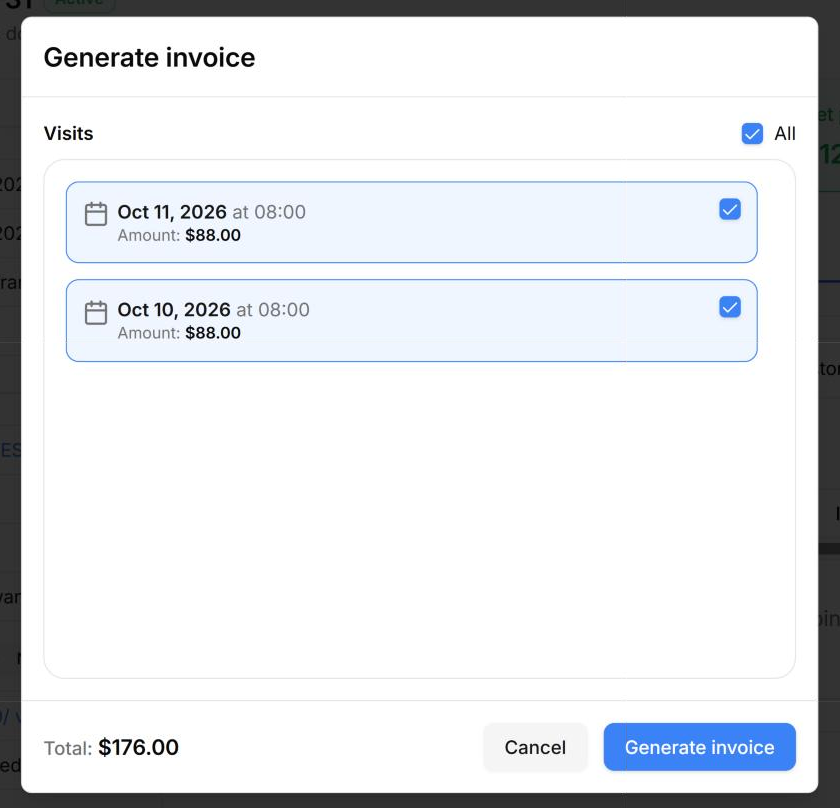
Select Generate invoice. A new invoice opens. These details are already filled in:
- The client, billing address and service address
- The job and visits, under Jobs & Visits
- One line for each service on each visit, dated with the visit date
- The invoice number, today's date as the issue date, and a due date based on your invoice settings
Check the invoice. HiTradies saves it as a draft while you work on it. Add anything else you need (see Create an invoice from scratch), then select Approve and email.
Create an invoice from the Jobs planned list
Use this when you're already on your list of jobs and don't want to open the job first.
- Go to Jobs → Jobs planned.
- Find the job and open the ⋯ menu at the right end of its row.
- Select Generate invoice. This opens the same Generate invoice window as on the job page.
- Choose the visits to bill.
- Tick each visit you want to bill, or tick All.
- The Total at the bottom changes as you tick.
- Select Generate invoice. A new invoice opens, filled in the same way as when you start from the job page.
- Check the invoice. Add anything else you need, then select Approve and email.
What happens next
Selecting Approve and email doesn't send the invoice. It approves the invoice and opens the send screen. Here's what happens, and what to do next:
A green message confirms it's approved. You'll see "Invoice approved successfully". The invoice changes from Draft to Awaiting straight away.
The Send email screen opens. Nothing has been sent yet. If the client is set up to receive invoices, their email address is already in the To box. If the To box is empty, type an address and press Enter. Check the Subject, the Message and the preview on the right.
Select Send email to email the invoice.
Check it was sent. You'll see "Email sent successfully", and you'll go back to where you were. A green tick then appears in the Sent column of the Invoices list.
Not ready to send? Select Cancel (or the X at the top left). The invoice stays approved with the Awaiting status, but it isn't marked as Sent. To send it later, open the invoice and select Send email. Or select the small arrow next to Send email and choose Send SMS. See Send an invoice.
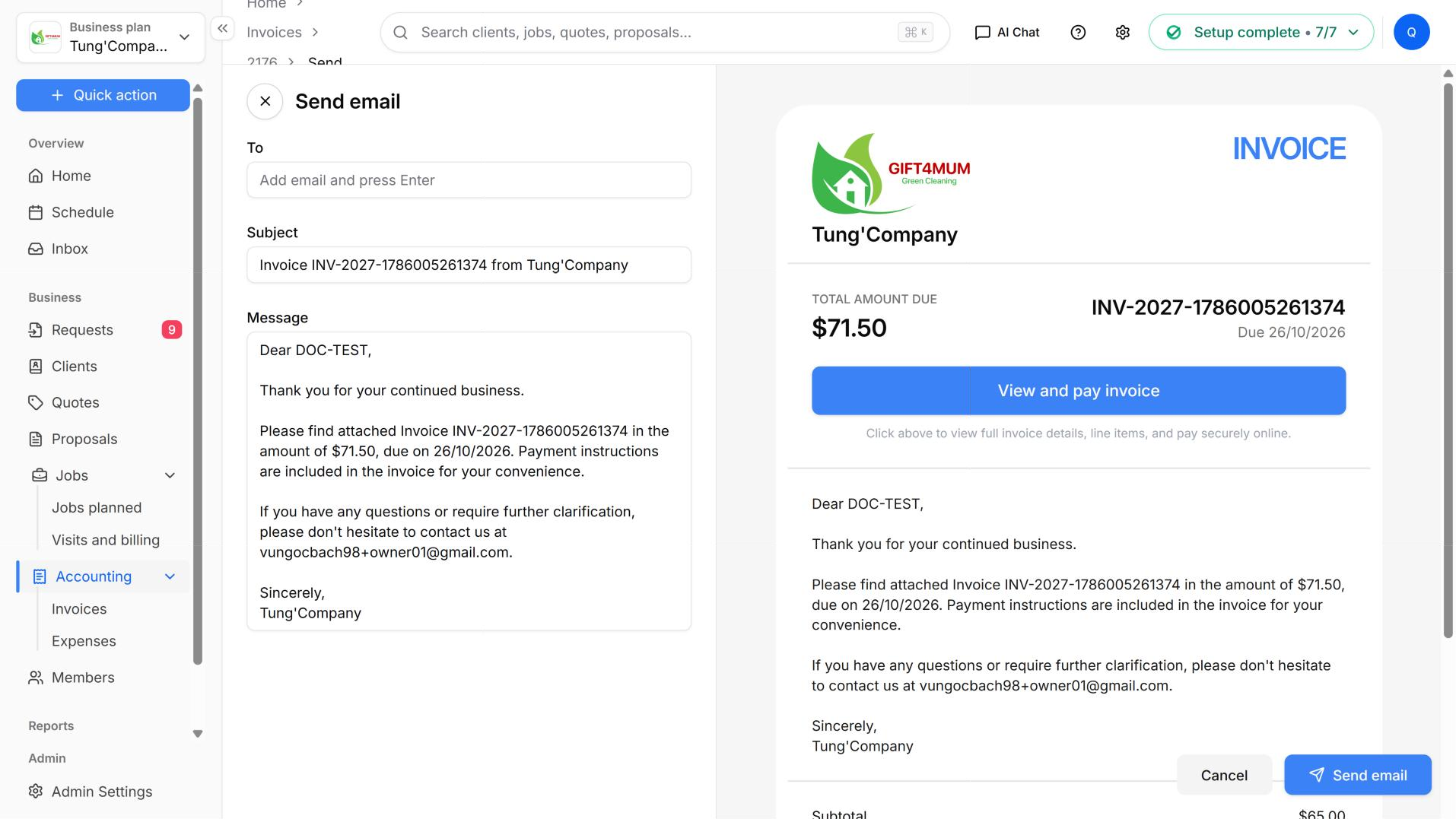
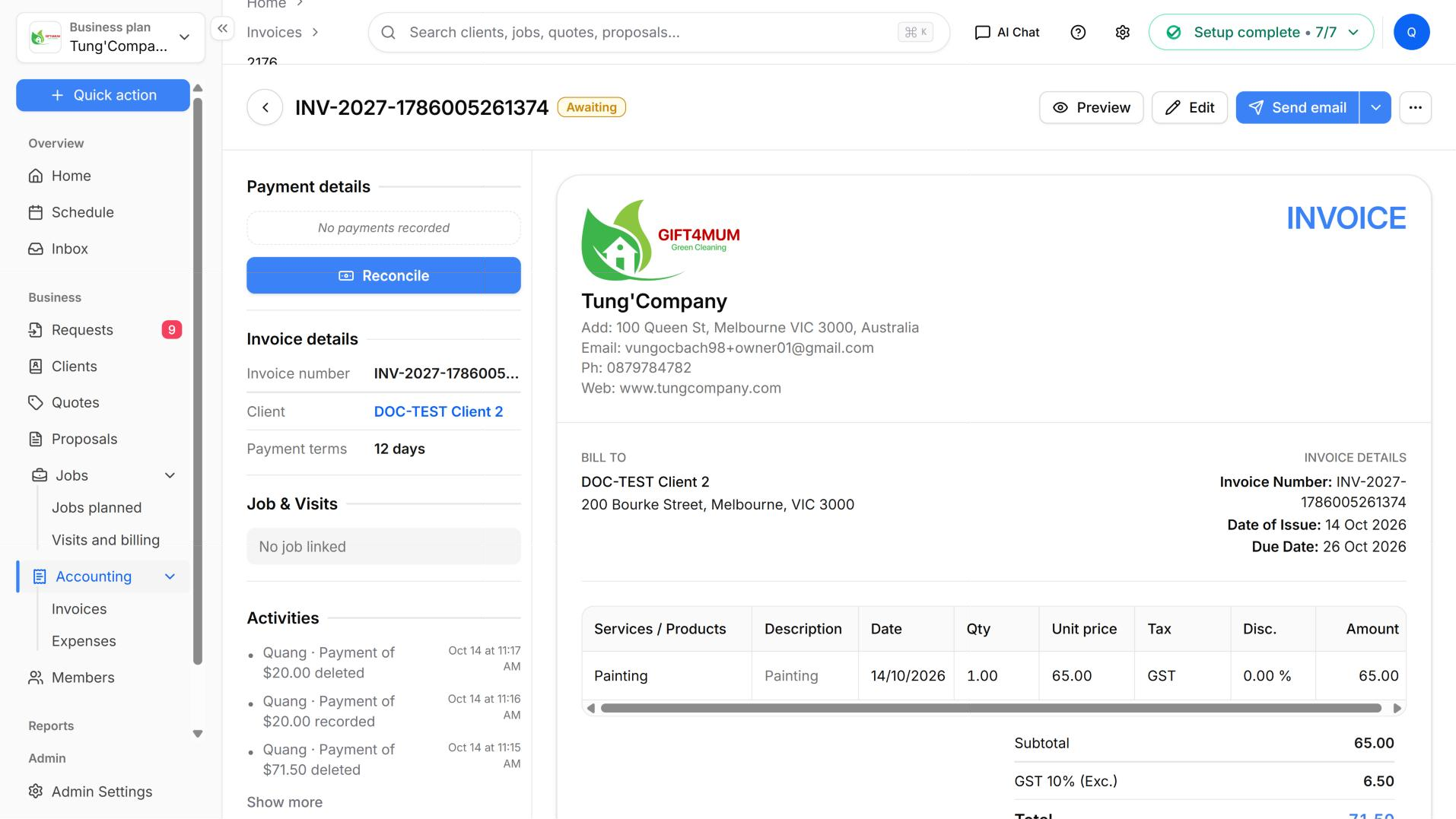
If you leave without sending, the invoice shows Awaiting with no Sent badge. You can still select Send email or Reconcile.
Good to know
- You can't approve an invoice until it has a client and at least one line. If either is missing, you'll see "Please select a client" or "Please add at least one item".
- HiTradies saves a Draft for you as soon as you choose a client or fill in a line. Choosing a client is enough, even if the invoice has no lines yet. A completely empty form isn't saved. If you leave the page, the draft is kept, and you can continue from the Invoices list.