
Appearance
How expenses work
An expense is money your business spends — materials, fuel, tools, subcontractors, insurance, and the wages you pay your team. Recording each one in HiTradies shows you what every job really cost, so you can see whether it made a profit.
Tip — You don't need to type in your team's wages. When a visit is marked complete, HiTradies adds each team member's pay for that visit as a Labour expense for you. See Labour expenses are added for you.
Every expense has:
- A category — the type of cost, such as Materials or Labour. Categories come from your chart of accounts, so your bookkeeping and your expenses use the same names.
- What it's for — the business in general, a client, a job, or a team member.
- A date, an amount and a tax rate — HiTradies works out the tax and the total for you.
- A description and a receipt (both optional) — add a photo or PDF of the receipt so you can find it again at tax time.
What an expense can be recorded against
When you add an expense, you choose what it's for under Add expense to. This decides where the expense shows up and which totals it counts towards.
| Add expense to | Use it for | Shows in the list as | Also shows on |
|---|---|---|---|
| Business | General running costs that aren't for one job — insurance, phone, software, vehicle rego. | BUSINESS badge, "General" | Business card on the Expenses list |
| Client | Costs for a client that aren't tied to one job. You can link a job too (optional). | CLIENT badge and the client's name | The client's Expenses tab |
| Job | Materials or other costs bought for a specific job. | JOB badge and the job number | The job's Expenses tab and its Net profit, and the client's Expenses tab |
| Member | Costs for a team member — mostly wages. Labour expenses are added automatically. | MEMBER badge and the member's name | Member card on the Expenses list |
Open your expenses
In the sidebar, open Accounting.
Select Expenses. The Expenses list opens.
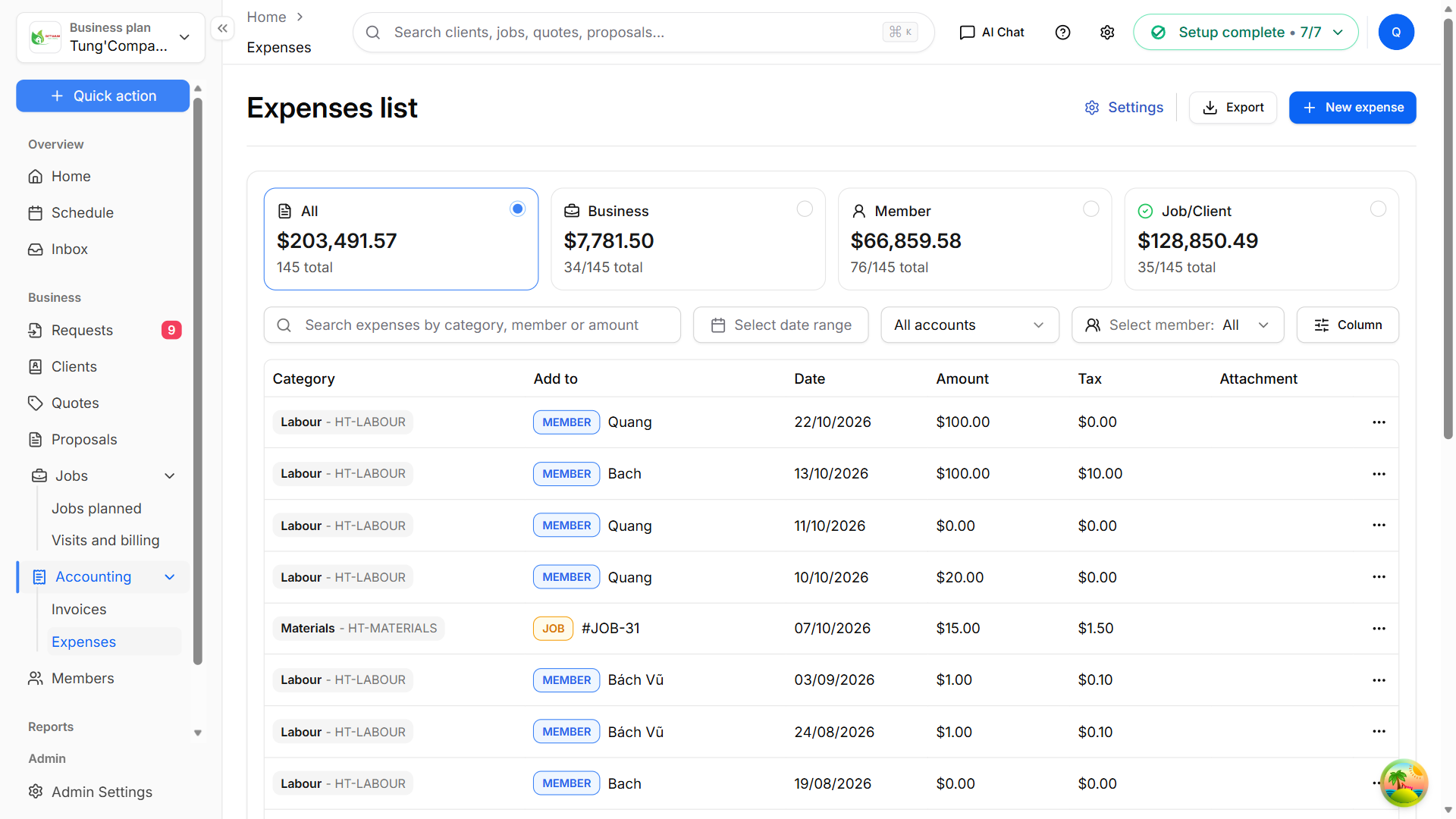
The buttons at the top of the page:
| Button | What it does |
|---|---|
| Settings | Opens Settings → Chart of accounts, where you manage your expense categories. See Expense categories. |
| Export | Downloads your expenses as a file. See Export and import expenses. |
| New expense | Adds a new expense. See Add an expense. |
Note — Which buttons you see depends on your role. If you can't see New expense or Export, ask the account owner to check your role's permissions.