
Appearance
Record a payment
Mark an invoice as paid, record a part payment, or fix a payment you entered wrongly.
When a client pays you outside HiTradies — by bank transfer, cash on the day or card on site — record the payment so your records stay accurate. Where you record it depends on whether you've connected accounting software:
Accounting software connected: We strongly recommend recording the payment in that app instead. In HiTradies, Reconcile is greyed out. The payment then appears on the HiTradies invoice automatically. If it doesn't, check the invoice's Activities, or the Sync status tab for your accounting software, to see whether the sync failed. See Connect your accounting software.
No accounting software connected: Record the payment in HiTradies using Reconcile (see the steps below).
Note — If your client pays using the link on their copy of the invoice, the payment is recorded for you. See What your client sees.
Record a payment (Reconcile)
Open the invoice from the Invoices list.
Under Payment details, select Reconcile.
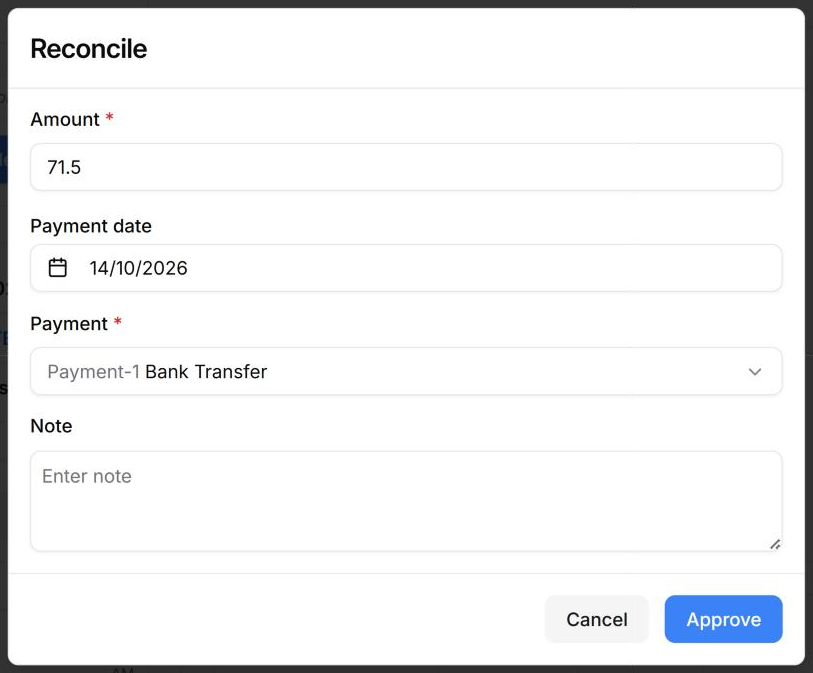
Check the details. Most are already filled in:
- Amount — starts as the full balance owing. It can't be more than what's owed, and it must be at least $0.01.
- Payment date — set to today.
- Payment — how the client paid. Bank Transfer is selected by default.
- Note — anything worth remembering, such as a receipt number.
Select Approve. The invoice's status, badges and progress bar update straight away.
Note — Reconcile isn't available on an invoice that's paid in full. If you've connected accounting software, Reconcile is greyed out. Hover over it to see "Payments are managed in … — record this payment there instead."
Record a part payment
Use this for a deposit paid up front, or when a client pays off a big job in instalments.
- Follow the steps above to open the Reconcile window.
- In Amount, replace the pre-filled amount with the smaller amount the client paid.
- Select Approve.
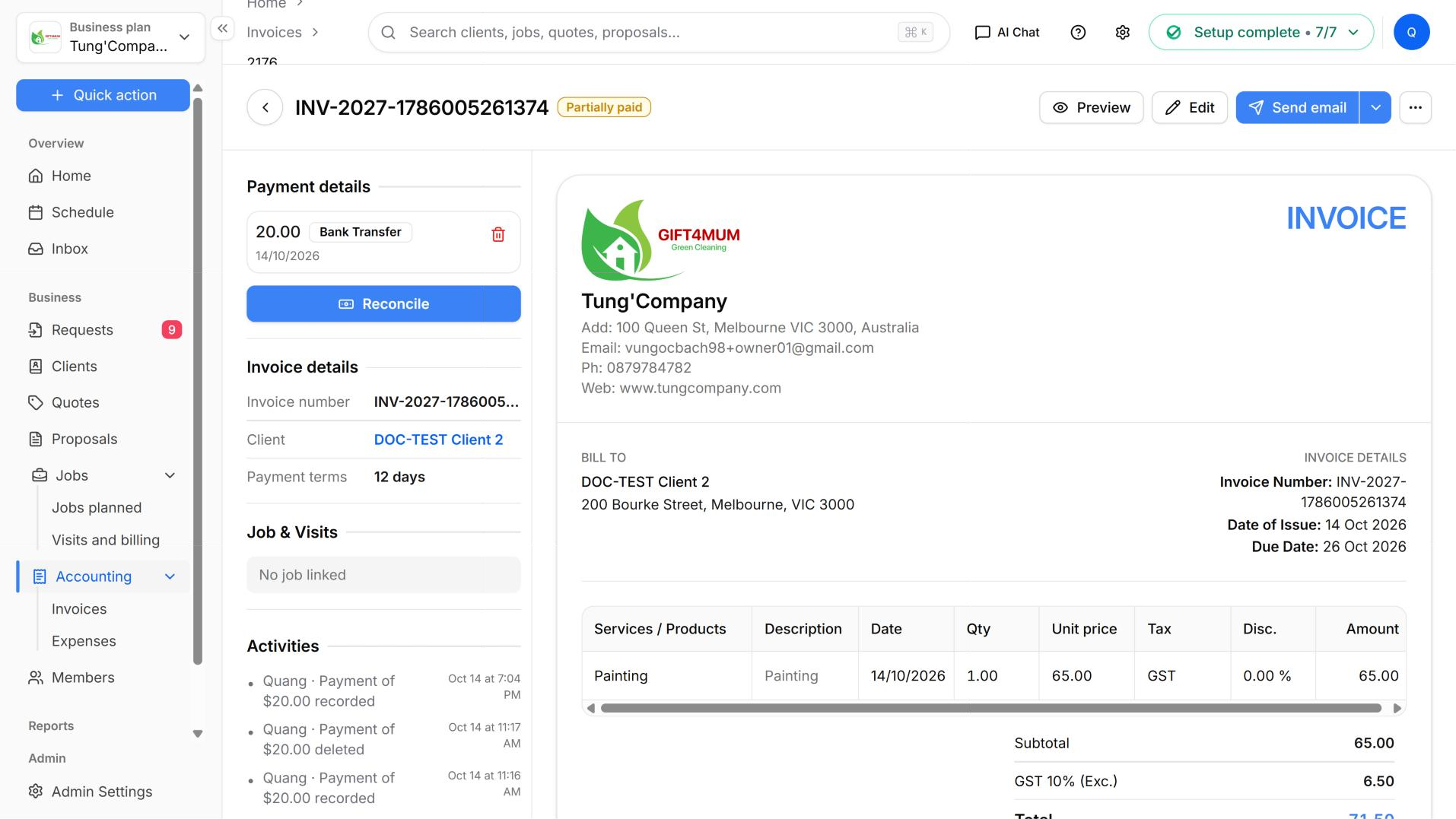
The invoice now shows Partially paid (with the status Awaiting) instead of Paid. The remaining balance still shows in Amount due and in your Awaiting total. When the client pays the rest, record it the same way.
Fix or remove a payment
Each payment's row under Payment details has a pencil icon and a bin icon.
- To change a payment — select the pencil, then change the details in the Update Payment window. You'll only see the pencil if your role lets you edit payments. If you don't see it, remove the payment (see below) and record it again with Reconcile.
- To remove a payment — select the bin and confirm. The payment is deleted, and you can record it again with Reconcile. If accounting software is connected, the bin is greyed out, because payments are managed there.
When you remove a payment, its amount is taken off the amount paid and added back to Amount due. HiTradies then updates the status to Overdue if the due date has passed, or to Awaiting if it hasn't.