
Appearance
Find and review your expenses
The summary cards
Above the list are four cards. Each one shows the total spent and how many expenses it covers, for example "34/145 total" means 34 of your 145 expenses.

| Card | What it covers |
|---|---|
| All | Every expense |
| Business | General running costs that aren't for a job, client or team member |
| Member | Costs recorded against a team member, including automatic Labour expenses |
| Job/Client | Costs recorded against a job or a client |
Select a card to show only those expenses. The selected card has a blue border. Select All to see everything again.
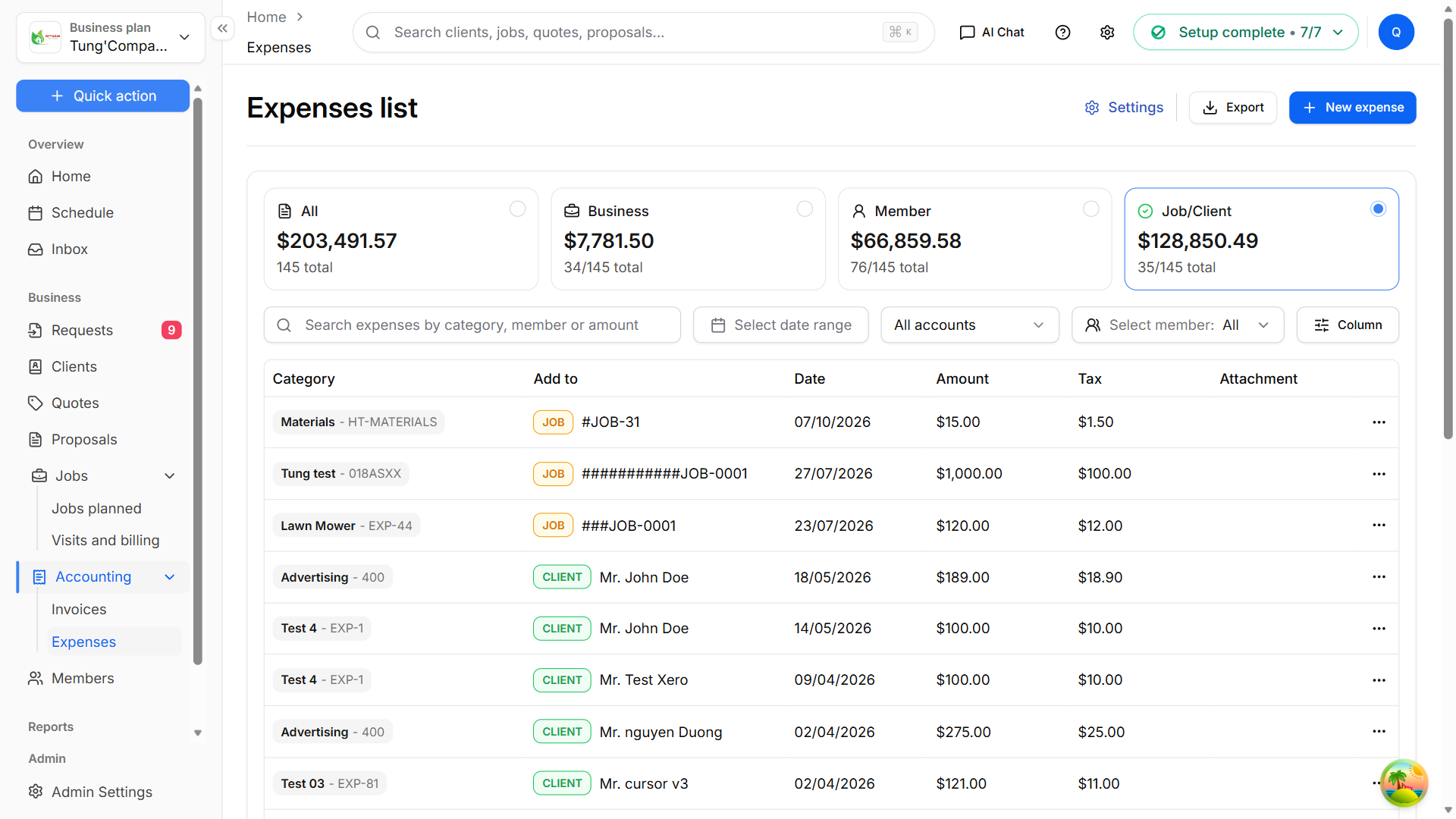
Tip — The cards follow the date range you pick. Choose This month in Select date range to see what you've spent this month at a glance.
Search and filter

- Search — type a category, team member or amount. The list updates as you type. Select the × to clear it.
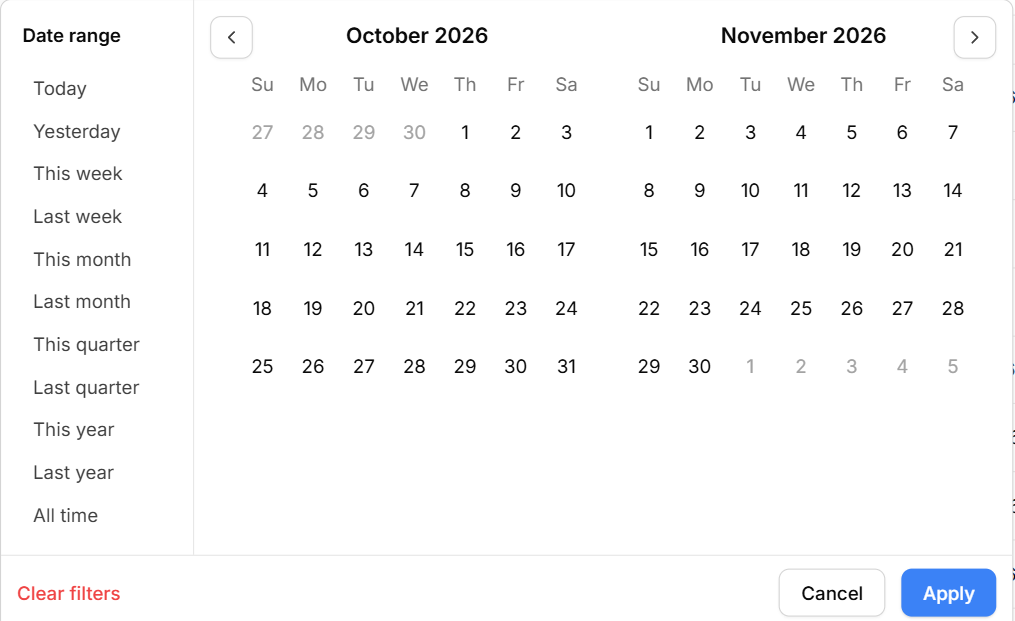
- Select date range — pick a ready-made range (Today, This week, This month, Last quarter, This year, All time…) or choose the start and end dates on the calendar, then select Apply. Clear filters in the same window removes the dates.
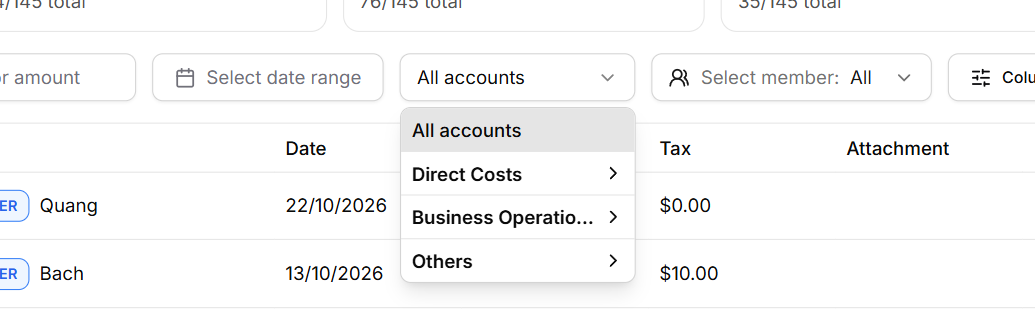
- All accounts — show only one category. Open a group, then choose the category.
- Select member — tick one or more team members to see only their expenses. Select All to clear it.
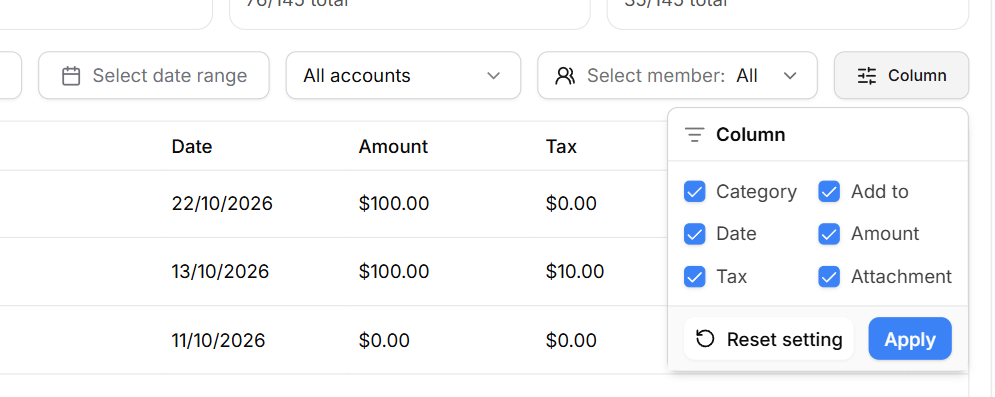
- Column — choose which columns to show, then select Apply. Reset setting shows them all again.
If nothing matches, you'll see "No expenses found — Try changing or clearing your filters". Select Clear filters to start again.
What each column shows
| Column | What it shows |
|---|---|
| Category | The category name and its code, for example Materials - HT-MATERIALS |
| Add to | What the expense is recorded against — a BUSINESS, JOB, CLIENT or MEMBER badge with its name. Select a job or client name to open it. |
| Date | The date of the expense |
| Amount | The amount before tax |
| Tax | The tax on the expense |
| Attachment | The receipt, if one was added. Select it to open the file in a new tab. |
Use Rows per page and Previous / Next at the bottom of the list to move through long lists.
Export
On the Expenses list, choose the date range and category you want (or leave them empty to export everything).
Select Export, then choose an export template.
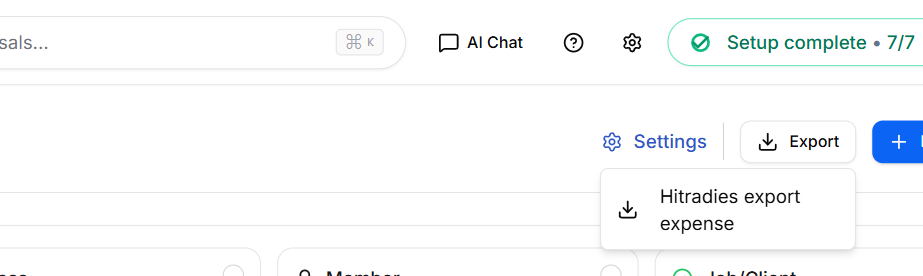
The file downloads every expense in the date range and category you've chosen — not just the page you're looking at. The summary card and member you've selected aren't applied to the export. You'll see "Expenses exported successfully!".