
Appearance
What your client sees
What your client sees when they open the invoice, and how they pay.
Tip — Before you send an invoice, open it and select Preview to see exactly what your client will see.
When you email an invoice, your client gets a link to their own copy. They don't need a HiTradies account or a password — the link opens straight away.
See it yourself
Open the invoice.
Select Preview. Your client's copy opens in a new tab.
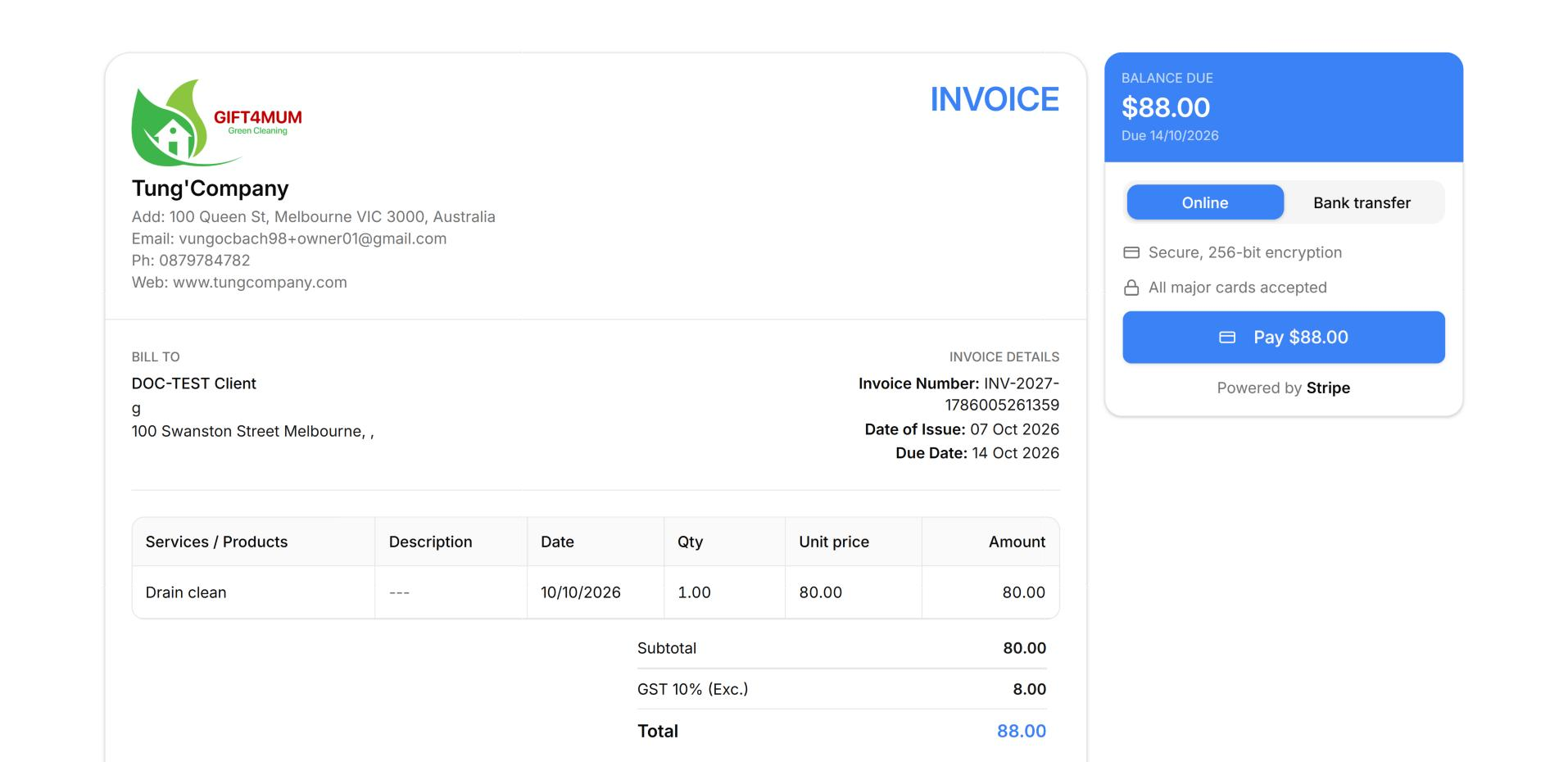
What's on the page
- On the left — the full invoice: your business details, who it's billed to, every line you're charging for, the totals, your notes and your payment instructions.
- On the right — a payment panel. It shows the balance due, any card surcharge and the total due. Your client can pay Online or by Bank transfer, and there's a Pay button.
Note — Online and Pay only appear if your business accepts card payments online. If it doesn't, your client sees only the balance due and Bank transfer, with your bank details. The surcharge line only appears if you've turned on card surcharges.
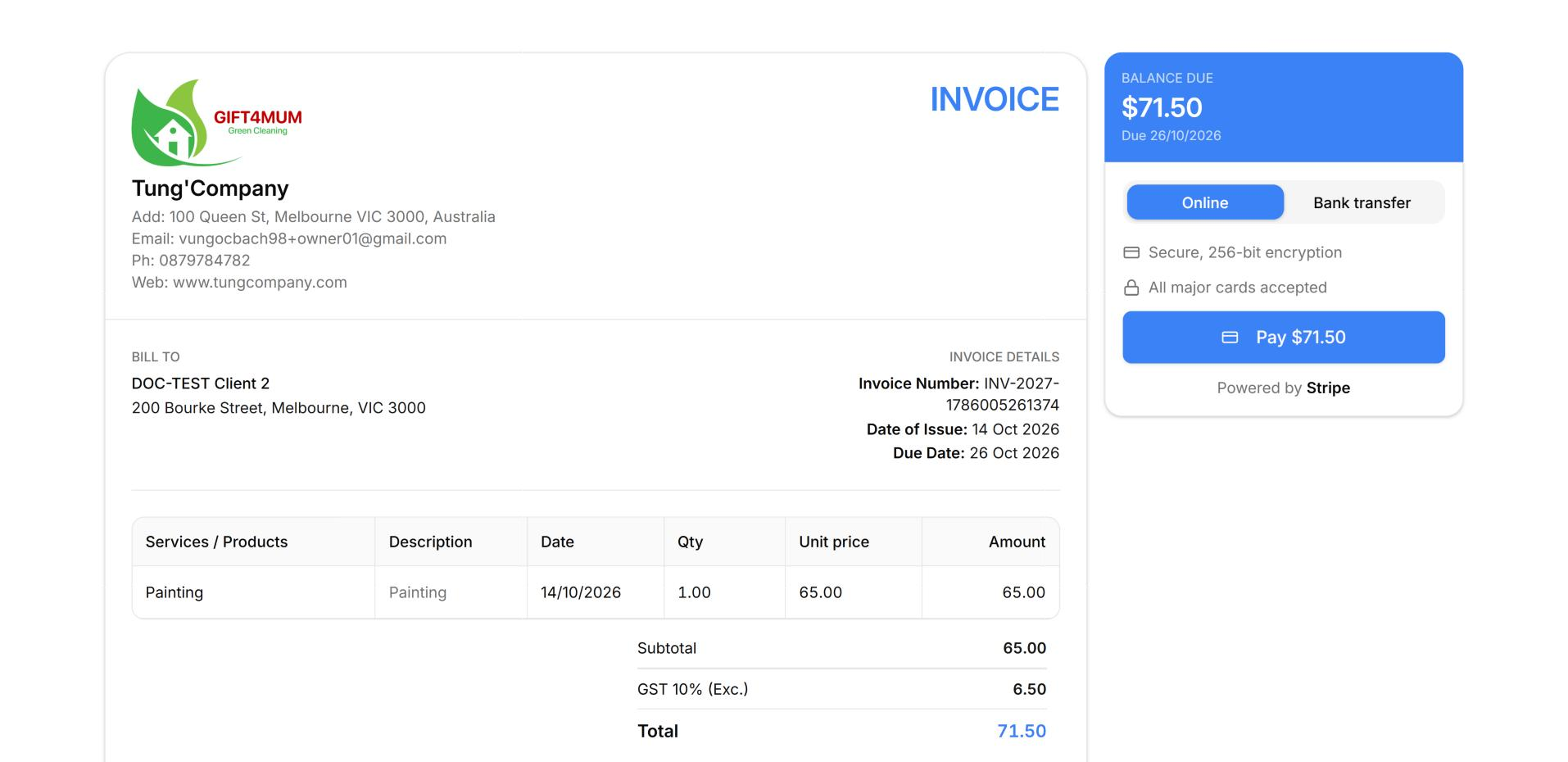
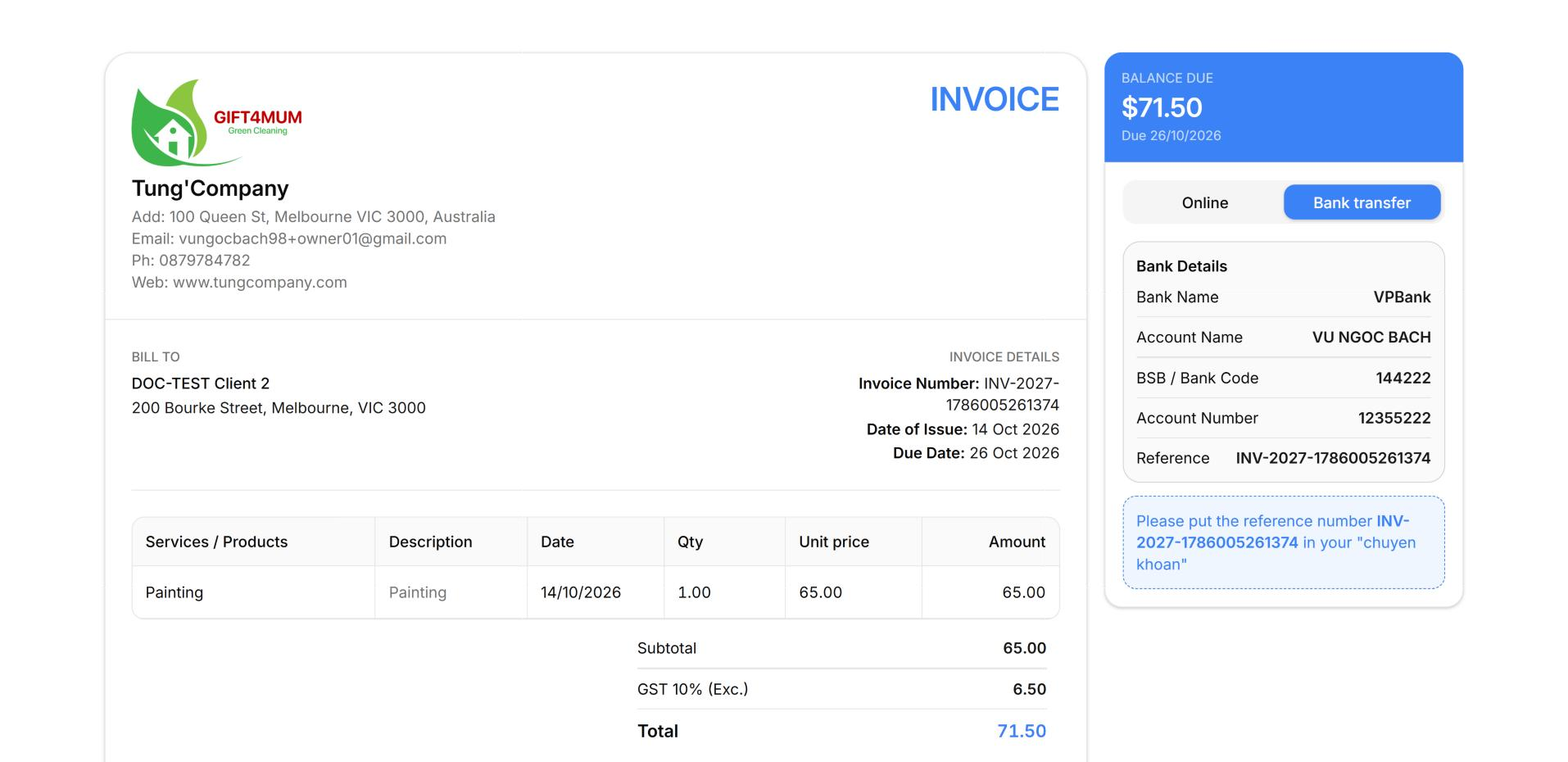
How your client pays
| Method | What happens |
|---|---|
| Online (card) | Payments are handled by Stripe, so card details never pass through HiTradies. Any transaction fee is shown before your client pays. Once they've paid, the status, amount paid and balance update automatically on your side. |
| Bank transfer | Your client sees the bank details from your payment instructions. HiTradies doesn't see the money arrive. When it reaches your account, record the payment yourself (see Record a payment). |
Good to know
- Unlike a quote, your client's copy of an invoice has no Download PDF button. Once the invoice is paid, you can send them a PDF yourself — see View an invoice.