
Appearance
Connect your accounting software
Connect your accounting software so your invoices, payments and expenses go into your books without you typing them in twice.
Tip — Already have invoices in your accounting software? If it's connected to HiTradies, you can import your existing invoices instead of creating them again.
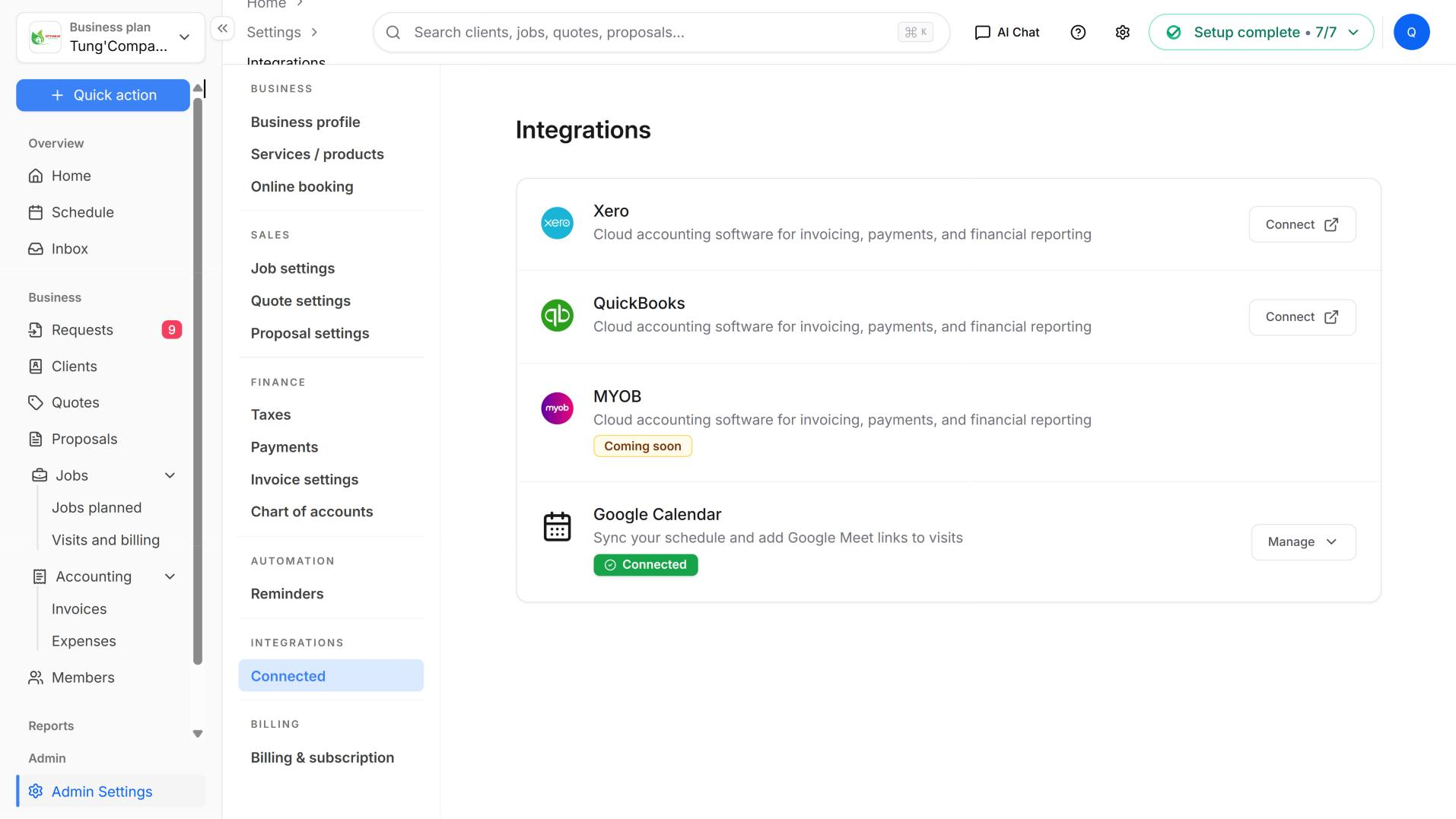
All connections are under Settings → Connected.
Tip — Connect your accounting app early. Records that already existed before you connect Xero don't sync automatically — you have to send each one with Sync now.
Which accounting apps you can connect
| App | Status | What it does |
|---|---|---|
| Xero | Available | Syncs clients, invoices and payments in both directions, and sends quotes and expenses to Xero. You can also import data from Xero and check the sync status. See Using Xero below. |
| QuickBooks | Available | HiTradies sends your records to QuickBooks. Each record's Activities shows whether the sync worked. |
| MYOB | Coming soon | Not available to connect yet. |
Note — You can only connect one accounting app at a time. To switch apps, disconnect the current one first. If you don't, you'll see "You already have … connected. Disconnect it before connecting …."
Connect your accounting app
- Select the Settings (gear) icon, then select Connected (under Integrations).
- Next to the app, select Connect.
- Sign in to the app and approve the connection. You're then brought back to HiTradies. If you use Xero and have more than one organisation, choose the one to connect.
- The app now shows a green Connected badge.
- To change the connection later, select Manage next to the app:
- Manage in … — opens the app's settings page in HiTradies.
- Disconnect account — ends the connection.
What changes once an accounting app is connected
- Payments are recorded in your accounting app. On an invoice, Reconcile is greyed out. Hover over it to see "Payments are managed in … — record this payment there instead."
- Activities show each sync. The Activities panel on an invoice or client lists each sync and whether it worked. For example: "Could not sync to Xero — customer could not be synced".
Using Xero
To open the Xero settings page, select Manage → Manage in Xero. The page has two tabs: Overview and Sync status.
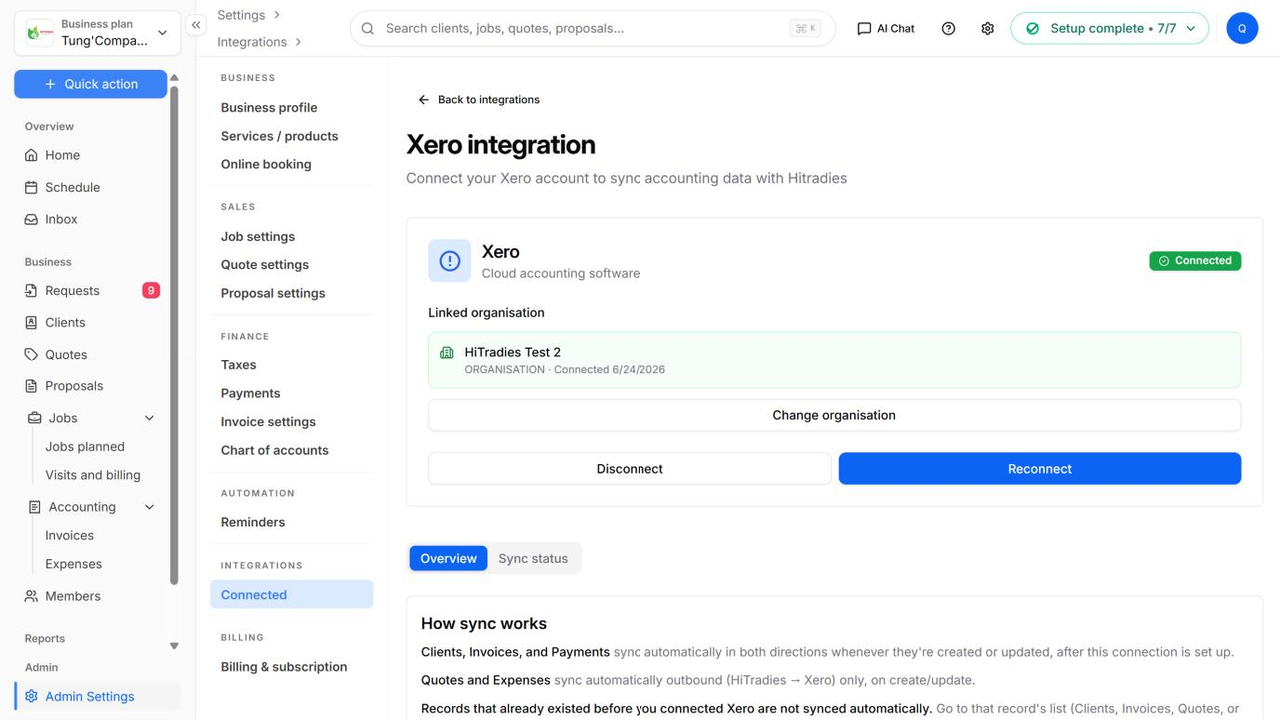
What syncs, and which way
| Record | Direction | When |
|---|---|---|
| Clients | Both ways (HiTradies ↔ Xero) | Automatically, whenever one is created or updated |
| Invoices | Both ways (HiTradies ↔ Xero) | Automatically, whenever one is created or updated |
| Payments | Both ways (HiTradies ↔ Xero) | Automatically, whenever one is recorded |
| Quotes | One way (HiTradies → Xero) | Automatically, whenever one is created or updated |
| Expenses | One way (HiTradies → Xero, as bills) | Automatically, whenever one is created or updated |
Important — Records that already existed before you connected Xero don't sync automatically. To sync them, open their list (Clients, Invoices, Quotes or Expenses) and select Sync now on any row marked as not synced.
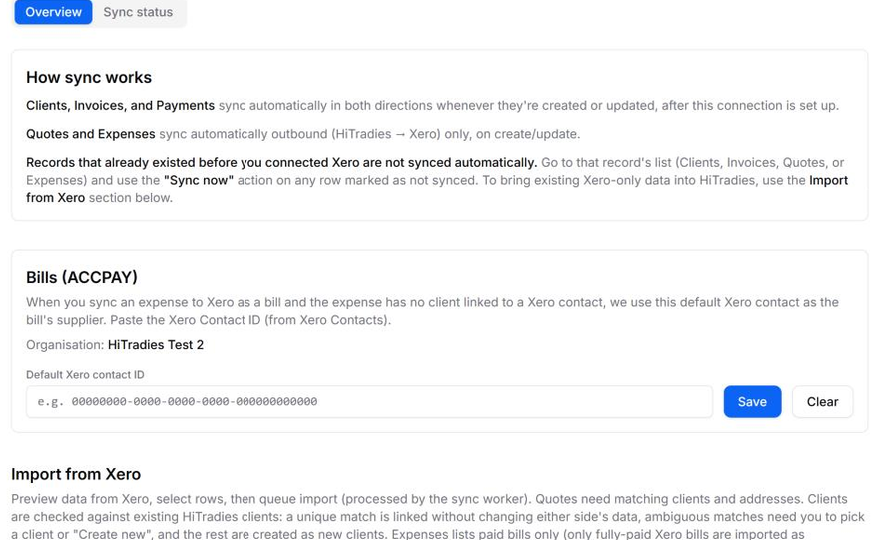
Sync status on each record
Open the ⋯ menu on an invoice, quote, client or expense to see its Xero status: Synced, Sync pending, Not synced or Failed. To send it again, select Sync now (or Retry sync if it failed). Once it's synced, you can select View in Xero.
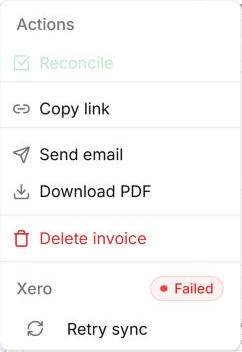
Expenses and bills
Expenses are sent to Xero as bills. If an expense doesn't have a client linked to a Xero contact, Xero needs a default supplier. To set one, paste a Default Xero contact ID under Bills (ACCPAY) on the Overview tab, then select Save.
Bring existing Xero data into HiTradies
- On the Overview tab, go to Import from Xero.
- Choose an Entity type: Services (items), Chart of accounts, Quotes, Tax rates, Clients, Invoices or Expenses (bills).
- Select Preview from Xero, then tick the rows you want to import.
- Select Queue import. Import history shows what was brought in, how many records were imported and how many failed.
- Clients are matched with your existing HiTradies clients. If there's exactly one match, the two are linked and neither is changed. If the match isn't clear, you're asked to choose a client or Create new. Clients with no match are added as new clients.
- Quotes need clients and addresses that match.
- Important: expenses — only Xero bills that are fully paid are imported. Unpaid or partly paid bills aren't imported.
Check the sync status
Open the Sync status tab. For clients, invoices, quotes and expenses, it shows how many are synced, pending, failed and not synced. Below that is a Recent activity list you can filter by type and status.
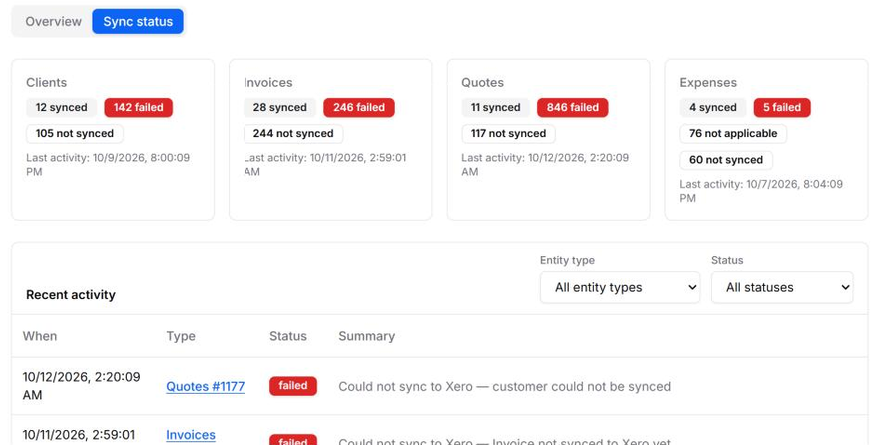
The Summary column in Recent activity shows why a sync failed. For example: "Could not sync to Xero — customer could not be synced".
Manage the Xero connection
- Change organisation — link to a different Xero organisation. This removes all existing links between your HiTradies records and Xero. As records sync, they're linked again or created in the new organisation.
- Reconnect — refresh the connection if Xero asks you to sign in again.
- Disconnect — stop syncing. Your records stay in HiTradies. If you reconnect the same organisation later, syncing resumes from where it stopped.