
Appearance
Add an expense
Record a cost you've paid, and say what it was for.
Where you can add an expense
- A job's page — open the ⋯ menu and select New expense, or open the job's Expenses tab and select New expense. The expense is added to that job automatically.
- A client's page — open the menu next to + New and select New expense. The expense is added to that client automatically.
- Expenses list — select New expense at the top of the page. You choose what the expense is for in the form.
The fastest way to add an expense for a job is from the job itself — you don't have to look up the client and job again.
Add an expense from a job
Open the job. In the sidebar, go to Jobs → Jobs planned and select the job.
Select the ⋯ button at the top right of the job page, then select New expense. Or open the job's Expenses tab and select New expense.
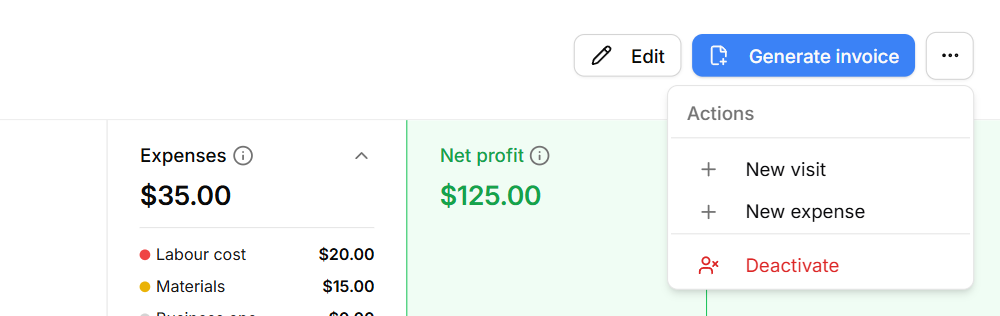
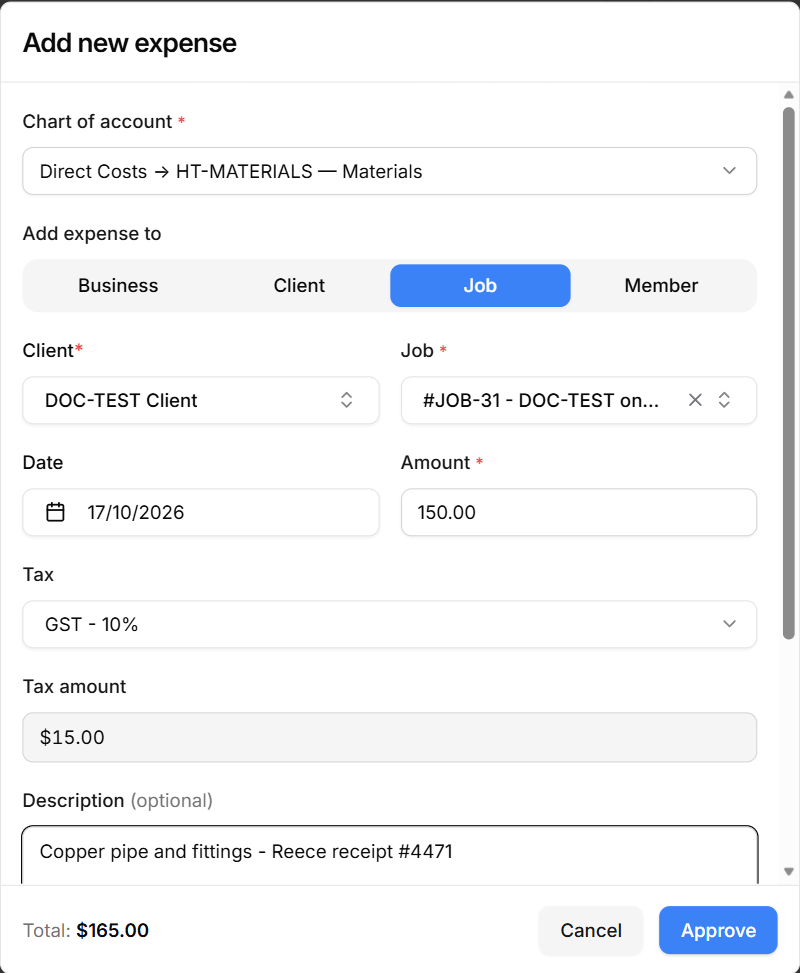
The Add new expense window opens. There's no Add expense to row — the expense is already set to this job and its client. Today's date and your main tax rate are already filled in.
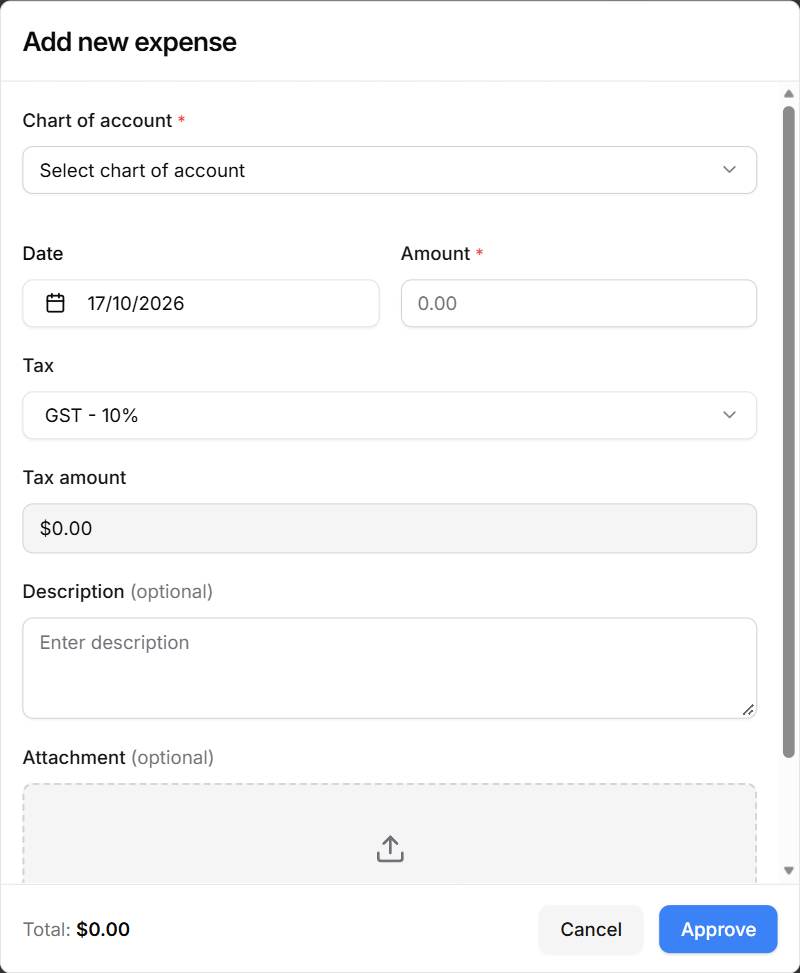
Chart of account — select the box, then open a group (Direct Costs, Business Operation Costs or Others) and choose a category. For example, Direct Costs → Materials.
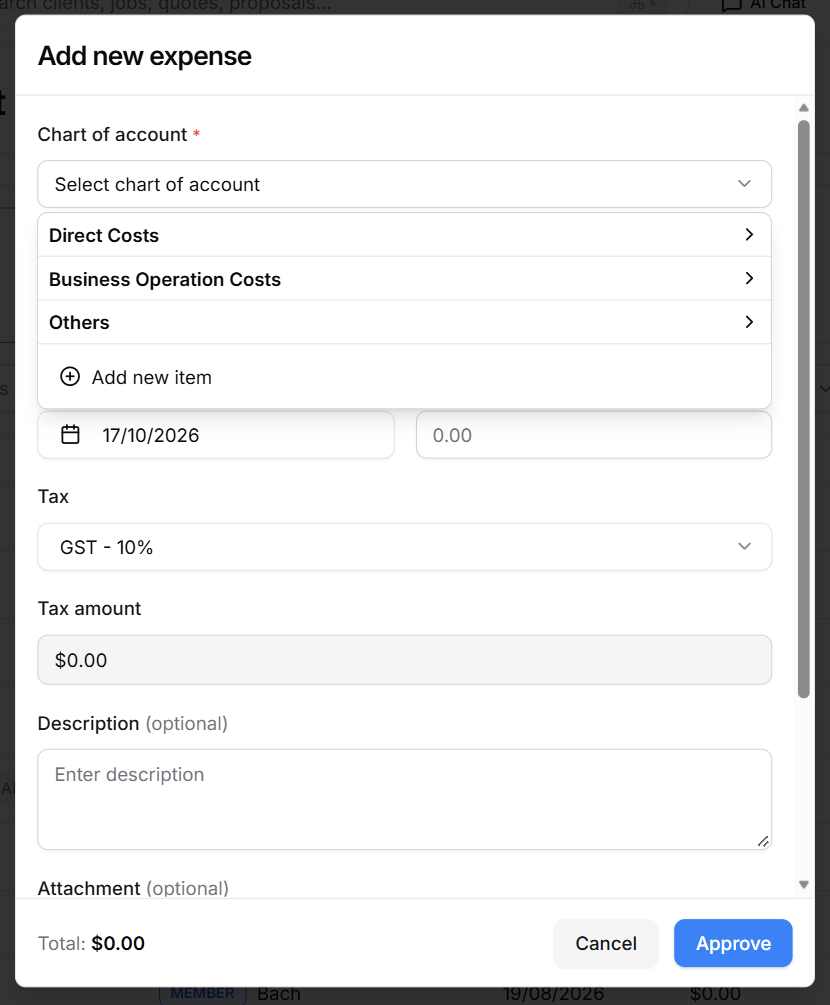
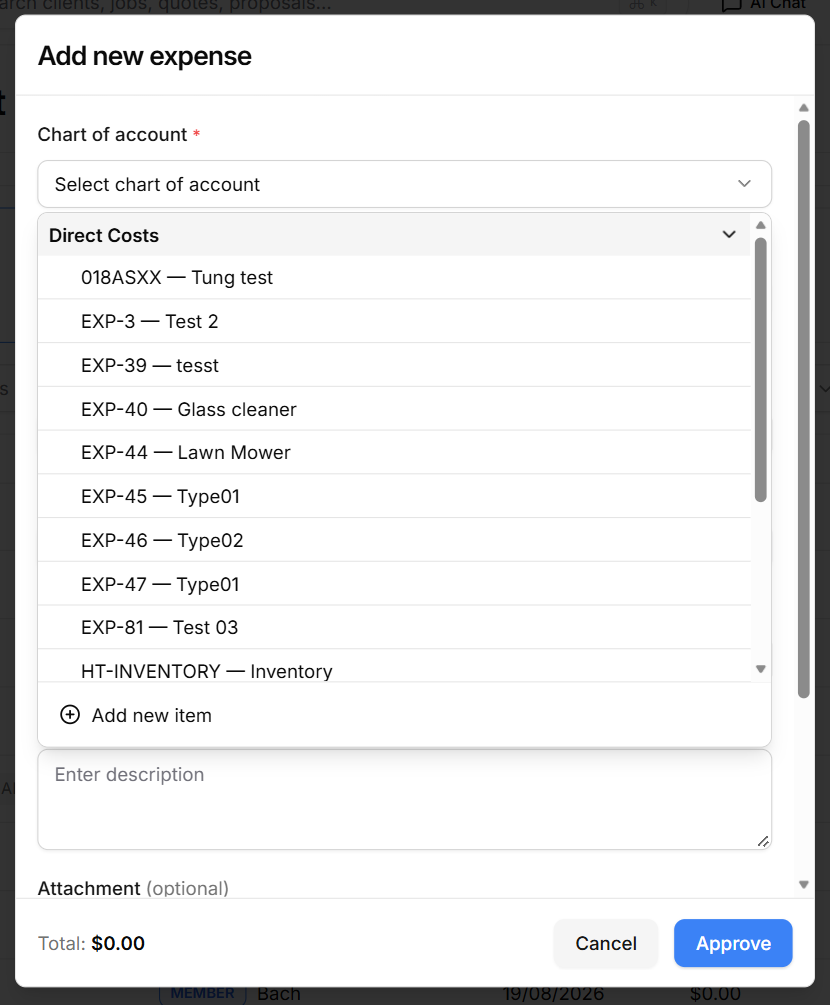
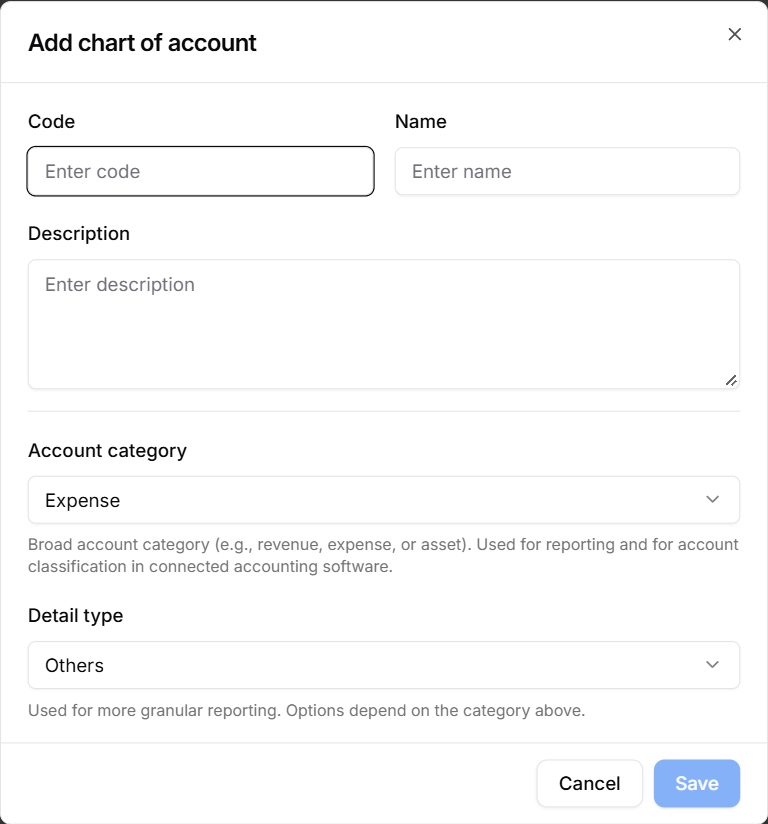
Tip — Can't find the right category? Select Add new item at the bottom of the list. Enter a Code and a Name, keep Account category as Expense, choose a Detail type (this is the group it appears under), then select Save. The new category is ready to use straight away.
Date — the day you paid. It starts as today; select it to choose another day.
Amount — what you paid, before tax. It must be more than zero.
Tax — starts at your main tax rate. HiTradies shows the Tax amount underneath. If there was no tax on the purchase, choose No tax.
Description (optional) — what you bought or why, for example "Copper pipe and fittings – Reece receipt #4471".
Attachment (optional) — select Click to upload a file and choose a photo or PDF of the receipt. You can add one file.
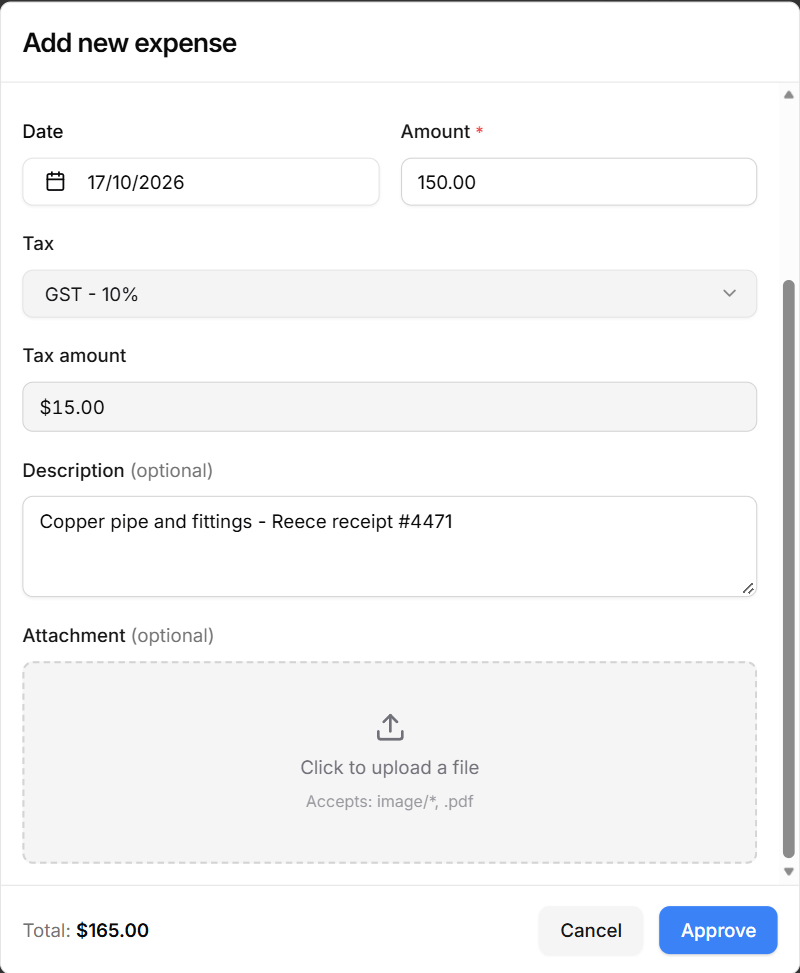
Check the Total at the bottom left — it's the amount plus tax. Then select Approve.
You'll see "Successfully added expense". The expense shows on the job's Expenses tab and counts towards the job's Expenses and Net profit. On the Expenses list it has a JOB badge.
Add an expense from a client
Open the client. In the sidebar, select Clients, then select the client.
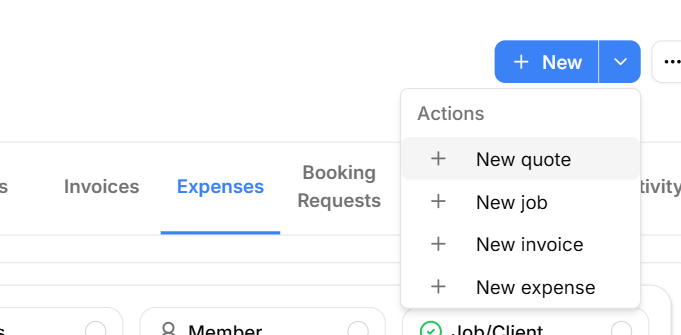
Select the arrow next to + New at the top right, then select New expense.
The Add new expense window opens. There's no Add expense to row and no client box — the expense is already set to this client. Today's date and your main tax rate are already filled in.
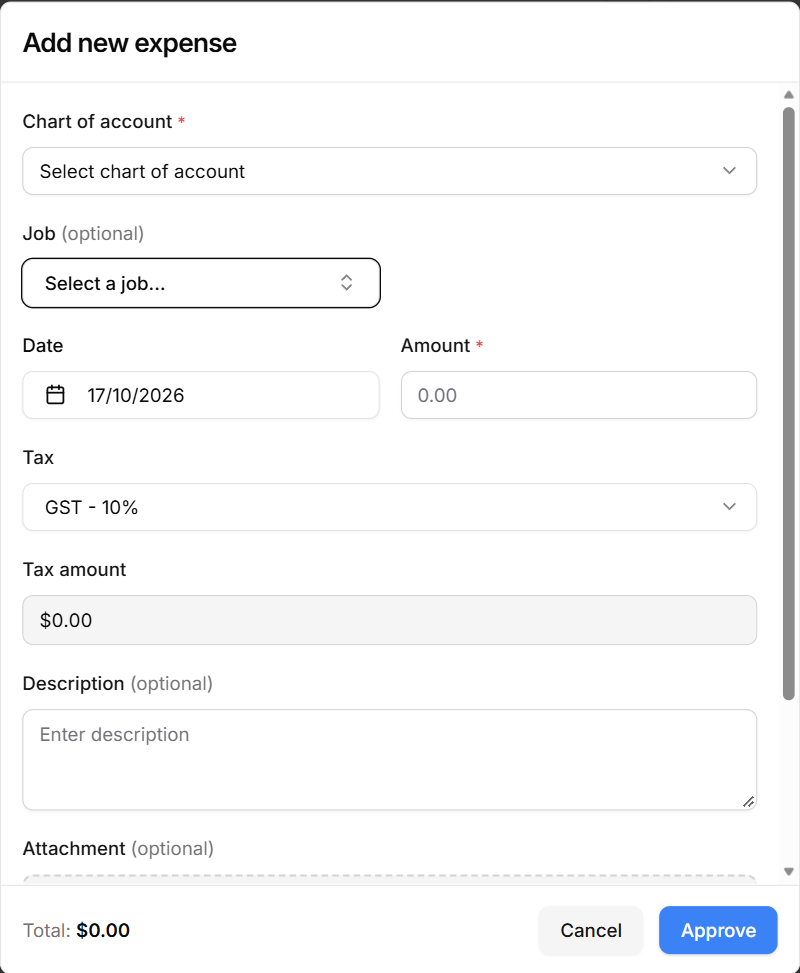
Chart of account — select the box, open a group and choose a category. You can also create one with Add new item (see Add an expense from a job).
Job (optional) — if the cost was for one of this client's jobs, choose it. The list only shows this client's jobs. Leave it empty for a general cost for the client.
Date — the day you paid. It starts as today; select it to choose another day.
Amount — what you paid, before tax. It must be more than zero.
Tax — starts at your main tax rate. HiTradies shows the Tax amount underneath. If there was no tax on the purchase, choose No tax.
Description (optional) — what you bought or why.
Attachment (optional) — select Click to upload a file and choose a photo or PDF of the receipt.
Check the Total at the bottom left — it's the amount plus tax. Then select Approve.
You'll see "Successfully added expense". The expense shows on the client's Expenses tab, and on the Expenses list with a CLIENT badge.
Add an expense from the Expenses list
In the sidebar, go to Accounting → Expenses, then select New expense. The Add new expense window opens. Today's date and your main tax rate are already filled in.
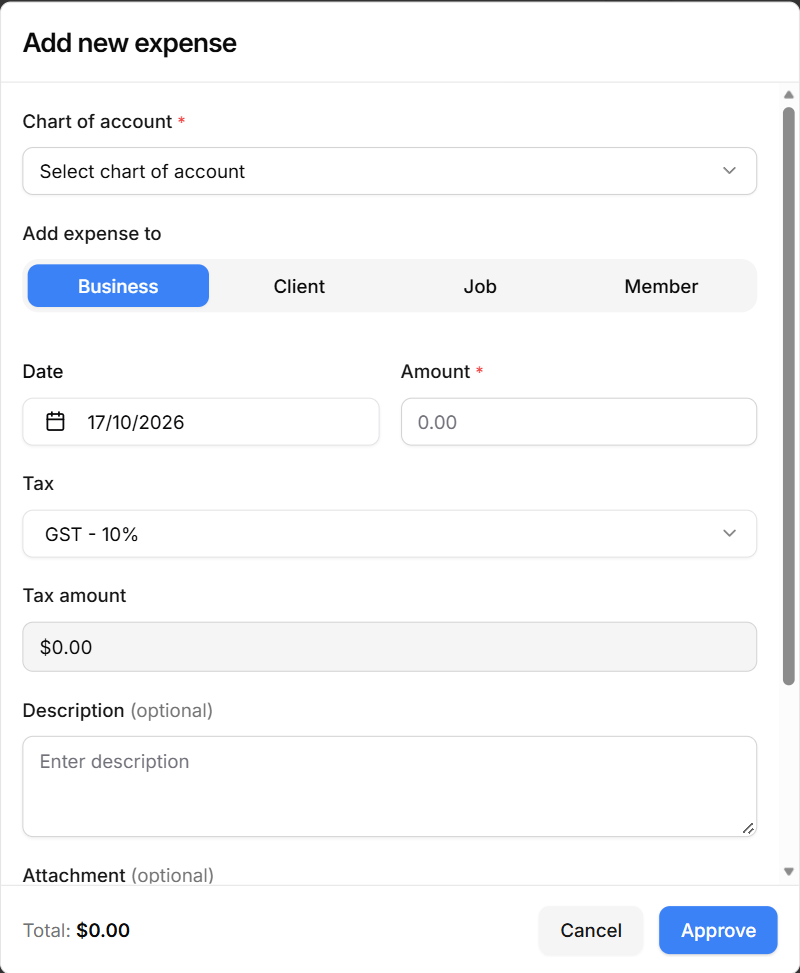
Chart of account — select the box, open a group and choose a category. You can also create one with Add new item (see Add an expense from a job).
Add expense to — choose what the expense is for, then fill in the boxes that appear:
- Business — nothing else to choose.
- Client — choose the Client. You can also choose one of their jobs (optional).
- Job — choose the Client first, then the Job. Until you pick a client, the job box shows "Select client first". The job list only shows that client's jobs.
- Member — choose the team member.
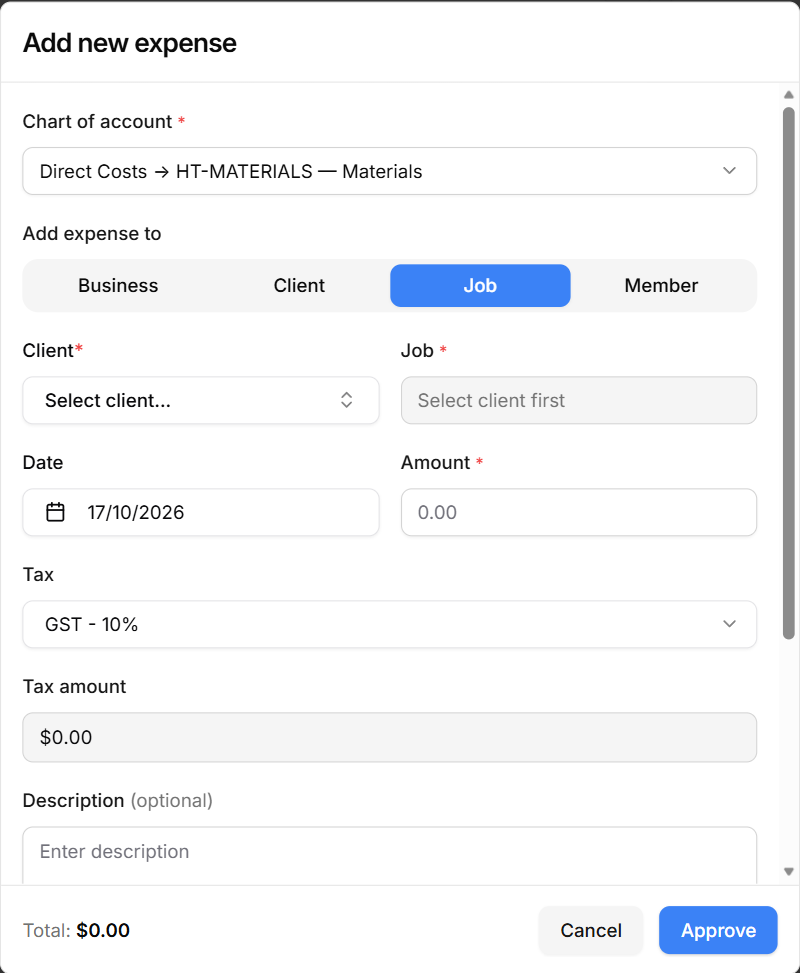
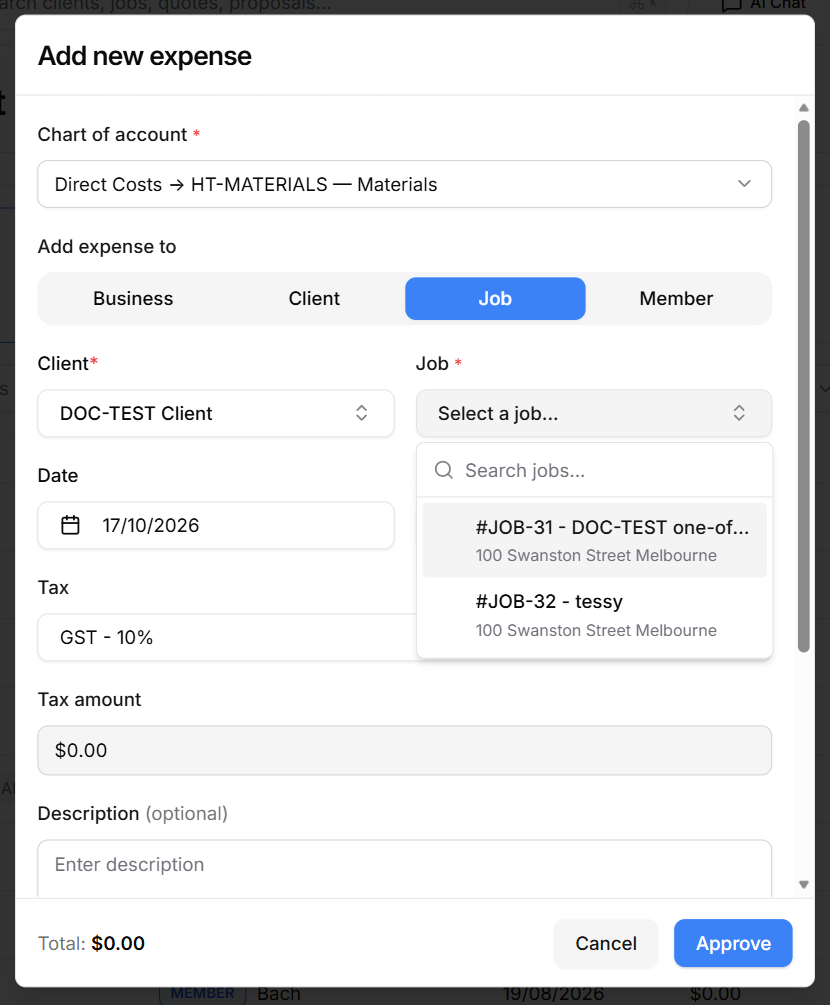
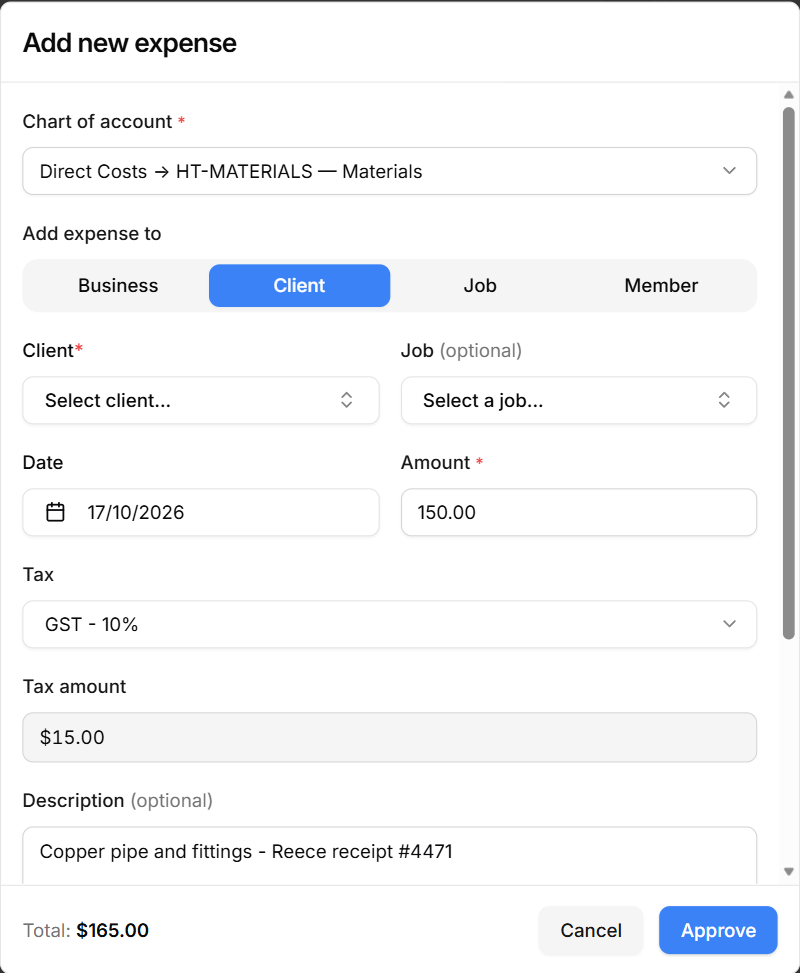
Date — the day you paid. It starts as today; select it to choose another day.
Amount — what you paid, before tax. It must be more than zero.
Tax — starts at your main tax rate. HiTradies shows the Tax amount underneath. If there was no tax on the purchase, choose No tax.
Description (optional) — what you bought or why.
Attachment (optional) — select Click to upload a file and choose a photo or PDF of the receipt.
Check the Total at the bottom left — it's the amount plus tax. Then select Approve.
You'll see "Successfully added expense", and the expense appears at the top of the list (the newest date comes first).
If something's missing
| You see | What to do |
|---|---|
| You must select a chart of account | Choose a category in Chart of account. |
| Please select a Client | You chose Client or Job — pick the client. |
| Please select a Job | You chose Job — pick the job. If the job isn't in the list, check you picked the right client. |
| Please select a Member | You chose Member — pick the team member. |
| Amount must be greater than 0 | Enter the amount you paid. It can't be zero. |