
Appearance
Edit or delete an expense
Each expense has a ⋯ menu at the right end of its row.
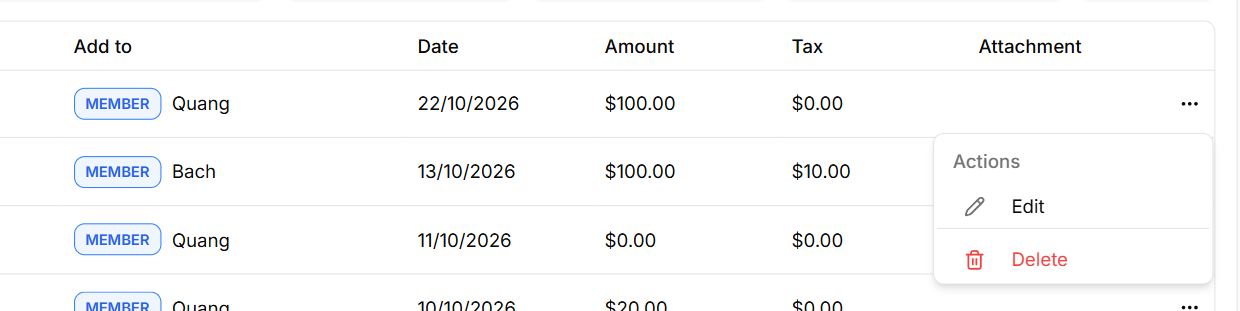
Edit an expense
- Select the expense's row, or select Edit in its ⋯ menu. The Update expense window opens.
- Change what you need. The window has the same boxes as when you added the expense. To replace the receipt, remove the old file and upload a new one.
- Select Update. You'll see "Successfully updated expense".
Note — Some expenses are locked. Their ⋯ menu shows Not editable with a lock, and selecting the row only shows the details — you can't change them.
Delete an expense
Open the expense's ⋯ menu and select Delete.
Select Delete in the window to confirm. You'll see "Expense deleted successfully".
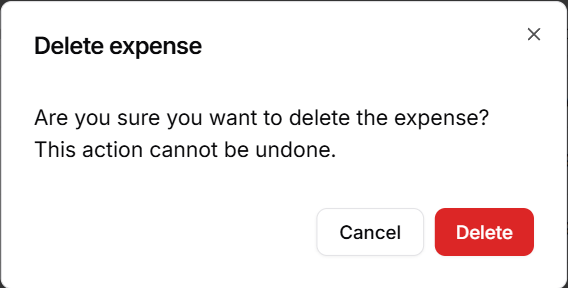
Important — Deleting can't be undone. If you delete a Labour expense, it's added again the next time that visit is changed.
If you've connected accounting software, the ⋯ menu also shows the expense's sync status. See Connect your accounting software in the Invoices guide.